How well versed are you in the use of our main virtual learning environment? There are certain things in Moodle that every teacher should be able to do by him- or herself. Managing your course Settings is one of those things.
Changing the number of topic sections (course content blocks)
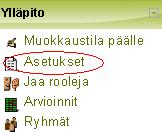
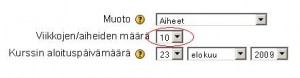
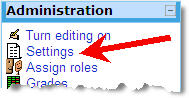 Often we get requests from teachers to add more “content blocks” to their courses, when the course materials are so many that the five default topic sections do not suffice. Topic sections are not added via the course page, but via the course Settings. The link to this important page can be found in the Administration block of your course. Upon clicking the link (one time is enough) you will see the course settings, with which you can control many aspects of your course. The number of topic sections in the course can be set after the text Number of weeks/topics. If you change the number of topic sections, scroll down to the bottom of the Settings page and Save changes.
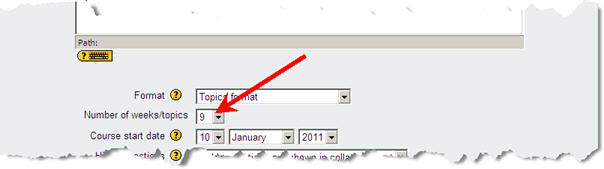 Note that if you reduce the number of topic sections, the superfluous ones disappear from view, but they still exist, including any course materials linked to those sections.
Checking the enrolment key
The enrolment key is a password that you can give to your students, so that they can enrol themselves in your course. If you do not remember the enrolment key for your course you can find it in the course Settings (further down on the page) under the header Availability. There you can see the enrolment key if you tick the Unmask box. If you do not like the existing enrolment key, you can change it, but remember to scroll down to the bottom of the Settings page and Save changes.
 Do not leave your course without any enrolment key, because that would mean that anyone can enter the course and enrol themselves.
You can learn more about the various course Settings on the corresponding page of our Moodle manual.
The next installment in this series deals with uploaded file resources.