The new version of Moodle, while incorporating much neat new functionality, also omitted some small functions that were familiar to Moodle 1.9 users. One of those functions was the collapse topic icon, with which topics on a course page could be collapsed so that only one topic showed. This function was helpful to reduce the amount of scrolling on long course pages, even if it also gave rise to some confusion when new users accidentally clicked the icon.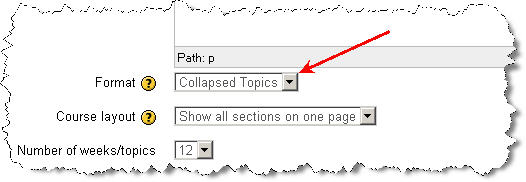
In Moodle 2.3.2 the collapse topic function has been incorporated in a new course format, called Collapsed Topics. This course format can be chosen in the course settings, as shown above. The Collapsed Topics course format allows users to collapse and unfold course topics at will. They can also close or open all topics with one click, as shown in the picture below. Also note that the default setting is that the current section (Set by highlighting it with the light bulb icon in editing mode) always comes first.
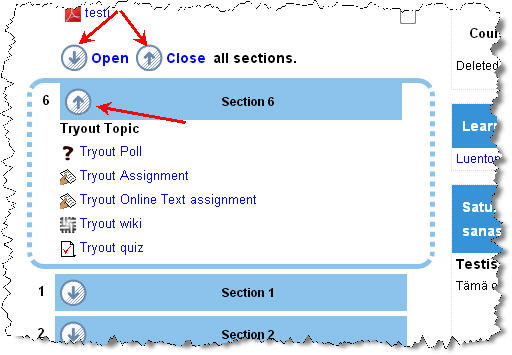
 As you see, the Collapsed Topics course format has a look that goes well with the default Lappia theme in Lappia Moodle. However, should you wish to use it with another colour theme, you can easily change the colours of the Collapsed Topics course format. All settings of the course format can be changed by turning editing on in the course and clicking the large orange icon at the top of the course page.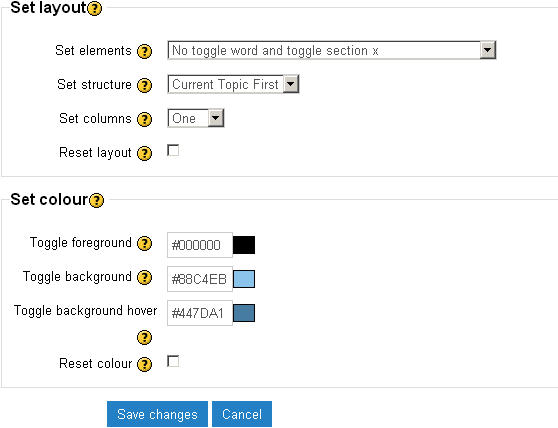
As you can see, it is possible to change what is displayed in the topic headers, what the default order of the topics is, how many columns of topics you want as well as the different colours of the topic bars. With this new course format the look of the course page in Moodle has become even more flexible.