The new version of Moodle is different in certain important ways from the familiar 1.9 structure. One of the main differences is in the way Moodle 2 deals with uploaded files.
The old 1.9 file system worked with course Files, i.e. users would upload files to a course Files area, where they could organise and mange those files, and they could then link to those files from various pages in the course. Moodle 2 largely does away with course Files. Now files are uploaded to the very place where they are shown, i.e. a file shown on the course page is uploaded to the file resource that displays it and nowhere else. This can lead to confusion for those who are used to the old file system, as they will find their files more difficult to overview and manage. However, for most it will be no more complex than the old system.
The old course Files have been retained in Moodle 2 under the name Legacy course files. However, they do not work exactly the same way as before. While it is possible to upload and organise files there and link to them, you cannot update or delete files in the course by updating or removing them from the Legacy course files!
So, why the new file system? Well, first of all, it is much more secure and easier on the server, which pleases the server administrators. From the user’s point of view the new file system opens greatly increased options to use all kinds of online repositories and embed content from those directly in Moodle. In other words, with the new file system you can, for example, link directly to pictures in Flickr or WikiMedia commons or to videos in YouTube or documents in Google docs and so on.
All linking to files is done via one pop-up interface, the File picker, which adapts to the kind of content you want to add (e.g. if you click the Insert image icon in the button bar of the editor and go to upload a file, the file picker will show for example WikiMedia as a repository, but not Youtube, because the latter does not contain any pictures).
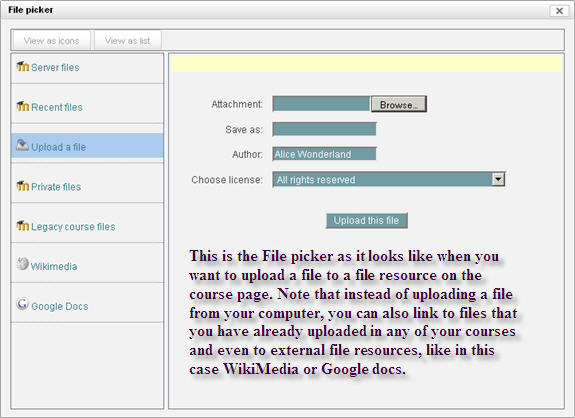
As mentioned in the picture, the File picker gives you access to files in all your courses, so it is possible via the Server files option to browse to a file that you uploaded in a resource in another course and add it to your new course.
Summing up, the new file system in Moodle 2 will be experienced as a challenge by those who are used to the old file system, but it once the users have familiarised themselves with the file picker, the new system offers vastly increased functionality.
As a footnote, we should add that the drag & drop functionality that the eLearning Centre will add to Moodle 2 will enable users to bypass the file picker entirely when they upload files to Moodle. This may for many be a more user-friendly way of putting files in their courses.