Categories
eOppimispalvelut Moodle

Introducing PoodLL

For many years Lapinkampus Moodle has relied on the small audio plugin NanoGong to provide users with an internal audio recorder in the Moodle HTML text editor. While NanoGong still works, developments on the Internet have overtaken it. Unsuspecting users trying NanoGong for the first time can be faced with a multitude of Java warnings and pop-ups (depending on the browser used) and this may discourage them. Therefore, the eLearning Services have selected an alternative audio recorder that is easier to use and that has better development prospects due to its ability to use HTML5 (the future web standard). This new recorder is called PoodLL and it offers audio recording options in places where NanoGong could not. It also offers options for (very) short video recordings, or simple whiteboard drawings in the HTML editor.

Presently, the Moodle administrator has installed PoodLL in the HTML editor, which offers recording options in the same places as NanoGong did. The functions can be accessed via icons in the button bar of the HTML editor in Moodle:
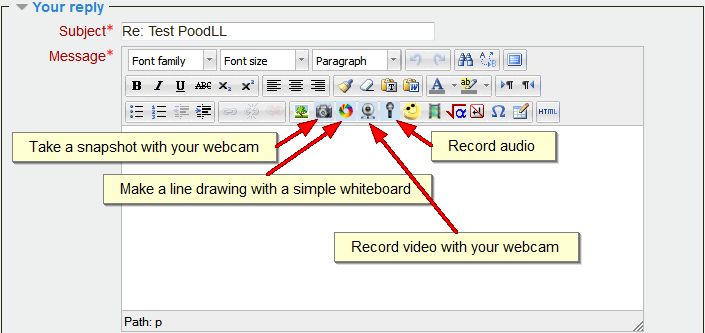
PoodLL in the button bar of the HTML editor

The interface of the four functions is really simple and self-explanatory. In the case of the audio (MP3) recorder, once you have opened it, all you need to do is allow the tool to use your mic and then you can record, pause, stop and play back, pretty much like in NanoGong. Once you are done with the recording, you click the Insert button to insert the recording into the HTML text window. After that it is a matter of saving the text (or posting the message, when you are in a forum, as in the example).
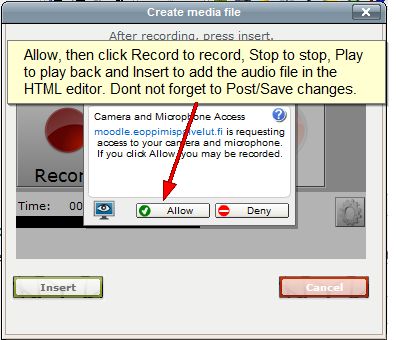
PoodLL MP3 recorder pop-up

Apart from the general PoodLL access, there is a special plugin that now gives teachers the option to provide spoken feedback in assignments (rather than by writing comments and/or uploading a response file). This option can be enabled in the feedback settings of a Moodle assignment.
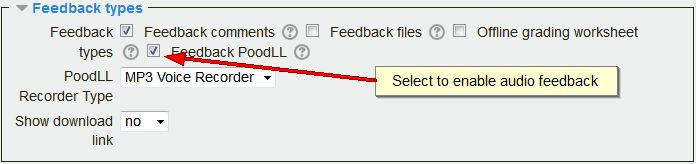
PoodLL assignment feedback setting

When enabled it provides the teacher with a PoodLL MP3 recorder on the grading page of each student as shown below:
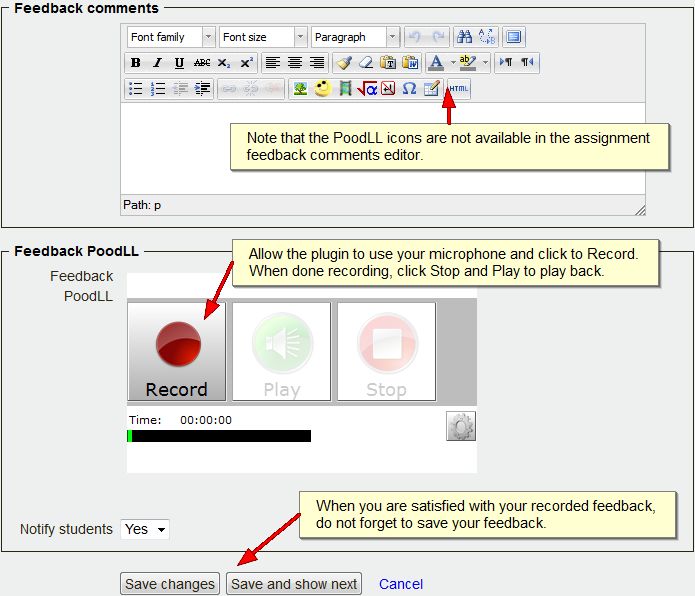
The PoodLL MP3 recorder on the grading page

Apart from the above functionality, special PoodLL audio submission plugins are available for the Moodle assignment, database and quiz module. These allow students to easily submit a recording for grading. These plugins have not been enabled yet, but they will be installed if teachers have a need for this functionality.

Note that, although the NanoGong recorder is no longer available, existing NanoGong recordings in Lapinkampus Moodle will continue to work as before.
Categories
eOppimiskeskus Moodle

Aloittaa alusta!

Kouluvuosi on alkanut ja monet opettajat Lapin AMK:ssa käyttävät nyt oppimisympäristö Moodle:a ensimmäistä kertaa. Jotkut voivat olla myös muistin virkistyksen tarpeessa, joten tässä olisi ohjeita Moodlen käyttöön.
Kurssit luodaan e-oppimiskeskuksessa käyttämällä eri ryhmiä (päivä opiskelijat, Englanti, Suomi, jne). Jotta voimme auttaa sinua luomaan kurssin, voisitko ystävällisesti lähettää seuraavat tiedot meille.
1. Kurssin tilaaminen e-oppimiskeskuksesta

  • Kerro kurssin nimi
  • SoleOPS kurssin koodi
  • Opiskelijaryhmän/ryhmien numero

Näillä tiedoilla (löydät tiedot SoleOPS:ista) voimme luoda kurssin ja pistää sen oikeaan kategoriaan. Opettajana voit myös mainita, ketkä muut opettajat tarvitsevat muokkaus oikeuksia kurssi materiaalille (voit myös itsekin lisätä oikeudet). Jos käytät viikkonäkymää tavallisen aihe näkymän sijasta, ilmoita myös kurssin alkamispäivä. Oletuksena kurssin ilmoittautumisavain luodaan meidän puolesta, mutta halutessasi voimme vaihtaa sen.

2. Kurssiavaimen tarkistus

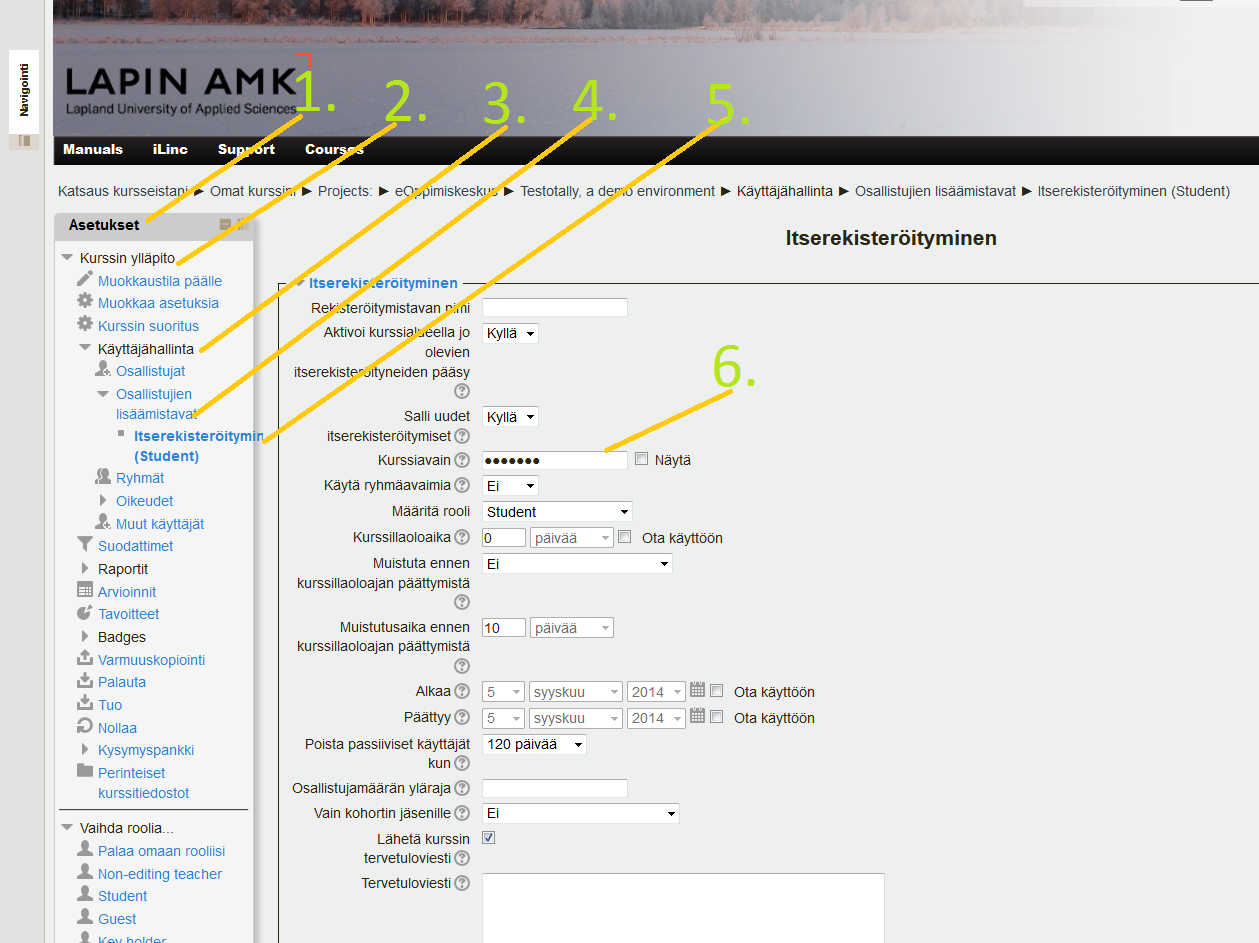
Näin saat esille kurssiavaimen

kurssiavaimen tarkistus

Kirjaudu moodleen, avaa kurssin sisältö jonka kurssiavaimen haluat nähdä. (esim, Englanti bit 14)-> Asetukset palkki-> kurssin ylläpito->käyttäjähallinta-> osallistujien lisäämistavat->itserekisteröityminen-> kohdassa “kurssiavain” paina “näytä” nappulaa, joka paljastaa salasanan valkoisessa tekstikentässä.
Jos haluat vaihtaa kurssiavaimen, muista tallentaa muutokset!

Categories
eOppimiskeskus Moodle

A Fresh Start!

The school year has started and many teachers in the new Lapland University of Applied Sciences will be using Moodle for the first time, whereas others may need a refresher. A good opportunity therefore to list some simple but useful instructions:

1. Requesting a course in Moodle

Courses are made by the eLearning Services using different templates to create the right course for the student group (English or Finnish, Adult or Daytime students, etc.). To serve you best the eLearning Services need the following information, all of which can be found in SoleOPS:

  • The name of the course
  • The SoleOPS code for the course
  • The name of the student group (or groups)

With these we can create the course and put it in the right category. You as teacher may also mention the names of additional teachers who need access to the course (although you can also add them yourself) and perhaps a starting date (important only if you use the “weekly” course format). You can also suggest an enrolment key, if you prefer to have your own rather than the key that the eLearning services will create.

2. Checking the enrolment key in your course

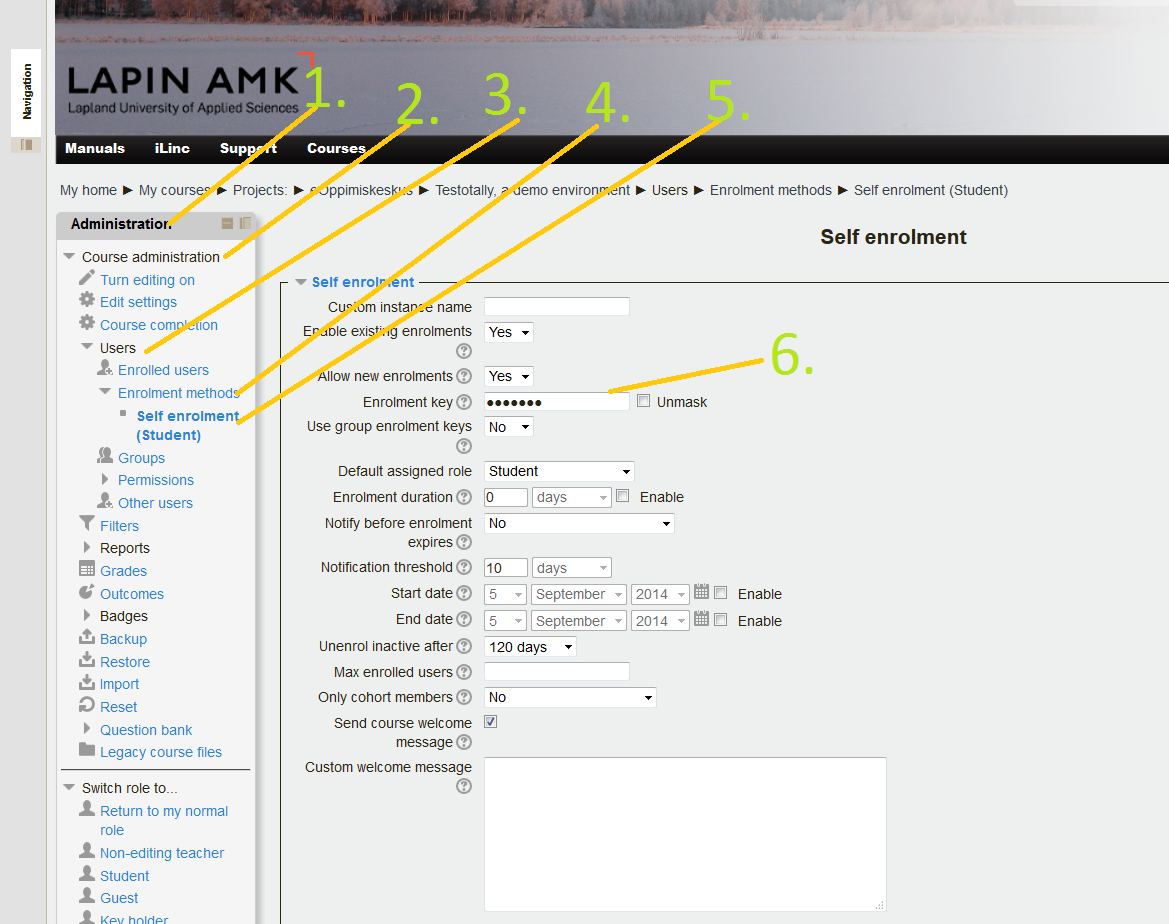
Sometimes, you may have forgotten the enrolment key to your course, or you may want to change it. In that case you can check it via the Course settings in the Administration block.

Check enrolment key

In the left column on the screen, in your Administration block-> press Course administration-> Users-> Enrollment methods-> Self enrolment -> now find the “Enrolment key” and unmask it to see your course enrolment key.
If you change the enrolment key, do not forget to Save changes!

Categories
eOppimiskeskus

MOODLE PALVELIN ON VAIHTUNUT!

MOODLE PALVELIN ON VAIHTUNUT! Uudet osoiteet ovat https://moodle.eoppimispalvelut.fi (Lapinkampus Moodle) ja https://openmoodle.eoppimispalvelut.fi (Lapinkampus Open Moodle). Vanhat Moodle sivustot eivät ole saatavilla enää! Jos tarvitset pääsy vanhaan Moodleen, kirjoita viesti eoppimispalveluiden sähköpostiin. HUOM! Sivustojen ulkoasu voi muuttaa vielä!

THE MOODLE SERVER HAS CHANGED! The new web addresses are https://moodle.eoppimispalvelut.fi (Lapinkampus Moodle) and https://openmoodle.eoppimispalvelut.fi (Lapinkampus Open Moodle). The old Moodle sites are no longer accessible. If you need something from the old sites, contact the eLearning services via their email address. Note that the look of the new sites may still change!

Categories
eOppimispalvelut Moodle tekninen

Moodlen Kesäaikataulu/Summer Schedule for Moodle

Lapinkampus Moodle, Open Moodle and Lapin verkkokoulu Moodle will move to a new server in the second week of July. This move will be accompanied by clean up of the user database and of abandoned courses in Moodle. Followed by a period of testing.

All this may interrupt operations for up to a week. Any summer courses running in Moodle during this period should be aware of this and where possible work around it.

No major upgrades for Lapinkampus Moodle have been planned at present.

Teachers can prepare for the server switch by requesting access to lost courses that they want back or by informing the eLearning services of which courses can be removed permanently.


Categories
eOppimispalvelut Moodle pedagoginen tekninen

Tiedätkö? Tenttikysymyksen lisääminen Moodlessa

What with the move from Optima to Moodle that teachers in Rovaniemi are or will be experiencing, it is good to know that there are various ways to import material into Moodle that may make this process smoother.

The Moodle quiz module, for instance, is a powerful tool with many options and many question types. This implies that it may be something of a challenge to novice users to create a quiz and create questions in Moodle. The eLearning services are there to assit, of course, but you can make things a lot easier and faster.

Quizzes occur generally in two main types: the formative quiz, which usually has a variety of question types, and the summative quiz, which is usually made up of a large number of multiple choice questions. For the former the majority of the questions must be made manually, but for the latter there are ways to format the questions, so as to allow bulk upload of the questions to the question bank in Moodle.

Simple text

The very simplest format (Aiken) is made in plain text (e.g. Notepad) and it looks literally like this:

Here goes the text of the first question on one line?
A. Correct answer goes here
B. Wrong answer
C. Wrong answer
D. Wrong answer
ANSWER: A
Here goes the text of the second question on one line?
A. Correct answer goes here
B. Wrong answer
C. Wrong answer
D. Wrong answer
ANSWER: A

In this question format there can be only one correct answer and it can be always in the first place, because Moodle can automatically shuffle the answers. In this format all questions have the same point weight  (1). If needed, the relative weight of the questions can be set when the questions are added to a quiz. If teachers deliver questions to the eLearning Services in the Aiken format (with the essential information about the quiz, like instructions, opening and closing dates and times, timer, etc), the quiz can be created in a jiffy, even if there are 100 questions!

With regard to the latter, if you create a summative quiz, it is advisable to create a large pool of questions (perhaps divided over several topic categories), from which the quiz in Moodle can draw at random. In combination with the automatic shuffling of questions and answers, this will ensure that the chance that any two students see a similar quiz is very small indeed. Note that a summative quiz can also contain other auto-graded questions, like true-false or short answer (gap fill) types. There are other question formats (like GIFT) that will allow the creation of those question types.

Hot Potatoes

Perhaps the teacher’s need is a bit more complex than what the above Aiken format can provide. In that case there is another option. If the teacher is familiar with the Hot Potatoes software for creating self-test exercises, he or she can use Hot Potatoes to create the questions and they can include the Multiple Choice, Short Answer, Cloze and Match question types. With the Hot Potatoes XML files the eLearning Services can import these questions into Moodle and then make a quiz with them according to the teacher’s wishes. Note that this is not the same as using a Hot Potatoes XML file in the hotpot module in Moodle, which is quite easy to do, but not as secure or versatile as using the quiz module.

Categories
eOppimispalvelut Moodle tekninen

Moodlekurssin ulkoasuvaihtoehdot

Teachers in Moodle have a lot of different options at their disposal to change the way their courses look and this e-vinkkin will list a number of them.

1. Blocks and Topics

Perhaps the most obvious course elements are the topics (aiheet) in which most of the learning resources and activities go. The teacher can change the number of course topics in the course settings under the Course Format (Kurssiformaatti) heading. When editing is turned on the order of the topic sections can be changed by dragging and dropping and it is also possible to highlight one topic as the current one.

The standard Moodle course comes with two blocks on the left (Navigation and Administration) and a number of other blocks on the right. The Navigation and Administration blocks are essential, so they should not be remove. However, you can dock them to the page margin, so that they take up no space. This is especially useful on small screens. Moving the cursor over the docked block will open it. The other blocks can be dragged and dropped left and right and up and down in the block columns. Note that Moodle offers more side blocks than you find in your course when it is created, so you can add blocks and delete others as your needs go.

2. Course Theme

When a new course is created it automatically takes the theme (teema) of the category where it is located. Courses under the LapinAMK category take the LapinAMK theme, while courses under Lappia take the Lappia theme, etc. However, every teacher can choose a different theme for his or her course(s). This is done in the course settings under the Appearance (Näkyvyyteen liittyvät asetukset) heading. There is a whole list of course themes at your disposal. These have different colour palettes and different block layouts.

3. Course Format

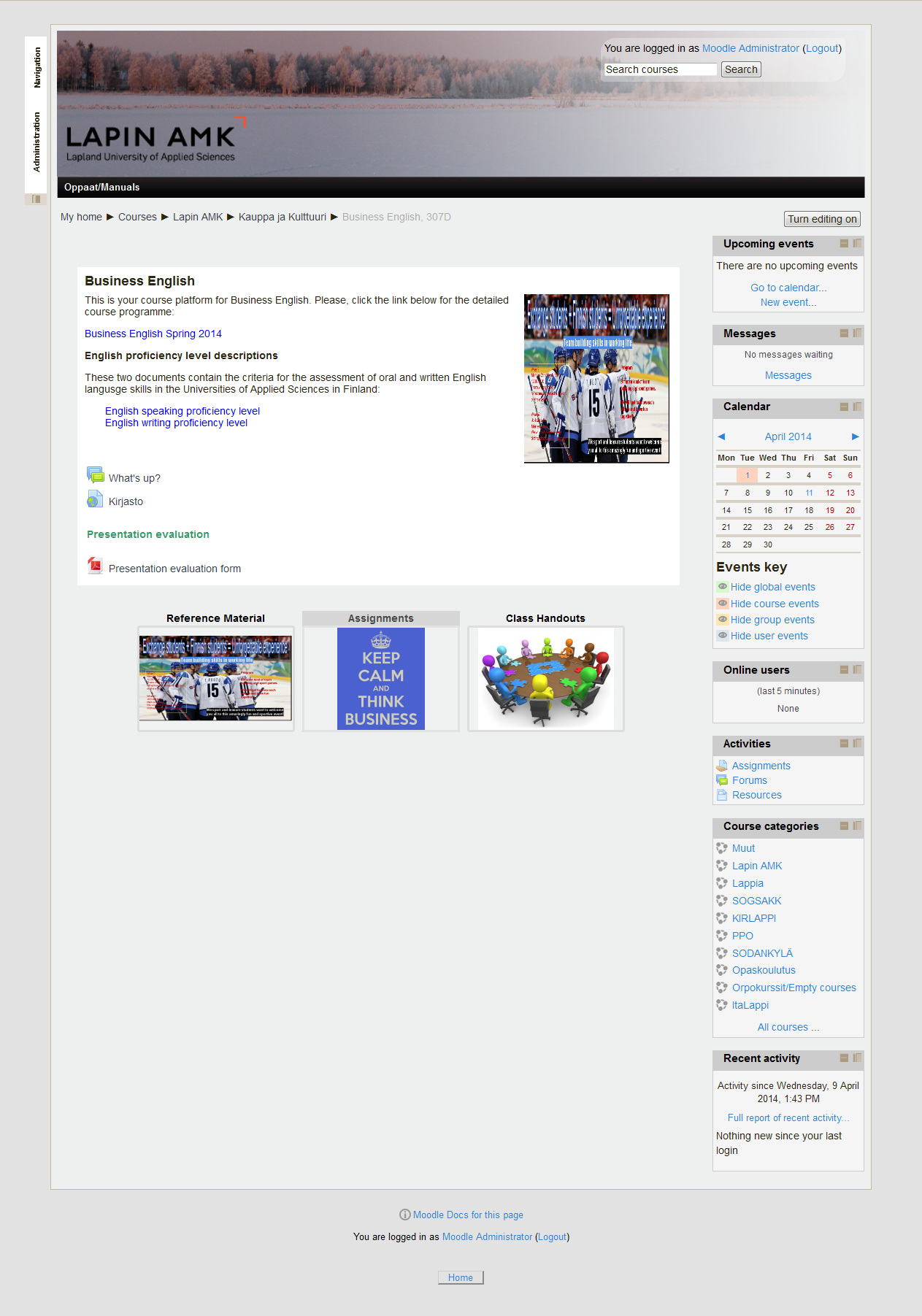
When a course is created it comes with the standard Topics  (Aiheet) format, but Moodle offers a number of alternative formats. The Weekly (viikot) format turns every topic in a week, starting from the starting date for the course, which is set in the course settings. The Collapsed Topics (Tiivistetyt aiheet) format makes the topics format far more flexible, allowing not only for the topics to be collapsed at will (useful in long courses), but also allows the use of multiple section columns, arranging sections by day or week or by current topic, etc. For those who wish to clean thier course pages of course materials, the Grid (Ruudukko) format offers the option to replace the topcis with clickable pictures, that provide access to each section in turn.

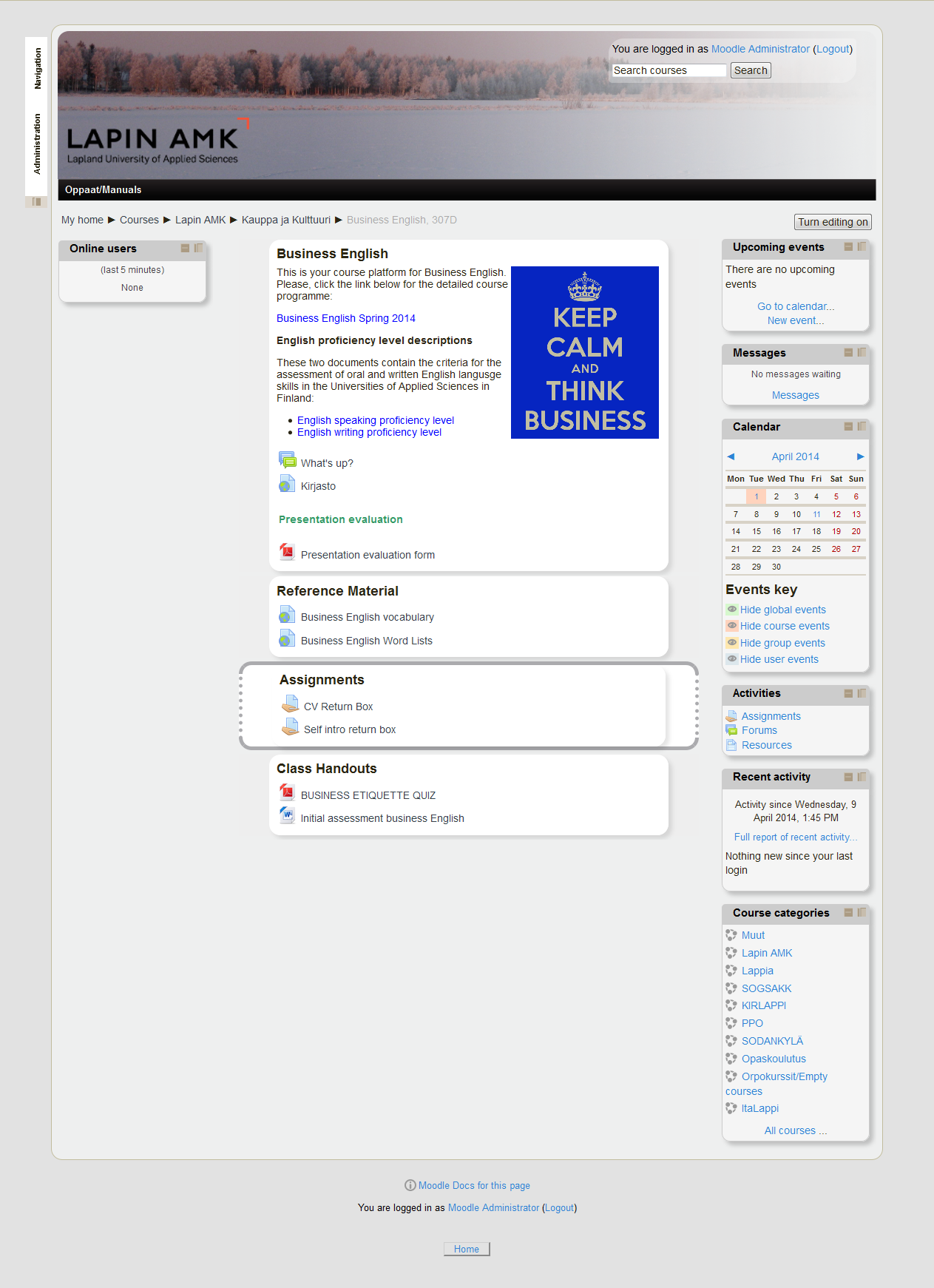
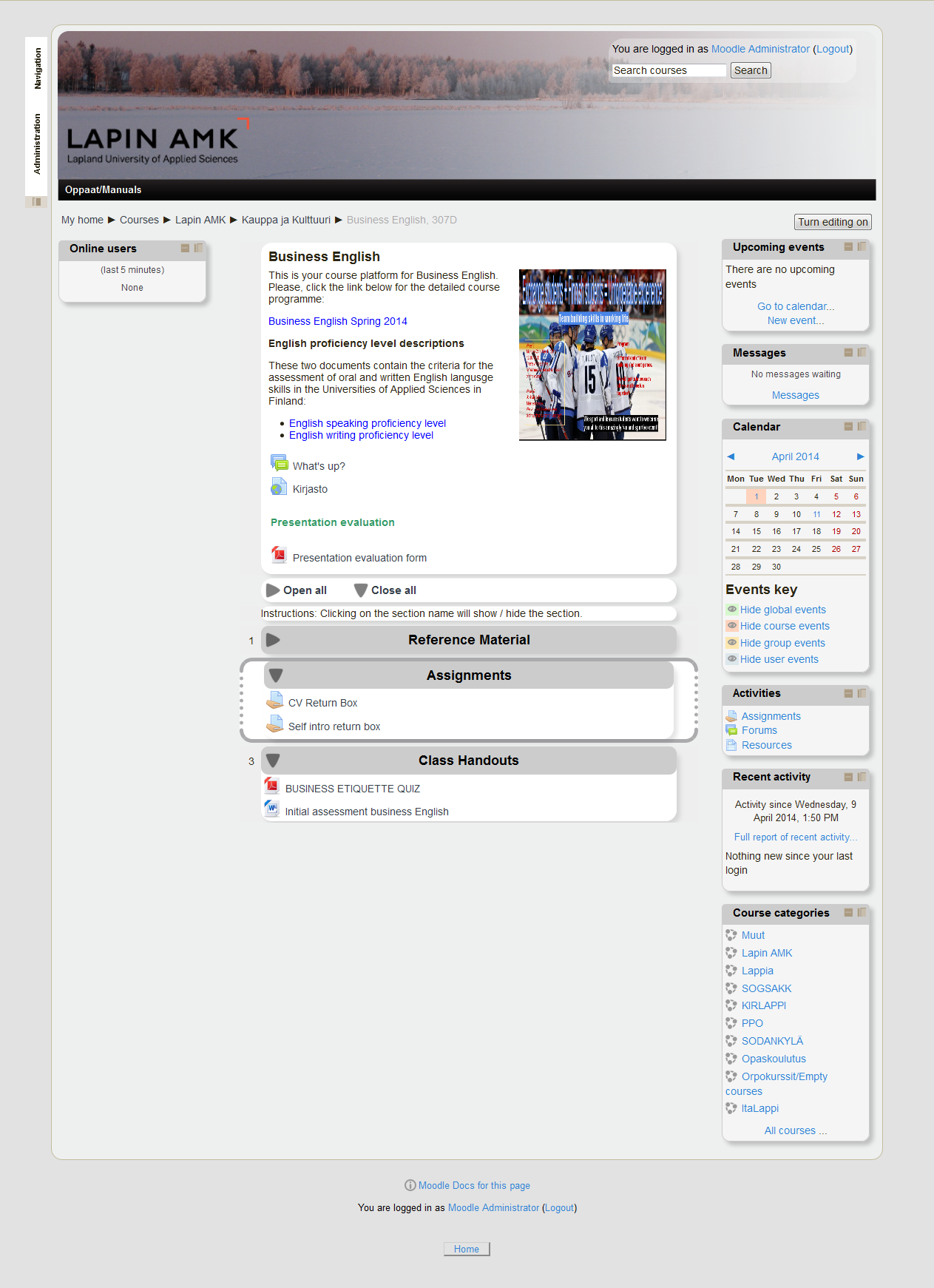
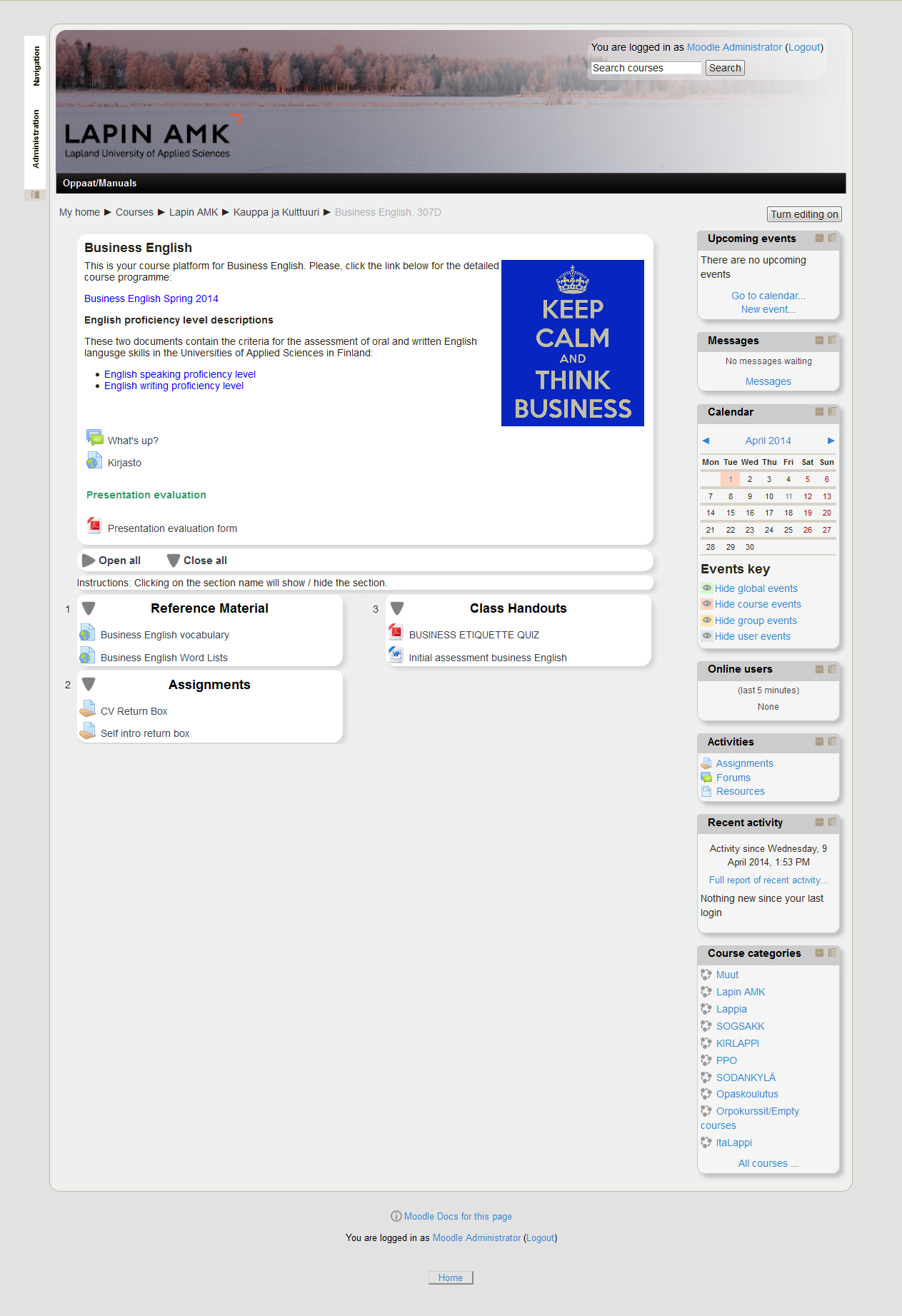
Here are a few examples of the same course with different looks (Note that the differences in these pictures are not very drastic, but they could be, different depending on the choices the teacher makes). You can click the pictures for a bigger version.


LapinAMK Custom Corners theme Topics format
A course with the default topics format, LapinAMK Custom Corners theme and docked Navigation and Administration blocks
LapinAMK Custom Cornerstheme Collapsed Topics format
The same course as above but the course format is now Collapsed Topics
LapinAMK Custom Corners themeCollapsed Topics format - two columns white
The same course as above but with the side block from the left column moved to the right column and with the Collapsed Topics format set to display sections in two columns
LapinAMK theme Grid format
Again the same course, but now with the standard LapinAMK theme and the Grid format
Categories
eOppimispalvelut iLinc Lappia Blog Moodle

Spring Cleaning

What little winter we had this year is drawing to a close and at the eLearning Services of Lapland University of Applied Sciences and the Lappia Education and Training Consortium we traditionally consider sweeping out the cobwebs.

In eLearning terms this refers to cleaning up the databases of our various learning environments and you, dear end user, can be of great help in this. All users of Moodle, iLinc and WordPress, should really go and check their user profile. In particular, Lapland UAS users should adapt their registered email address in those environments from @ramk.fi, @edu.ramk.fi, @lapinamk.fi and @edu.tokem.fi to @lapinamk.fi or @edu.lapinamk.fi respectively! The old addresses will become inactive in the near future and after that the administrators of the learning environments will commence removing old, inactive users, i.e. those with old obsolete email addresses. The pictures below show where you can edit your profile in iLinc, Moodle and WordPress. And, hey, wouldn’t this be a good time to add or update your profile picture in Moode and iLinc!

Categories
Moodle tekninen

Moodle 2.5, Some New Features

With the creation of Lapland University of Applied Sciences on January 1st, 2014, Lappia Moodle has become Lapin kampus Moodle and its familiar look will be adapted to the new situation. In preparation for these changes the Moodle environment was upgraded to version 2.5. Earlier we already announced some of the new functionality this upgrade would bring. Still, for many users it will take a little while to get used to the changed look and feel.

One of the changes that may confuse some users is the new organisation of the My home/My courses page. In order to shorten the loading time of this page for users with slower computers, the default number of courses on this page has been set at 10. For many teachers and some students this means that a number of their courses will not be displayed on the page (There will instead be a message that “You have X hidden courses“). It is important to understand that this does not mean that you cannot access these courses anymore! All courses that you have access to will be under My courses in your Navigation block and you can always access them from there. However, it may be so that you want your active courses displayed on your My home/My courses page. That can be achieved by clicking the Customise this page button. This will allow you to

Categories
eOppimiskeskus Mahara Moodle

What the eLearning Centre did next…

The eLearning Centre of Kemi-Tornio University of Applied Sciences has provided support for on-line and remote learning since 1999. For the last ten years, the mainstay of the eLearning effort at KTUAS and the affiliated schools in the Lappia municipal education consortium has been the open-source virtual learning environment Moodle. Moodle as mentioned before is the most widely used virtual learning environment in the world. This fact creates opportunities for our school when we seek to offer services to foreign schools and education authorities.

For years the eLearning Centre has had ties with institutes abroad, such as the Interdisciplinary Institute of Training and Information, MIPKI, in Saint Petersburg. This year, for the first time, we have set foot outside of Europe by sending a Moodle expert to train support staff at the Rwandan Education Board (REB) in Kigali, Rwanda.

Expert in action
Our Moodle and Mahara expert in action.