Categories
Moodle pedagoginen

Do you speak Moodle? (1) Topic sections and Enrolment key

Lue viesti suomeksi

How well versed are you in the use of our main virtual learning environment? There are certain things in Moodle that every teacher should be able to do by him- or herself. Managing your course Settings is one of those things.

Changing the number of topic sections (course content blocks)
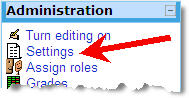
The Settings link in the Administration blockOften we get requests from teachers to add more “content blocks” to their courses, when the course materials are so many that the five default topic sections do not suffice. Topic sections are not added via the course page, but via the course Settings. The link to this important page can be found in the Administration block of your course. Upon clicking the link (one time is enough) you will see the course settings, with which you can control many aspects of your course. The number of topic sections in the course can be set after the text Number of weeks/topics. If you change the number of topic sections, scroll down to the bottom of the Settings page and Save changes.
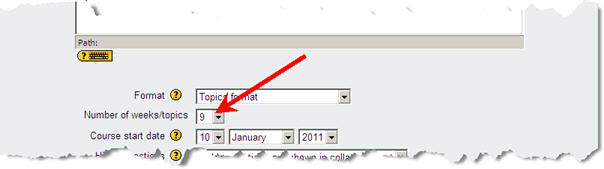
Set the number of weeks/topicsNote that if you reduce the number of topic sections, the superfluous ones disappear from view, but they still exist, including any course materials linked to those sections.

Checking the enrolment key

The enrolment key is a password that you can give to your students, so that they can enrol themselves in your course. If you do not remember the enrolment key for your course you can find it in the course Settings (further down on the page) under the header Availability. There you can see the enrolment key if you tick the Unmask box. If you do not like the existing enrolment key, you can change it, but remember to scroll down to the bottom of the Settings page and Save changes.

Checking (and changing) the Enrolment keyDo not leave your course without any enrolment key, because that would mean that anyone can enter the course and enrol themselves.

You can learn more about the various course Settings on the corresponding page of our Moodle manual.

The next installment in this series deals with uploaded file resources.
Categories
Moodle tekninen Verkko-oppimateriaalit

Five Minutes for Moodle

Good housekeeping requires one to take some time every day to overview our environment, dust off what we still want to use and clear away the trash. Likewise, we should spend some time on a regular basis on the upkeep of our courses in the Moodle learning environment.

Most teachers have only a limited number of courses active at any given time, but that does not mean the other courses under their care should be ignored. In fact, we should be updating and improving our courses while we are not using them instead of during the actual running of the courses. Improving courses while they are on stand by gives us the time to reflect about the best tool for the tasks in the course. Teachers could consider trying something new, like a quiz or a lesson, auto-graded tasks that may help reduce the workload that running the course entails.

In stead of requesting a new copy for each new run of a course, it is more efficient to rename and reset an older version and reuse it. This would help to limit the number of courses on your MyMoodle page as well as the number of of abandoned (“orphaned”) course environments in Moodle. Note that it is possible to import selected course material from one course environment into another, which implies that you could keep one course as a repository of your course materials and draw from that collection for your various running courses.

If a course is really finished and there is no need anymore for either the course or the course materials, please, inform the eLearning Centre and we will recycle the course into a sparkly clean empty environment for new course requests. This is what we will do for any orphaned courses that are not reclaimed by their teachers from our Lost & Found category. Course materials found in said abandoned courses may or may not be saved for future use.

Categories
Moodle Muut

Tietokoneet kaikille/Laptops for all

The student laptops for all new students have the potential of improving the quality of education at Lappia AO and Kemi-Tornio UAS if they are employed in the right way by both students and staff. However, they equally have the potential to complicate things in class, particularly, since the teachers have not worked with those laptops themselves and the software in the teacher PCs is not the same as in the student laptops. Having the laptops may create expectations in students that they will be used in every class when that may not be case, depending on the course and the teacher.

For those who have not seen one of those Dell VOSTRO laptop up close, there is a short slideshow available (suomeksi ja englanniksi) that shows the ins and outs of the machine.

If experience is anything to go by, a considerable number of students will encounter problems of one kind or another with their laptop. The IT-support services risk being overburdened with support requests from the over 1500 students who have received a VOSTRO. To stop this from occurring the teachers should direct students who have software or hardware issues that cannot be solved in class to the instruction and help pages at edu.tokem.fi that were opened for this purpose:
http://edu.tokem.fi/?Deptid=15315 (suomeksi)
http://edu.tokem.fi/?Deptid=15330 (English)

Undoubtedly, having the laptops in class will also entail practical issues, such as access to wall power sockets. Students may want to sit near them. Having extension cords handy will be a good idea in certain classrooms. Another item that comes to mind is the fact that all student laptops have Open Office installed and most teacher machines have only Microsoft Office. So long as not all teachers have access to Open Office, students should be instructed to hand in their work in a format that the teachers can open (Usually, MS Office 2003 formats will be the best option).

As for the eLearning Center, we fully expect that the availability of laptops to all new students will lead to an increase in the use of the Moodle learning environment to support classroom courses. With an eye to that, we wish to ask all teachers for two things:

  1. Please, check that you have access to all your courses in Moodle. There is presently a large number of courses in Moodle that have no teachers anymore. The eLearning Center will remove these courses if no teacher shows up for them.
  2. If you have no previous course that you can use, when ordering a new course from the eLearning Center, please state the following information clearly in your message:
    – The full name of the course
    – The student group (or the unit)
    – The number of credits
    – The enrolment key (kurssiavain)
    – Possible other teachers

Thanks to all and let’s work together to make this a successful course year, laptops or no laptops 🙂

Categories
Moodle Muut

My Moodle password does not work!

If you try to log in to Moodle with your correct username, but your password is refused, there are three possibilities:

  1. Moodle or a Moodle administrator have secretly changed your password.
  2. You have forgotten your Moodle password
  3. You have not changed your school network password in time.
Categories
Lappia Blog Muut pedagoginen

Electronic Communication Concerns

Facebook, Twitter, Flickr, YouTube, Blogs, Google docs, etc; electronic communication is no longer restricted to merely SMS and email. The new communication channels are used by millions to reach out to millions more. However, many of these millions make this communication more bothersome by not observing some basic rules of online communication, such as conciseness, information density, privacy and punctuation. Unless certain rules of engagement are observed, meaningful communication may get lost in the tidal wave of spam and idle chit chat that is awash on the Internet.

Categories
Moodle pedagoginen

Assignment deadline horror

Both teachers and students should treat assignment deadlines in Moodle with respect or mayhem may ensue!

The teachers on their part should make assignments available well in advance of the deadline and they should never set a deadline later than 23.55 hrs on any given day! Once a deadline has passed, teachers ought to comment on the work handed in (If you are not going to give feedback in Moodle, why use an assignment in the first place?!) and contact students or groups who have failed to hand in.

Students on their part should always use a safety margin when handing in work and not wait until the last day and the last minute. It is perfectly possible to hand in draft versions of a task and overwrite those with later versions, so that if unforeseen problems occur, such as network connection interruptions, the student will still have work handed in, while it remains possible to request an extension of the deadline to compensate for the network issue. Naturally, students should also check the feedback the teacher provides after the assignment deadline has passed.

Categories
Muut Verkko-oppimateriaalit

Hot Potatoes and Quandary

Half Baked Software, the makers of Hot Potatoes and Quandary, have released these programs as freeware. This means that anyone can go and download the latest version of these programs for free from the Hot Potatoes website.

So, if you use an older limited version of Hot Potatoes 6 or Quandary 2, we advise you to remove it from your PC and download and install the unlimited freeware version. These latest versions (as of February 2010) are Hot Potatoes 6.3 and Quandary 2.4. If you still have a (licensed) version of Hot Potatoes 5 or Quandary 1, you are advised to keep those and install the newer versions on the side.

Categories
eOppimiskeskus Muut

Hyvää Joulua/Merry Christmas!

Hei, kaikki väki! 🙂

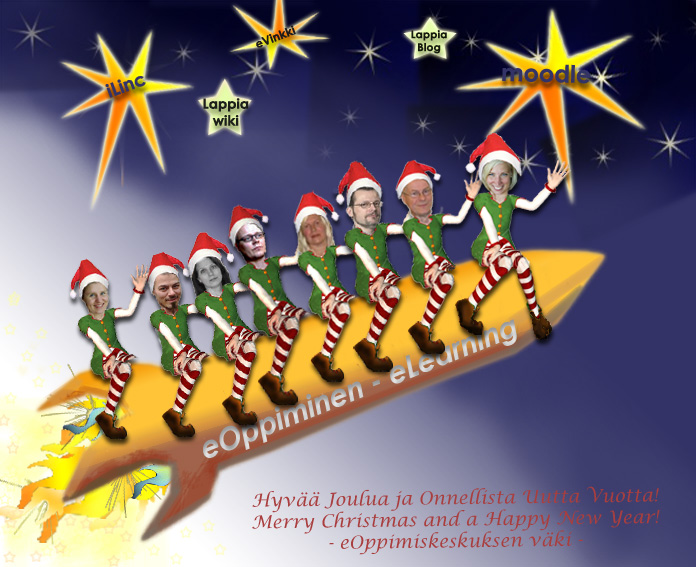
eOK:n joulukortti 2009

Kemi-Tornion AMK:n ja Ammattiopisto Lappian eOppimiskeskuksen väki toivottaa kaikille Rentouttavaa ja Lämpöisää Joulunaikaa!

The staff of Kemi-Tornio UAS/Vocational College Lappia eLearning Centre sends Season’s Greetings to each and everyone!

Categories
Moodle pedagoginen

The right tool for the task

Regularly, the eLearning Centre receives support requests from teachers who wish to modify the tasks they have given their students in Moodle, but this is not always possible after the fact. Ideally, teachers plan their course(s) and the course tasks in advance, so that all course materials and activities are present in Moodle at the start of the course timetable. The advantage of this approach is that teachers can reflect on the nature of the activities and what they wish to achieve with them. Moodle has shared activities, in which students always see the work of others in their group (like the forum or the chat), and individual activities, in which the student’s work is visible only to the teachers (like the assignment and the quiz), and activities that can do both (like the database, the glossary and the wiki). It is important to choose the right Moodle activity for the kind of task(s) you have in mind.

Here is a shortlist of task descriptions and the most suitable Moodle activity for that task. See if you have chosen the best activities for your tasks: