Categories
eOppimispalvelut Moodle Urkund

Spotlight on: Open Moodle

The eLearning Services of Lapland University of Applied Sciences do not only administer Lapinkampus Moodle, the main Moodle site for the UAS and associated schools in Lapland, like Ammattiopisto Lappia. There is a second Moodle site that is geared specifically towards international project work: Lapinkampus Open Moodle. The name refers to the site being open to email-based self-registration by users in the international projects that utilise the environment, whereas Lapinkampus Moodle only allows authentication via the user registration systems of Lapland UAS and Lappia AO, or via manual account creation by the eLearning Services. The latter is an obstacle to the smooth running of projects with outside users, who would depend on help to gain access to their project environments. The separate status of Open Moodle allows easy access.

Another advantage offered by Open Moodle is that as a smaller site, it can be used as a testing ground for upgrades and new functionality. Presently, Open Moodle is already running version 2.7.8+ to which Lapinkampus Moodle will be upgraded first by the end of the month. New features in this version of Moodle have been tested out already before they will be adopted in the main Lapinkampus Moodle site. These elements comprise the functionality of the new Atto text editor that was already announced in a previous post, but also a new mathematics filter and a new STACK question type that should allow the creation of very advanced mathematical quizzes. The upgrade to 2.7.8 will also entail improvements in existing functionality. For example, URKUND anti-plagiarism checking can now also be activated for a discussion forum, meaning that both the text of forum messages as well as attached files will be sent to URKUND for checking. Other improvements will concern greater ease of use for mobile users and improvements in marking and feedback in assignments, such as the option to annotate submitted PDF files in the browser.

The upgrade of Lapinkampus Moodle is scheduled for July 1st 2015.
Categories
iLinc Moodle

Mistä opiskelijat löytävät iLinc nauhoitteet

Opiskelijat löytävät iLinc nauhoitteet aina kyseisen kurssin Moodle ympäristöistä.

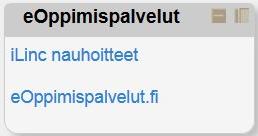
Tarkistathan, että ”eOppimispalvelut ” osio löytyy omasta kurssiympäristöstäsi ja ” iLinc nauhoiteet ” linkistä aukeaa oikean ryhmän nauhoitteet. Jos osio puuttuu tai linkki on väärä, niin laita sähköpostiviestiä eoppimispalvelut ( @ ) lapinamk.fi

1


Categories
Moodle Verkko-oppimateriaalit

Opettajien lisääminen moodle kurssiin

Voit lisätä toisia opettajia kurssiisi seuraavasti:

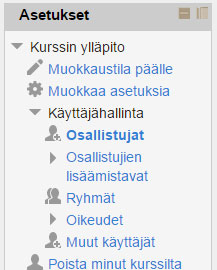
Avaa Asetukset valikosta Käyttäjähallinta ja sen alta kohta Osallistujat

1


Näytölle avautuu lista kurssisi osallistujista. Valitset tämän jälkeen kohta Lisää osallistujia (1.) joka avaa uuden ikkunan. Sieltä tulee aluksi valita kohta Jaa rooleja, josta valitaan Teacher (2.). Tämän jälkeen kirjoita hakukenttään opettajan sukunimi ja klikkaa Hae nappia (3.). Etsi tämän jälkeen nimilistalta opettaja ja klikkaa Lisää painiketta (4.). Jos haluat lisätä useamman opettajan, niin toista kohdat 3. ja 4. Lopuksi klikkaa vielä Lopeta osallistujien lisääminen (5.)

2


Categories
eOppimispalvelut Moodle

Future Prospects of Lapinkampus Moodle

The open source virtual learning environment Moodle in use at Lapland University of Applied Sciences is version 2.5 of the software. This version is no longer supported since the beginning of this year, so an upgrade is overdue. The reason why the eLearning Services decided not to upgrade during the Christmas break was that we did not want to confront the new Moodle users in Rovaniemi with too many changes in a short time frame. However, this summer, we will execute the upgrade of Lapinkampus Moodle over two branch versions to version 2.7. In this message we look forward to the differences you may expect.

First of all, the look and feel of the environment will change somewhat. Some of the old 1.9 course themes will no longer work with this version, because 2.7 requires themes to be adapted for mobile use. If you have enabled one of those old themes in your course, your course theme will be reset to the standard during the upgrade. On the other hand, several new themes will replace the obsolete ones, so that you have enough new and flexible options to choose from. Another noticeable change in appearance will be entailed by the adoption of the Atto editor as the default text editor in Moodle. This text editor is more flexible and accessible and will sport some new features like autosave.

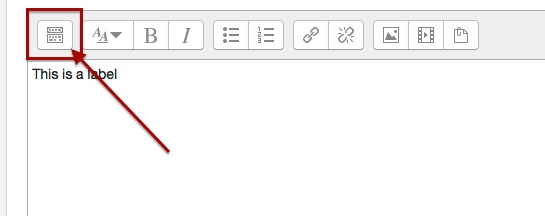
Atto editor expand menu
The button bar of the Atto editor will be collapsed (much like the editor in the WordPress blog) and can be expanded with the indicated button to show all functions.
Categories
eOppimispalvelut Moodle

Tyhjä kansio-ongelma? Empty folder issue?

KansionuoliEnglish: A small but annoying issue sometimes crops up with some users of the folder resource in Moodle. The folder seems empty of files, even though this is not the case. The solution is to click the tiny triangular icon to the left of the folder icon. This will unfold the contents of the folder. See the attached picture.

Suomeksi: Pieni mutta ärsyttävä ongelma joskus vaikutaa kansiotyökalu Moodlessa. Kansio näyttää tyhjää vaikka tämä ei ole totta. Ratkaisu on klikata pieni kolmiokuvaketta vasemmalla kansion kuvaketta. Tämä paljastuu kansion sisältöä. 

Categories
Moodle

What you can do with the Participants (Osallistujat) Page

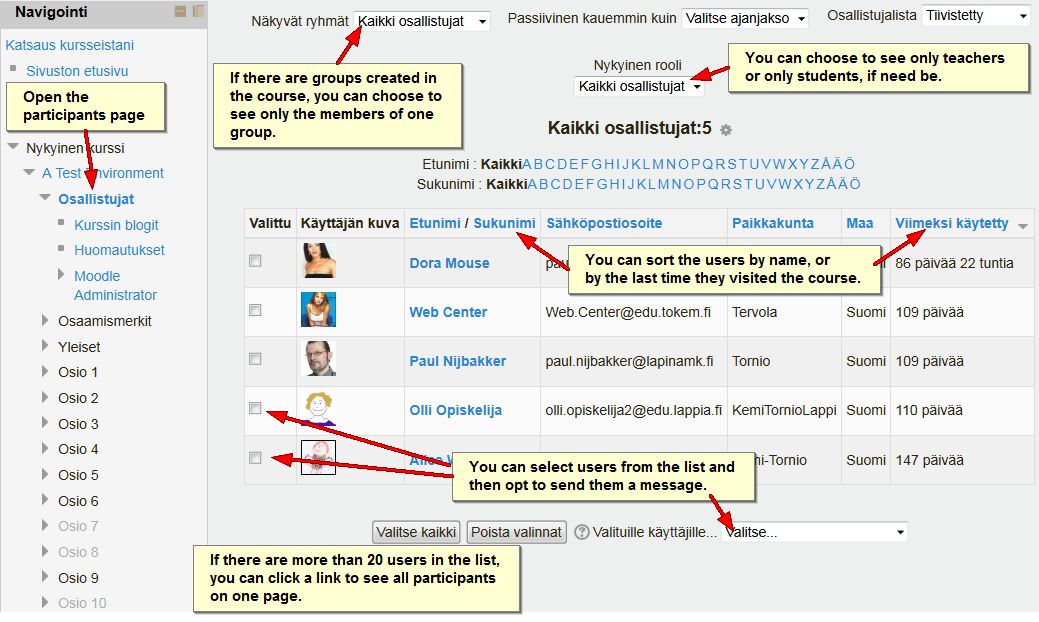
The participants page in a Moodle course give teachers several options, of which they may not be aware (click on the picture to see a bigger version):

Particpants page (click to enlarge)

Categories
Moodle

Materiaalin kopiointi Moodlessa

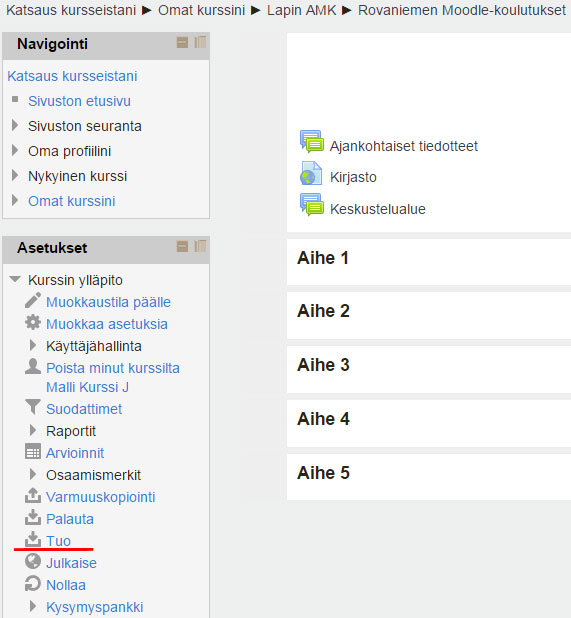
Moodlessa on mahdollista kopioida materiaalia kurssialueelta toiselle. Aluksi tulee mennä kurssialueelle jolle haluat tuoda materiaalia. Kurssin asetuksista valitaan kohta Tuo.
1      


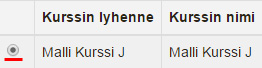
Sen jälkeen valitaan mistä kurssialueesta materiaalia halutaan tuoda ja lopuksi painetaan Jatka painiketta
2


Asetukset kohdassa painetaan vain Seuraava
3


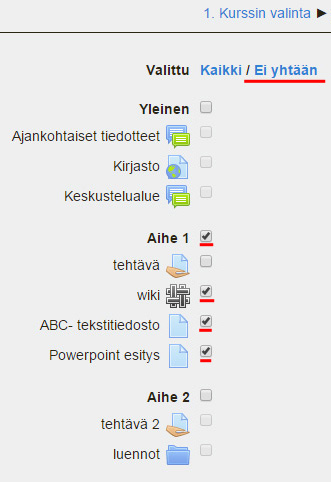
Tämän jälkeen valitaan mitä materiaalia halutaan tuoda. Oletuksena on valittuna koko kurssialueen materiaali. Jos ei haluta tuoda kaikkea, niin voidaan aluksi klikata Ei yhtään. Tämän jälkeen valitaan halutusta aiheesta aktiviteetit ja materiaalit laittamalla rasti ruutuun. Kun halutut materiaalit on valittu, painetaan lopuksi Seuraava painiketta.
4


Varmistus ja katselu välilehdellä näet vielä valitut aktiviteetit ja materiaalin. Tarkastelun lopuksi painetaan Suorita tuonti painiketta.
5


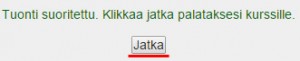
Tämän jälkeen tuonti onkin suoritettu ja painetaan Jatka painiketta
6


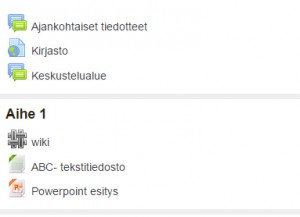
Nyt materiaalit ja aktiviteetit on tuotu haluamaasi kurssialueeseen. Tarkista vielä lopuksi, että aktiviteettien ajastukset ja päivämäärät ovat oikeat ja raahaa ne haluamaasi kohtaan.
7

Categories
iLinc Moodle

Mistä iLinc -nauhoituksien pitäisi löytyä Moodlessa?

vinkki1

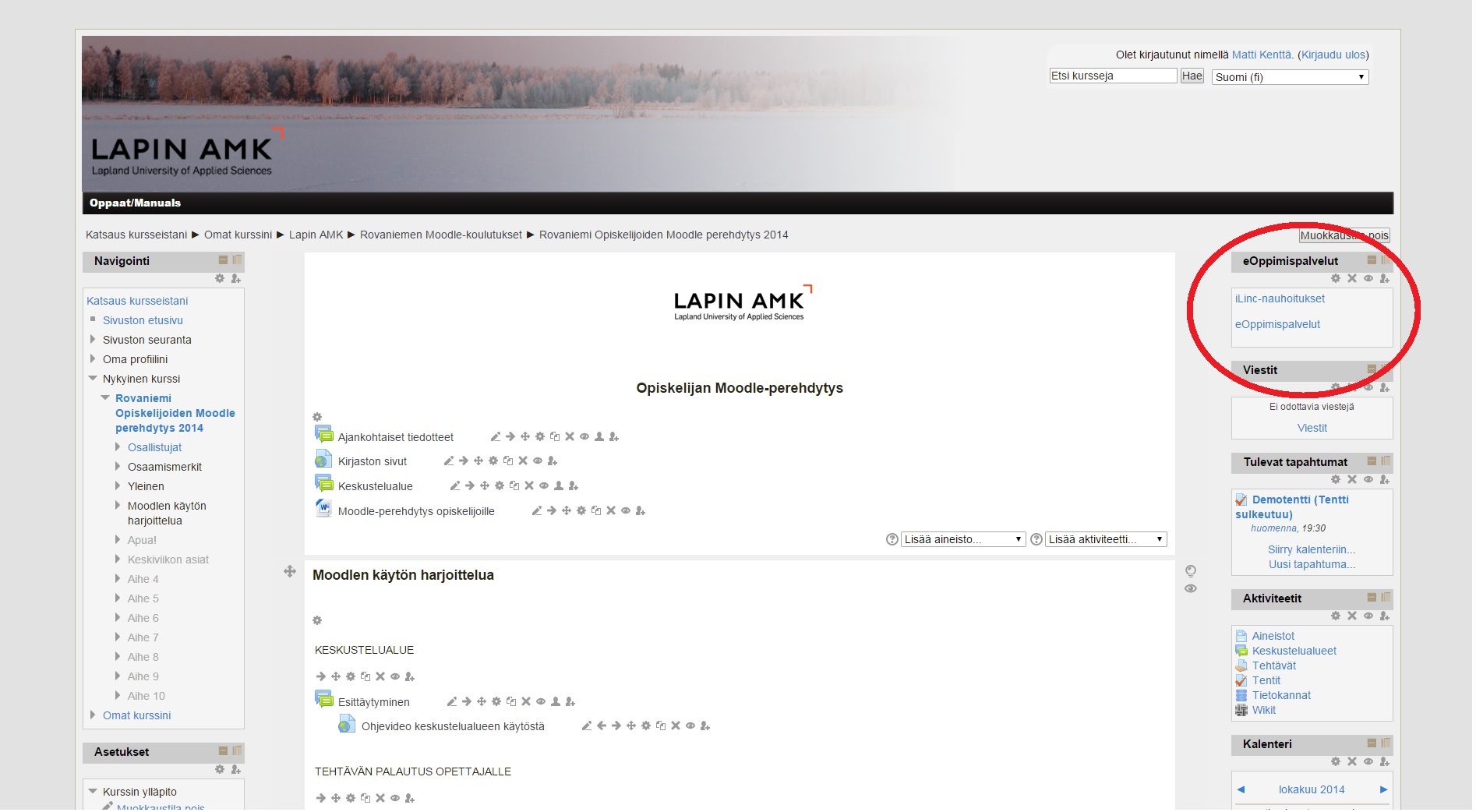
Nauhoituslinkin paikka Moodlen kurssitiloissa on yleensä oikean lohkon ylimässä reunassa (kts. kuva). Tässä saattaa olla poikkeuksiakin. Yleensä nauhoituksia on aikuisryhmien työtiloissa.

Mitä jos nauhoituslinkkiä ei löydykään? Mitä opettajan tai opiskelijan tulee tehdä silloin? Mikäli nauhoituslinkkiä ei löydy laita viestiä viipymättä osoitteeseen eoppimispalvelut@lapinamk.fi ja pyydä tukea laittamaan linkki oikeaan kurssitilaan. Sähköpostissa on hyvä mainita mistä kurssitilasta on kyse ja minkä ryhmän nauhoitukset siellä pitäisi näkyä. On hyvä myös muistaa, että iltaopetuksen nauhoitteet jaellaan useimmiten seuraavana aamuna.

Categories
eOppimispalvelut Moodle

Introducing PoodLL

For many years Lapinkampus Moodle has relied on the small audio plugin NanoGong to provide users with an internal audio recorder in the Moodle HTML text editor. While NanoGong still works, developments on the Internet have overtaken it. Unsuspecting users trying NanoGong for the first time can be faced with a multitude of Java warnings and pop-ups (depending on the browser used) and this may discourage them. Therefore, the eLearning Services have selected an alternative audio recorder that is easier to use and that has better development prospects due to its ability to use HTML5 (the future web standard). This new recorder is called PoodLL and it offers audio recording options in places where NanoGong could not. It also offers options for (very) short video recordings, or simple whiteboard drawings in the HTML editor.

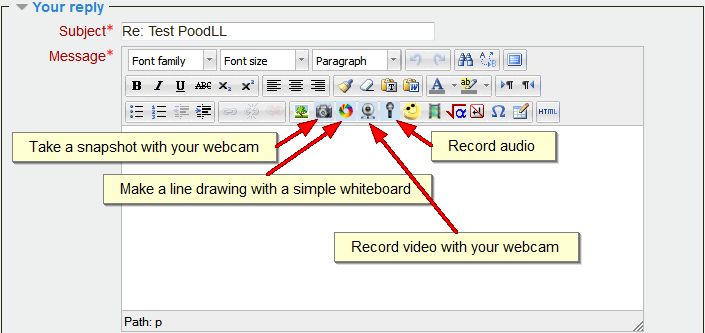
Presently, the Moodle administrator has installed PoodLL in the HTML editor, which offers recording options in the same places as NanoGong did. The functions can be accessed via icons in the button bar of the HTML editor in Moodle:

PoodLL in the button bar of the HTML editor

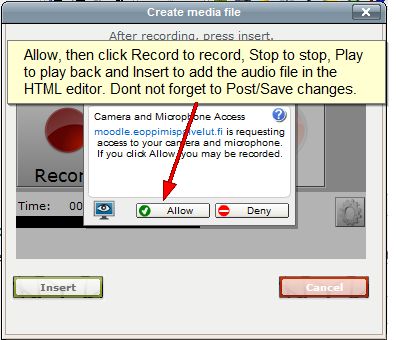
The interface of the four functions is really simple and self-explanatory. In the case of the audio (MP3) recorder, once you have opened it, all you need to do is allow the tool to use your mic and then you can record, pause, stop and play back, pretty much like in NanoGong. Once you are done with the recording, you click the Insert button to insert the recording into the HTML text window. After that it is a matter of saving the text (or posting the message, when you are in a forum, as in the example).

PoodLL MP3 recorder pop-up

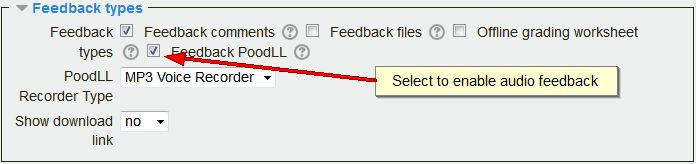
Apart from the general PoodLL access, there is a special plugin that now gives teachers the option to provide spoken feedback in assignments (rather than by writing comments and/or uploading a response file). This option can be enabled in the feedback settings of a Moodle assignment.

PoodLL assignment feedback setting

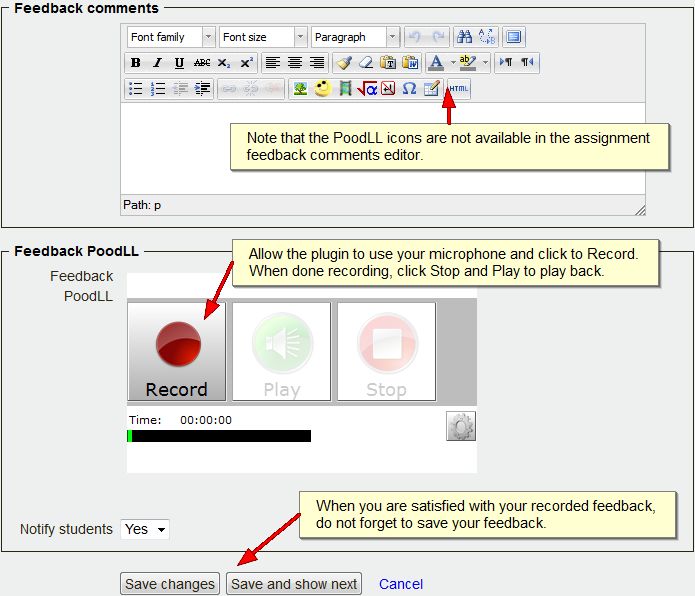
When enabled it provides the teacher with a PoodLL MP3 recorder on the grading page of each student as shown below:

The PoodLL MP3 recorder on the grading page

Apart from the above functionality, special PoodLL audio submission plugins are available for the Moodle assignment, database and quiz module. These allow students to easily submit a recording for grading. These plugins have not been enabled yet, but they will be installed if teachers have a need for this functionality.

Note that, although the NanoGong recorder is no longer available, existing NanoGong recordings in Lapinkampus Moodle will continue to work as before.

Categories
eOppimiskeskus Moodle

Moodlen ” Katsaus kursseistani ” sivun muokkaaminen

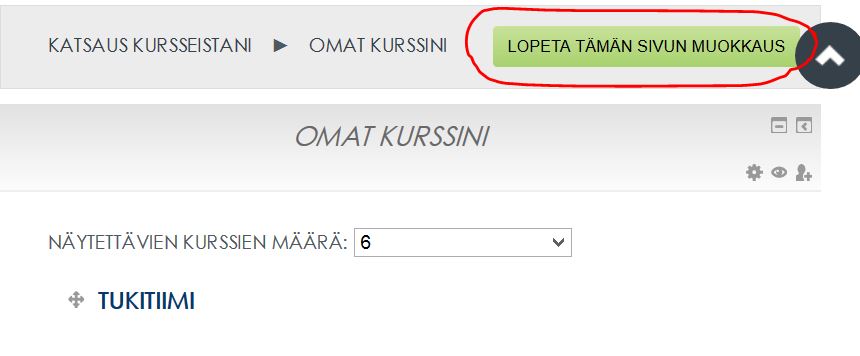
Moodlen Katsaus kursseistani -sivu listaa kurssialueet, joille sinulla on pääsy. Voit muokata sivulla näkyvien kurssien määrää ja järjestystä haluamaksesi.

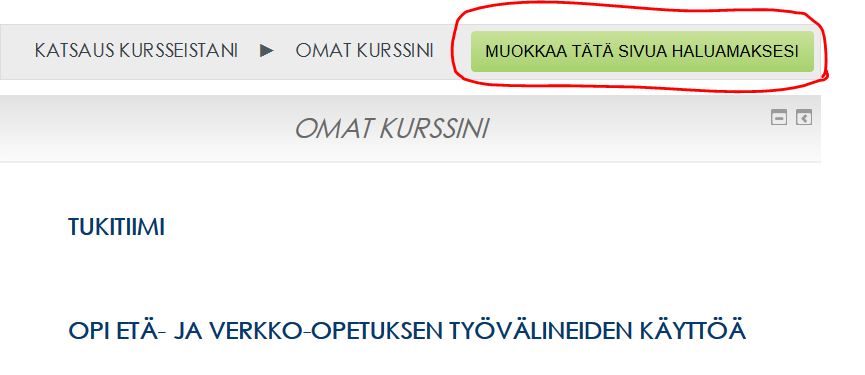
– Mene Katsaus kursseistani -sivulle ja valitse Muokkaa tätä sivua haluamaksesi

1_kuva


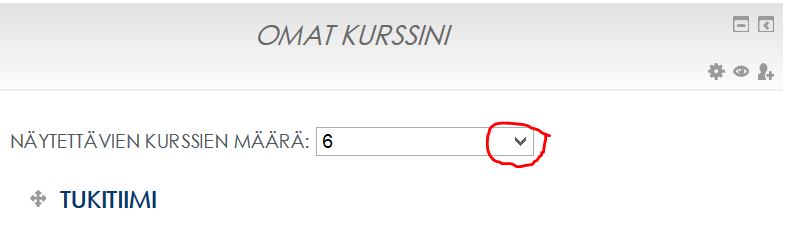
– Näytettävien kurssien määrä  valikosta voit valita, kuinka monta kurssia näytetään

2_kuva


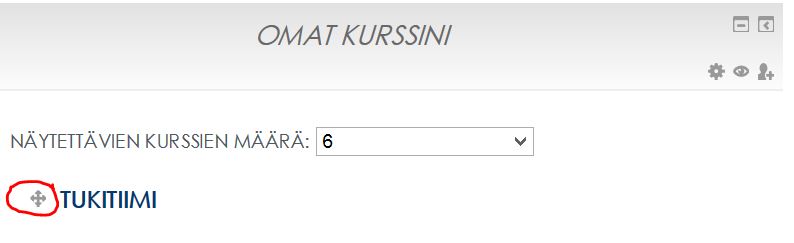
– Voit helposti raahata kursseja haluamaasi järjestykseen, kun tartut hiirellä kiinni harmaasta nuolinäppäimestä.

4_kuva


–  Lopeta sivun muokkaus painamalla Lopeta tämän sivun muokkaus

5_kuva