Categories
eOppimispalvelut Moodle

Moodle 3 Features, part 6 Onetopic format

Lapinkampus blog was upgraded to Moodle version 3.0+ during the summer. As demonstrated in previous blog articles, this has opened up opportunities to adopt new plugins that employ the options offered by the new version. Moodle 3 aims to exploit the bootstrap technology to the fullest. This will entail newer, highly modifiable course themes and course plugins based on them.

At the request of a teacher, the eLearning services recently introduced a new course theme in Lapinkampus Moodle. It is called the Onetopic format and it will create a course in which each course section, including the general section (or topic “0”), is represented by a tab that will open the section on its own page. Like the other course formats, it can be selected in the course settings.

It was already possible to use the Collapsed topics format or the Grid format to create a course in which sections have their own page, but these still depart from a somewhat traditional page view, on which the general section is displayed in full and the other course sections are listed below. The Onetopic format offers another, cleaner course view in which the general section is not visible when another section is opened. The section tabs will wrap when the screen is small, but long section names should nonetheless be avoided when using this format.

The only issue to keep in mind, is that this Moodle 3 course format only works properly with Moodle 3 themes, like the new LapinAMK theme (so not with the old LapinAMK themes).

Onetopic format in More theme
The look of the Onetopic format in the More theme
Categories
eOppimispalvelut Moodle

Moodle 3 Feautures, part 3 Flexible sections format

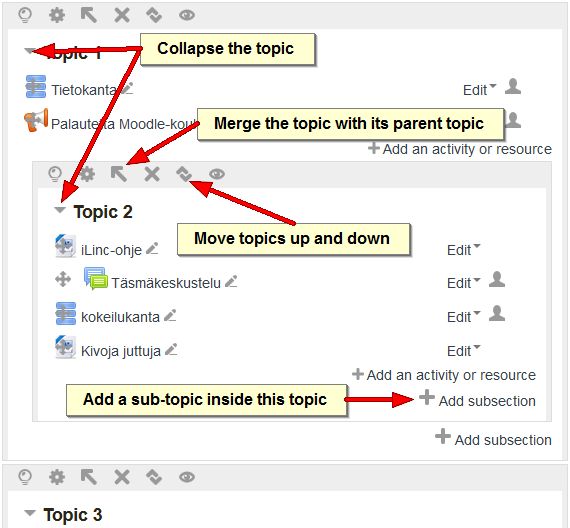
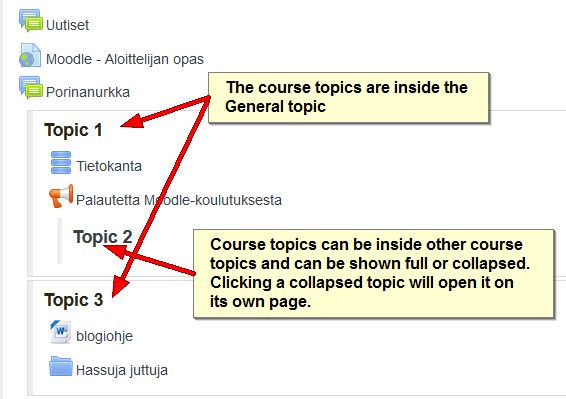
One of the new plugins in Moodle 3 is a course format called “Flexible sections”. It allows sections/topics to be placed within other sections in either open or collapsed form. The collapsed section links will open the section on its own page when clicked. Note that this new format may not work with some of the older Moodle themes! Changing the course format back to the default Topics format, will return the sections to their normal positions.

flexible sections
A course page with flexible sections enabled.


flexible sections
When editing is turned on more options become available to manage the sections.
Categories
eOppimiskeskus Moodle tekninen

Introducing the Collapsed Topics course format

The new version of Moodle, while incorporating much neat new functionality, also omitted some small functions that were familiar to Moodle 1.9 users. One of those functions was the collapse topic icon, with which topics on a course page could be collapsed so that only one topic showed. This function was helpful to reduce the amount of scrolling on long course pages, even if it also gave rise to some confusion when new users accidentally clicked the icon.Selecting the Collapsed Topics course format

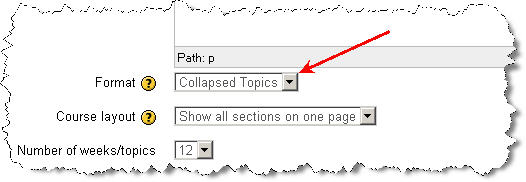
In Moodle 2.3.2 the collapse topic function has been incorporated in a new course format, called Collapsed Topics. This course format can be chosen in the course settings, as shown above. The Collapsed Topics course format allows users to collapse and unfold course topics at will. They can also close or open all topics with one click, as shown in the picture below. Also note that the default setting is that the current section (Set by highlighting it with the light bulb icon in editing mode) always comes first.