Categories
eOppimispalvelut Moodle

Future Prospects of Lapinkampus Moodle

The open source virtual learning environment Moodle in use at Lapland University of Applied Sciences is version 2.5 of the software. This version is no longer supported since the beginning of this year, so an upgrade is overdue. The reason why the eLearning Services decided not to upgrade during the Christmas break was that we did not want to confront the new Moodle users in Rovaniemi with too many changes in a short time frame. However, this summer, we will execute the upgrade of Lapinkampus Moodle over two branch versions to version 2.7. In this message we look forward to the differences you may expect.

First of all, the look and feel of the environment will change somewhat. Some of the old 1.9 course themes will no longer work with this version, because 2.7 requires themes to be adapted for mobile use. If you have enabled one of those old themes in your course, your course theme will be reset to the standard during the upgrade. On the other hand, several new themes will replace the obsolete ones, so that you have enough new and flexible options to choose from. Another noticeable change in appearance will be entailed by the adoption of the Atto editor as the default text editor in Moodle. This text editor is more flexible and accessible and will sport some new features like autosave.
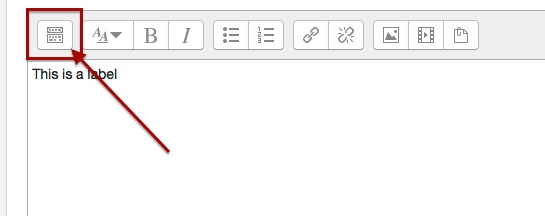
Atto editor expand menu
The button bar of the Atto editor will be collapsed (much like the editor in the WordPress blog) and can be expanded with the indicated button to show all functions.
Categories
eOppimispalvelut Moodle

Tyhjä kansio-ongelma? Empty folder issue?

KansionuoliEnglish: A small but annoying issue sometimes crops up with some users of the folder resource in Moodle. The folder seems empty of files, even though this is not the case. The solution is to click the tiny triangular icon to the left of the folder icon. This will unfold the contents of the folder. See the attached picture.

Suomeksi: Pieni mutta ärsyttävä ongelma joskus vaikutaa kansiotyökalu Moodlessa. Kansio näyttää tyhjää vaikka tämä ei ole totta. Ratkaisu on klikata pieni kolmiokuvaketta vasemmalla kansion kuvaketta. Tämä paljastuu kansion sisältöä. 

Categories
eOppimiskeskus Moodle

Aloittaa alusta!

Kouluvuosi on alkanut ja monet opettajat Lapin AMK:ssa käyttävät nyt oppimisympäristö Moodle:a ensimmäistä kertaa. Jotkut voivat olla myös muistin virkistyksen tarpeessa, joten tässä olisi ohjeita Moodlen käyttöön.
Kurssit luodaan e-oppimiskeskuksessa käyttämällä eri ryhmiä (päivä opiskelijat, Englanti, Suomi, jne). Jotta voimme auttaa sinua luomaan kurssin, voisitko ystävällisesti lähettää seuraavat tiedot meille.
1. Kurssin tilaaminen e-oppimiskeskuksesta

  • Kerro kurssin nimi
  • SoleOPS kurssin koodi
  • Opiskelijaryhmän/ryhmien numero

Näillä tiedoilla (löydät tiedot SoleOPS:ista) voimme luoda kurssin ja pistää sen oikeaan kategoriaan. Opettajana voit myös mainita, ketkä muut opettajat tarvitsevat muokkaus oikeuksia kurssi materiaalille (voit myös itsekin lisätä oikeudet). Jos käytät viikkonäkymää tavallisen aihe näkymän sijasta, ilmoita myös kurssin alkamispäivä. Oletuksena kurssin ilmoittautumisavain luodaan meidän puolesta, mutta halutessasi voimme vaihtaa sen.

2. Kurssiavaimen tarkistus

Näin saat esille kurssiavaimen

kurssiavaimen tarkistus

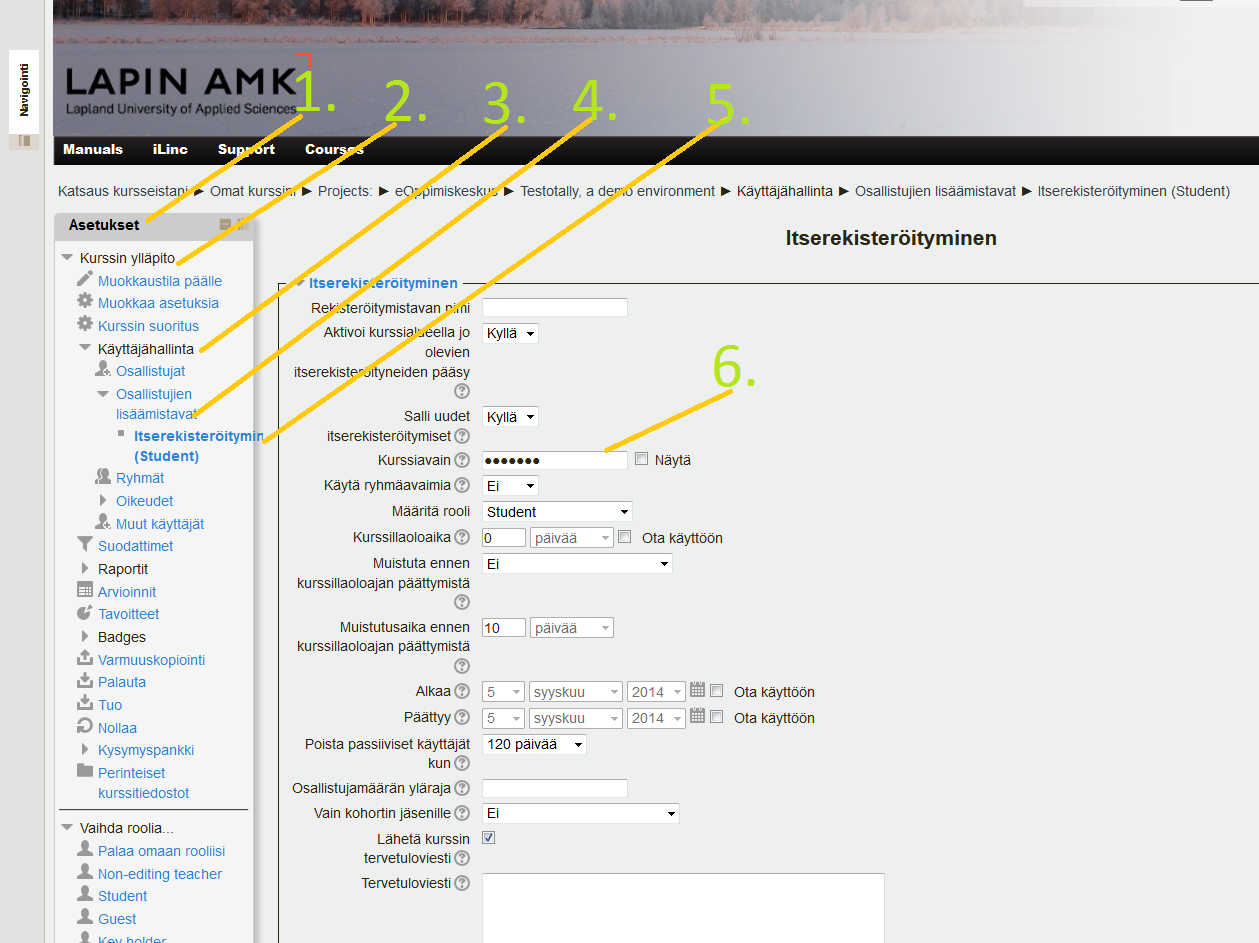
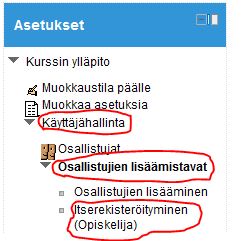
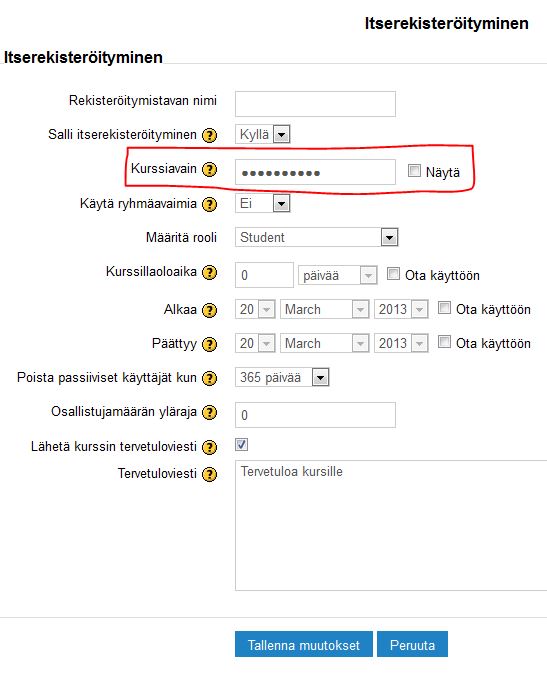
Kirjaudu moodleen, avaa kurssin sisältö jonka kurssiavaimen haluat nähdä. (esim, Englanti bit 14)-> Asetukset palkki-> kurssin ylläpito->käyttäjähallinta-> osallistujien lisäämistavat->itserekisteröityminen-> kohdassa “kurssiavain” paina “näytä” nappulaa, joka paljastaa salasanan valkoisessa tekstikentässä.
Jos haluat vaihtaa kurssiavaimen, muista tallentaa muutokset!

Categories
eOppimiskeskus Moodle

A Fresh Start!

The school year has started and many teachers in the new Lapland University of Applied Sciences will be using Moodle for the first time, whereas others may need a refresher. A good opportunity therefore to list some simple but useful instructions:

1. Requesting a course in Moodle

Courses are made by the eLearning Services using different templates to create the right course for the student group (English or Finnish, Adult or Daytime students, etc.). To serve you best the eLearning Services need the following information, all of which can be found in SoleOPS:

  • The name of the course
  • The SoleOPS code for the course
  • The name of the student group (or groups)

With these we can create the course and put it in the right category. You as teacher may also mention the names of additional teachers who need access to the course (although you can also add them yourself) and perhaps a starting date (important only if you use the “weekly” course format). You can also suggest an enrolment key, if you prefer to have your own rather than the key that the eLearning services will create.

2. Checking the enrolment key in your course

Sometimes, you may have forgotten the enrolment key to your course, or you may want to change it. In that case you can check it via the Course settings in the Administration block.

Check enrolment key

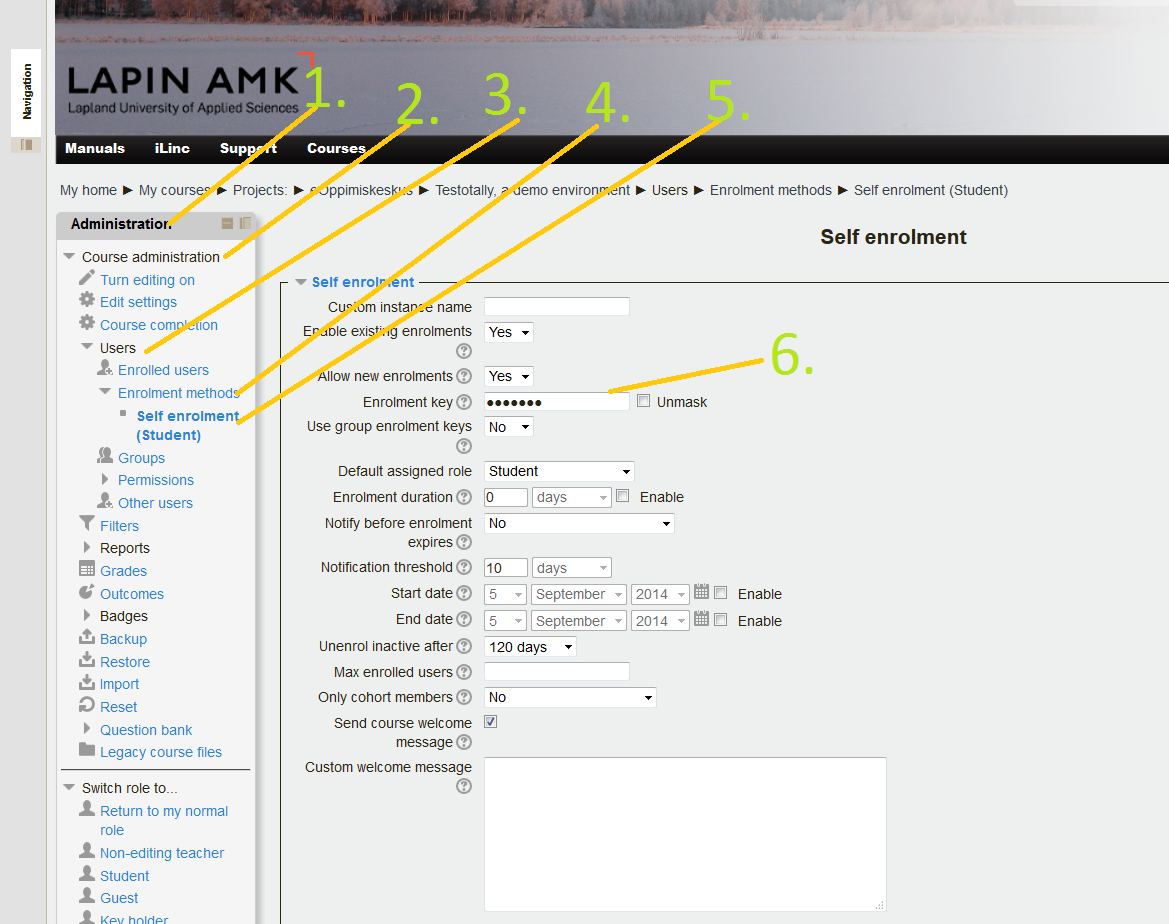
In the left column on the screen, in your Administration block-> press Course administration-> Users-> Enrollment methods-> Self enrolment -> now find the “Enrolment key” and unmask it to see your course enrolment key.
If you change the enrolment key, do not forget to Save changes!

Categories
Moodle tekninen

Moodle 2.5, Some New Features

With the creation of Lapland University of Applied Sciences on January 1st, 2014, Lappia Moodle has become Lapin kampus Moodle and its familiar look will be adapted to the new situation. In preparation for these changes the Moodle environment was upgraded to version 2.5. Earlier we already announced some of the new functionality this upgrade would bring. Still, for many users it will take a little while to get used to the changed look and feel.

One of the changes that may confuse some users is the new organisation of the My home/My courses page. In order to shorten the loading time of this page for users with slower computers, the default number of courses on this page has been set at 10. For many teachers and some students this means that a number of their courses will not be displayed on the page (There will instead be a message that “You have X hidden courses“). It is important to understand that this does not mean that you cannot access these courses anymore! All courses that you have access to will be under My courses in your Navigation block and you can always access them from there. However, it may be so that you want your active courses displayed on your My home/My courses page. That can be achieved by clicking the Customise this page button. This will allow you to

Categories
eOppimiskeskus Moodle tekninen

Moodle 2.4 ja 2.5 tulevat muutokset

Moodle on avoimen lähdekoodin ohjelma jota kehitetään kokoajan ja siihen julkaistaan viikottaisia päivityksiä. Tällä hetkellä olemme Moodle 2.3.6 versiossa ja Moodleen joulukuussa julkaistiin versio 2.4 ja nyt on kehitteillä 2.5 versio joka on nyt vapaasti ladattavissa testausta varten. Moodle 2.4 muutokset liittyvät lähinnä palvelimen tietokannan suorituskyvyn parantamiseen ja pieniä muutoksia siellä täällä mutta ehkä näkyvin 2.4 muutos on uudet ikonit. Moodle 2.5 versiossa sitten tuleekin olemaan enemmän näkyviä muutoksia ja tässä olisi pieni lista muutoksista.

Kurssietusivun muutokset

Uudet ikonit
uudet ikonit

Raahaa ja Pudota (Drag and Drop)
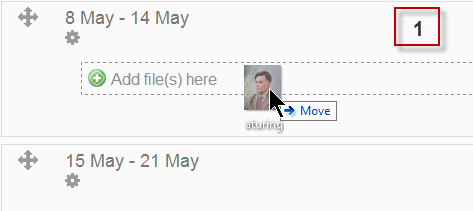
Kun raahaat kuvaa tai tekstiä Moodle 2.5 kurssi etusivulle voit valita joko upottamisen vai luodaanko linkki

File:dragdrop1.pngFile:dragdrop2.pngFile:dragdrop3.png

Kansio(Folder)
Kansio työkalu on saanut myös vähän samanlaisen päivityksen, voit nyt valita näkyykö kansion sisältö kurssi sivulla vai onko se linkki kansioon.
File:folder1.pngFile:folder2.png
Raportit linkki on siirtynyt navigointi lohkosta Asetukset / ylläpito lohkoon

File:reportsinadmin.png
Muita muutoksia

Tiivistä ja laajenna asetuksia
Tiivistä ja laajenna asetussivuilla on saanut päivityksen moodle 2.5 aktiviteettejä luodessa suurin osa asetuksista on tiivistettynä kategoriaan jonka asetukset saadaan näkyviin laajentamalla kategoria, oletuksena pelkästään laajennettuna tärkeimmät asetukset.

http://docs.moodle.org/25/en/images_en/0/02/shorterforms.png


Tekstilaatikot
Tekstilaatikot ovat saanet uuden painikkeen jonka avulla voi piilottaa tekstinmuokkaustyökalut tai ottaa ne esiin.
File:quizform1.png

File:quizform2.png

Sanalaskuri keskustelualueilla
File:bonding.png

Käyttäjienhallinta
Voit nyt etsiä käyttäjiä kurssin sisällä käyttäjienhallinnassa
File:Searchenrolledusers.png

Moodle 2.3 on ollut nyt viimeaikoina erittäin vakaa selain ongelmien jälkeen ja Moodle 2.3 versioon tulee viikoittaisia päivityksiä vielä joten ei ole vielä kiirettä vaihtamaan uuteen Moodle versioon. Moodle 2.5 julkaisua odotetaan kesän loppupuolella.

Categories
Moodle tekninen

Moodle kurssiavaimen lisääminen ?

Opiskelijat kirjautuvat Moodle ympäristöihin avaimella, jonka opettajat määrittelevät ympäristöihinsä. Avain määritellään seuraavasti:

1. Mene kurssille, johon haluat avaimen lisätä

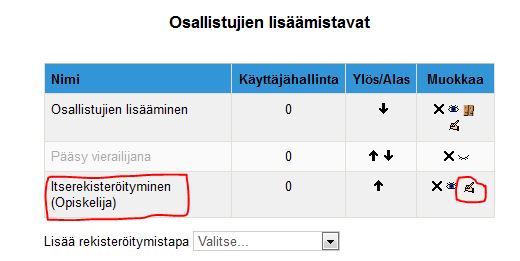
2. Valitse Asetukset lohkossa-> Käyttäjähallinta -> Osallistujien lisäämistavat -> Itserekisteröityminen (Opiskelija)

kuv1
3. Klikkaa Itserekisteröityminen (opiskelija) kohdassa Muokkaa

kuv2
4.  Tarkista, että Salli itserekisteröityminenen  kohdassa on Kyllä.  Kirjoita haluamasi avain Kurssiavain kohtaan ja  klikkaa ‘Tallenna muutokset.

kuv3

Categories
eOppimiskeskus Moodle

Roolin vaihtaminen Moodle ympäristössä

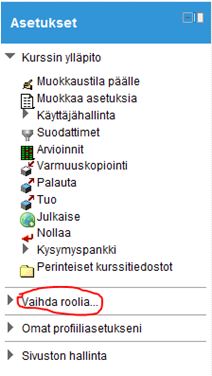
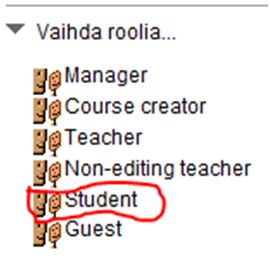
Välillä on tarvetta nähdä miltä oma Moodle ympäristö näyttää opiskelijoille. Opiskelijan roolin voi vaihtaa sivun vasemmassa reunassa olevasta ”Asetukset” lohkosta.

1. Asetukset -> Vaihda roolia

1kuv

2. Vaihda roolia -> Studen

kuv2

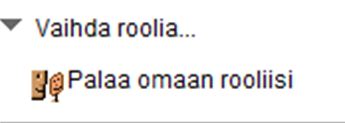
3. Takaisin omaan rooliin pääset: Asetukset -> Vaihda roolia -> Palaa omaan rooliisi

kuv3


Categories
eOppimiskeskus Moodle

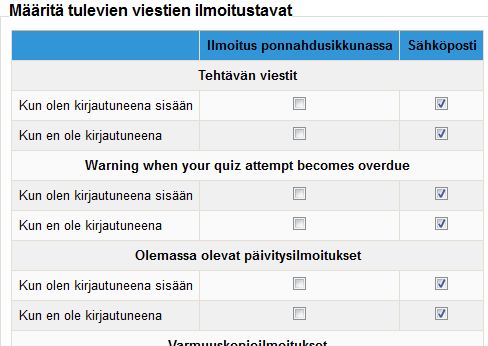
Moodlessa voi säätää, mitä viestejä ympäristöistä tulee ja missä viestit vastaanotetaan

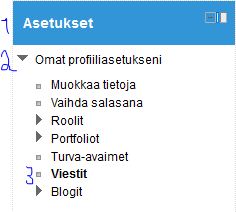
Näin säädät viesti asetuksia:

1. Valitse Asetukset

2. Omat profiiliniasetukseni

3. Viestit


4. Valitse avautuvasta ikkunasta sinulle sopivat vaihtoehdot


5. Tallenna muutokset


Categories
eOppimiskeskus Moodle

Esittelyssä uusi Jmail lohko

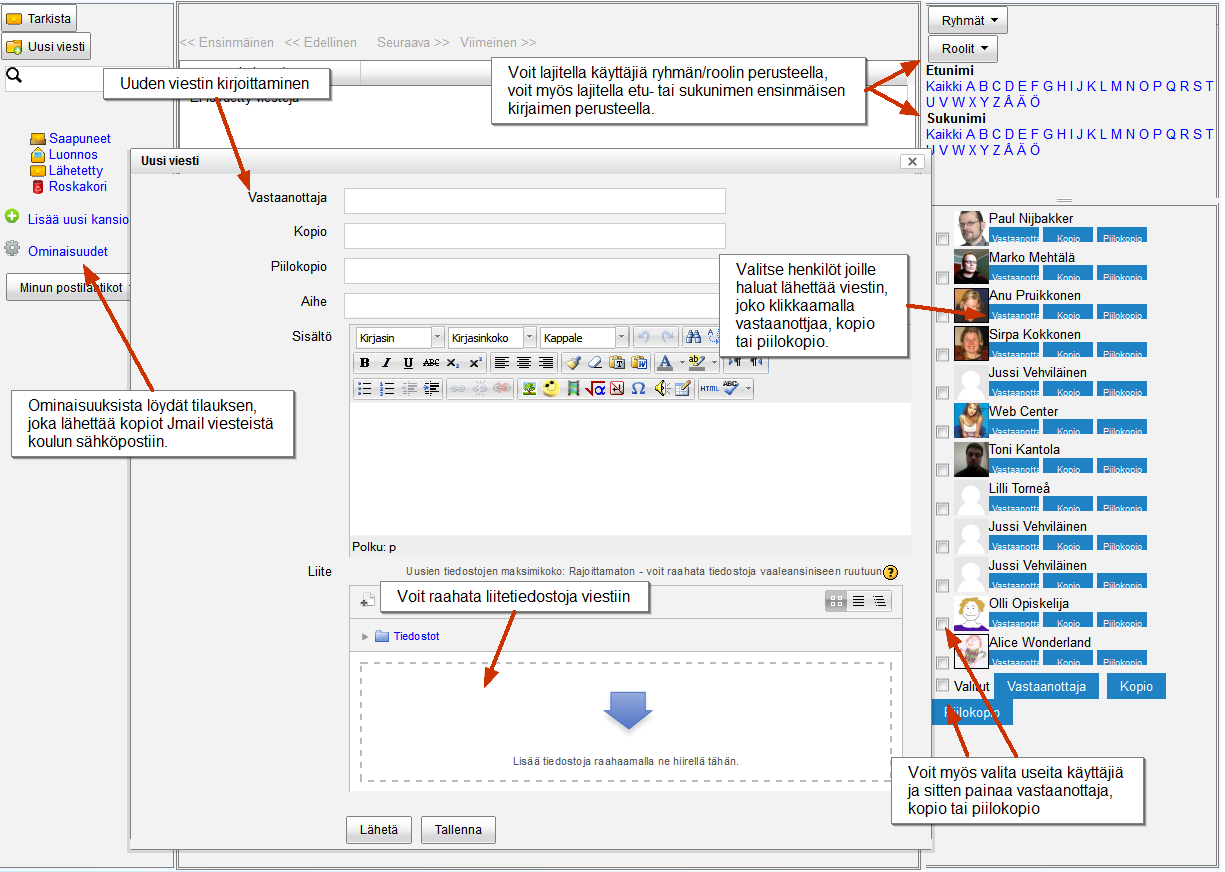
Lappia Moodle:ssa on Pikaviesti lohko, jonka avulla opettajat voivat lähettää sähköpostia ilman/liitteiden kanssa yhdelle tai useammalle opiskelijoille kerrallaan. Valitettavasti Pikaviesti lohkoa on vaivannut vika joka estää opiskelijoita käyttämästä lohkoa. Tämän takia olemme nyt asentaneet uuden Jmail lohkon Moodleen.

Jmail muistuttaa vanhaa Email list lohkoa Moodle 1.9:ssä. Jmail on lohko, joka luo sähköposti järjestelmän kurssin sisälle Saapuneet, luonnos ja lähetetyt -kansion ja roskakorin. Käyttö on helppoa, koska me kaikki tunnemme miten sähköposti toimii. Toisin kuin vanha Email list, Jmail lohko mahdollistaa tilauksen eli käyttäjät saavat kopiot Jmail viesteistä koulun sähköpostiin.

Introducing the all-new Jmail block

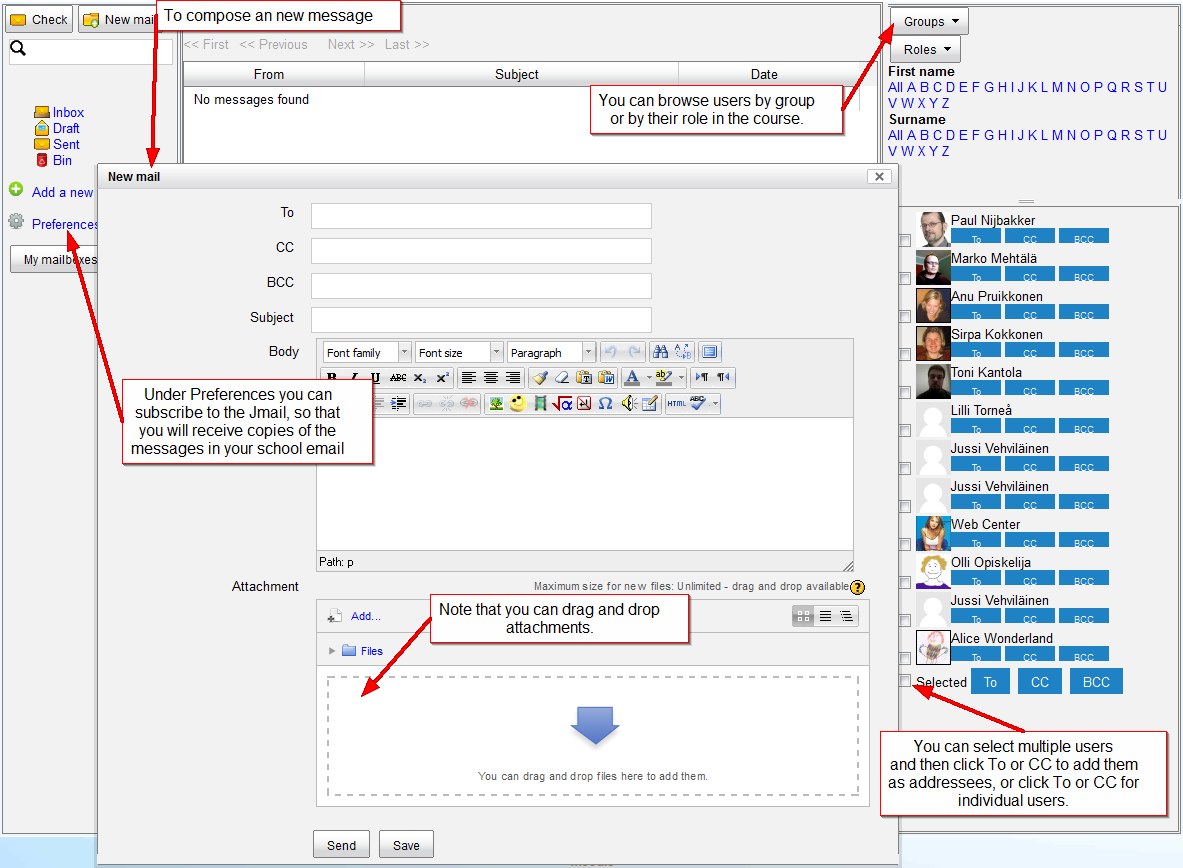
Lappia Moodle includes the contributed Quickmail block that allows teachers to send email with or without attachments to one or more students at a time. Unfortunately, the Quickmail block is plagued by a bug that blocks students from using the block. On account of this we have now installed the Jmail block in our Moodle sites.

Jmail is reminiscent of the old eMail list block in Moodle 1.9. It is a block that creates an email system inside a course complete with inbox, draft and sent folders and a trash bin. The basic use speaks pretty much for itself, as all of us are familiar with email. Unlike the old eMail list, the Jmail block allows subscription, i.e. receiving copies of Jmail messages in your school email.

Jmail while composing a new message