Categories
eOppimiskeskus Moodle tekninen

Who’s Afraid of Moodle 2 Navigation?

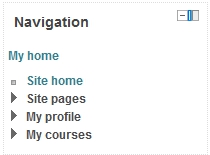
MyMoodle navigation
The Navigation block as it looks on the MyMoodle page

For several years now, the Moodle installations of Lappia – The Municipal Education and Training Consortium of Kemi and Tornionlaakso – have been in Moodle version 1.9.x. Moodle 1.9.x has proven to be a very stable and satisfactory version, but Moodle development has not stopped there. During the summer of 2012 the main Moodle environments of Lappia (i.e. Lappia Moodle and Lapin verkkokoulu Moodle) will be upgraded to Moodle version 2.2.x. This upgrade will bring a lot of improved functionality to Moodle, but it will also bring about a certain amount of pain, especially since our users are so familiar with Moodle 1.9.x.
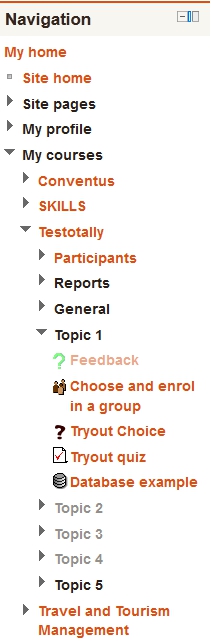
Course page navigation
The Naviation block when the user has entered an activity in a course

Moodle 2, as signified by the jump in generation number, looks and feels initially quite different from Moodle 1.9. All users will have to take some time to get used to the new version. Hence, the eLearning Centre has upgraded the third Lappia Moodle installation (Lappia Open Moodle) in advance of the rest. This will offer to all interested parties the opportunity to check out Moodle 2.2. The eLearning Centre will also release a number of eVinkki blogs on the subject and naturally, we will make a brand new user manual for this version of Moodle.

Navigation and Settings

One of the first changes the Moodle 1.9 user will notice in Moodle 2.2 is the new navigation. In order to move from one tool to another in Moodle 1.9 a user had to click back to the course pages or even the MyMoodle page and then click forward again.  Access to one’s user profile was either via the Profile link in the Administration block of a course, or by clicking one’s name elsewhere. These and other navigation functions have been replaced by one block in Moodle 2. The Navigation block is present on all pages, always allowing the user to jump to any other point in Moodle that they have access to, i.e. it is not only possible to jump between courses, but to jump straight between different activities in different courses! Once users have become acquainted with this, it will help to shorten the click stream, and thus the number of pages that need to be displayed before a user arrives at his or her destination.
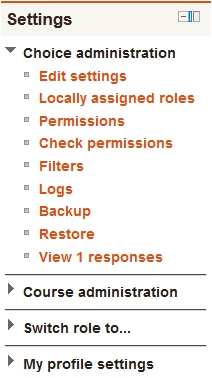
The teacher settings in a Choice module
The Settings block for a teacher who is on the page of a Choice module in a course.

The Navigation block in Moodle 2 is always accompanied by another new block, the Settings block. The settings block also combines a number of functions that were in separate places in Moodle 1.9. The task of the Settings block is to give the user access to whatever editing functions they have access to on the page where they find themselves. The above implies that the Settings block will display different options depending on where in Moodle the user finds him- or herself and on what role they have, i.e. teachers will see more edit options than students. Thus the settings block replaces the Administration block of Moodle 1.9, but unlike the Administration block, it is present on every page. If a teacher moves into an assignment, the Settings block will display edit options for that assignment. The point of this new block is again rationalisation of functionality and shortening of the click stream, but like the Navigation block, it will take some getting used to.

Lappia users who wish to check out Moodle 2.2  before the summer, can create an ID for themselves in Lappia Open Moodle and request access to one of the Test courses from the eLearning Centre.
Categories
eOppimiskeskus pedagoginen Verkko-oppimateriaalit

The WHY of eLearning

At Kemi-Tornio University of Applied Sciences all study programmes contain a certain degree of online work for students and teachers, from a mere support environment for classroom courses to full-time eLearning. Pretty much all students and teachers (96%) are thus affected by this learning paradigm. Some are trained specifically for the purpose of online studying and other merely suffer it as they go along, but few ever wonder WHY we employ eLearning in all degree programmes, even for our fulltime day students.

So, why do we offer online education in one form or another to all our students? Why does the Finnish government encourage eLearning in all secondary and tertiary education?

Naturally, our adult students are best placed to provide answers to those questions. Most students in fully online study programmes cannot afford to study in traditional face to face settings due to time constrictions, or other obstacles such as remote location, full-time employment, physical handicaps, or the care of infants or elderly family members. However, while indicative, this is not the whole answer. It does not explain why we have our daytime students study in Moodle and Mahara in addition to their contact classes. Hence, we have to take a broad perspective to see the relevance of eLearning to all students.

We have to consider that within one lifetime the world we live in has moved from hand-written letters to email and SMS, from rotary dial telephones to smart phones and VOIP, from movable type printing presses to faxes and laser printers, from mechanic typewriters to word processors and spell checkers, from card catalogues to electronic databases and cloud computing, from plain old copper cables to fibreglass and wireless networks, the list goes on and on. The electronic revolution has affected our society profoundly, especially in the way we handle information. Developments in economy and technology have consequently sped up, leading to the need for and development of such concepts as information society and lifelong learning.

Now consider that Finland is a small country with a high standard of living. To compete with the world at large, a country like Finland needs to remain ahead of its competitors in terms of hi-tech and the ability of its work force to deal with technology, to adapt to constant change, to educate themselves further even before the need arises and, furthermore, to do so while remaining active participants in working life. Such a country needs an education system that not only provides this continuing education, but that also enables its students to partake of it.

A good school prepares its students for working life. In a modern, globalised, information society that means that the students have to be taught the skills to navigate the digital information ocean, to retrieve, evaluate and process data, to communicate these data via electronic channels and, moreover, to do so while holding down a full-time job in any location in the world. This is where the eLearning effort at Kemi-Tornio University of Applied Sciences comes in. This is why teachers and students engage with virtual learning environments, social media and virtual classrooms as part and parcel of their studies. This is what the eLearning Centre of Kemi-Tornio UAS supports and develops and it is an area in which we lead the way for many other schools in Finland and abroad.

Categories
Moodle tekninen

Help my students are disappearing! Apua, opiskelijani ovat katoamassa!

English:

It happens sometimes that students drop out of courses just like that, i.e. without the teacher or the student doing anything (like unenrolling themselves). No worries, if this happens, it is not due to black magic, but to a misunderstanding on the side of the teacher.

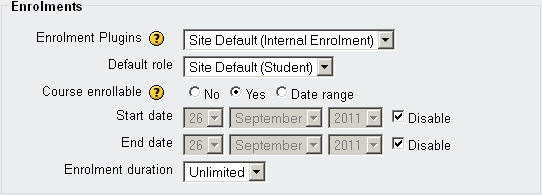
See, in the course Settings (See the link in the Administration block of a Moodle course) is a block called “Enrolment” which determines how long students can be in a course. Normally, there are NO Start or End dates specified and no Duration is set.

However, some teacher mistakenly believe that this is a setting for the time during which the students can enrol for the course (i.e. come into the course with the course enrolment key) and they then set a time limit of, for example, 7 days. This means that students will be automatically removed from the course seven days after they entered for the first time!

The long and short of it is, do not change the Enrolment setting in the course Settings. the picture below shows the default settings, if you keep these users will only disappear if they remove themselves, or are removed by someone else (a teacher or administrator).

The default Enrolments settings

Suomeksi:

Joskus tapahtuu, että opiskelijat keskeyttävät kursseja ilman, että opettaja tai opiskelija tekee mitään (kuten poistaa itse). Ei hätää jos näin käy, sillä se ei johdu mustasta magiasta, vaan opettajan väärinkäsityksestä.

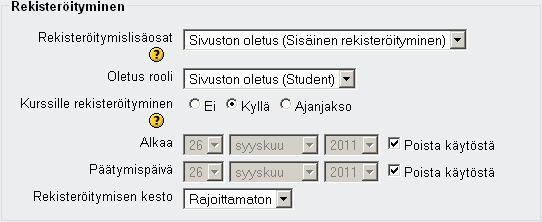
Kurssin Asetukset-sivulla (linkki löytyy Moodlekurssin Ylläpito-lohkosta) on lohko nimeltään “Rekisteröityminen“, joka määrittää kuinka kauan opiskelijat voivat olla kurssilla. Normaalisti kurssin asetuksissa EI ole määritelty Alkaa– eikä Päättymispäivämäärää eikä Rekisteröitymisen kestoa.

Kuitenkin, jotkut opettajat virheellisesti luulevat, että tämä on aika, jolloin opiskelijat voivat rekisteröidä kurssille (eli tulla kurssille kurssin avaimen kanssa), jonka jälkeen he asettavat rekisteröitymisen keston, esimerkiksi 7 päivää. Oikeasti tämä tarkoittaa, että opiskelijat poistetaan automaattisesti kurssilta seitsemän päivän kuluttua siitä laskien, kun  he tulivat ensimmäisen kerran kurssille.

Niin, älä muuta Rekisteröituminen-asetusta kurssin Asetukset-sivulla. Alla olevassa kuvassa on oletusasetuksia. Jos pidät tämät asetukset, käyttäjät vain katoavat, jos he poistavat itse itsensä, tai jos heidät poistaa joku muu (opettaja tai ylläpitäjä).

Rekisteroituminen oletusasetukset (Ei muokaa!)

Categories
Mahara Moodle

Mahara training start/Maharakoulutus alkaa

As announced earlier (https://blogi.eoppimispalvelut.fi/evinkki/2011/04/04/esittelyssa-mahara/) the e-portfolio Mahara has been rolled out as an extension of Lappia Moodle. We expect that Mahara will fill an urgently felt need for a portfolio/social media tool which Moodle itself does not possess.

Mahara is, like Moodle, a multifunctional environment, i.e. we can see it being used for many different activities:

The basic use of Mahara would be as a portfolio, in which the student collects and organises his evidence of learning, i.e. homework projects, project papers, reports, presentations, theses. These files and linked content are available from anywhere on the Internet and remain under the control of the user and can be exported at any time for safekeeping. In the new learning paradigm carried by eLearning such a portfolio function plays a very important role:

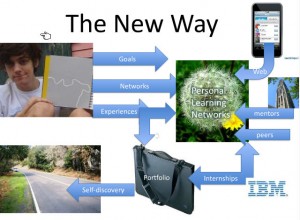
The new learning paradigm
The new learning paradigm depends very much on a central portfolio (c) Anya Kamenetz, 2011, DIY-U: The Transformation of Higher Education.

Mahara can also be used as a safe environment for students and staff of the connected organisations to communicate and network socially.

The group functions in Mahara create great opportunities for group and project work complete with planning tools and a group forum.

Likewise, Mahara can support students and their tutors and supervisors during a traineeship period.

Also for thesis work Mahara could be an excellent basis, especialy once Mahara and Moodle have been integrated to the point that one can serve as a source for the other and vice versa (scheduled for summer 2012).

Alumni of Kemi-Tornio AMK and even Lappia AO can retain their access to Lappia Mahara even after graduation and thus maintain their online CV and their network of classmates and teachers for up to two years; giving them some support in the often difficult search for employment.

This is not an exclusive enumeration of the possibilities of Mahara. We expect that as the use of the environment grows, new functionality will be discovered organically.

Remember this, Mahara is not a replacement for Moodle and it is not obligatory for teachers to include Mahara in their courses as of now. However, it would be wise for teachers to be prepared for this new step in our eLearning effort by attending one of the scheduled Mahara training sessions. The eLearning Centre has scheduled three Mahara training sessions in September:

12/9 in Tornio, Mecruria room 214, from 12.00 to 15.00 hrs.

19/9 in Kemi, Sauvo Learning Centre (Social Unit library), from 12.00 to 15.00 hrs.

26/9 in iLinc, virtual classroom Moodle ja Mahara koulutus (Paul Nijbakker) under the category folder Projektitoiminta. from 12.00 to 15.00 hrs.

Lappia staff can enroll for any of these sessions via Webropol http://www.webropolsurveys.com//S/E38F789DF412E042.par

Further training sessions have been planned in November and a special Urkund/Mahara introduction is scheduled for teachers of the Technical Unit on October 6th from 14.15 to 15.45 hrs (room to be announced later). I hope to welcome many of you during these trainings, but note that if you are unable to attend due to other appointments, you may obtain an insight in the functionality of Mahara from our Mahara manual, which is part of the Moodle 1.9 Beginners’ manual: In English / Suomeksi.

Categories
Moodle tekninen

Do you speak Moodle? Database and Feedback: two-stage modules

It happens regularly that teachers wish to create a “returnfolder” or a “feedback form”. They turn editing on and select the Database module for the first or the Feedback module for the latter. The settings page opens and they fill in the settings and click Save changes. Finished?

NO!

The Database and Feedback modules are not like the Assignment module which is finished and ready to use, as soon as you have saved the settings. They are tools where the settings page only creates the framework of the tool. The questions, or “fields”, have to be added separately (This is what makes these tools so flexible).

In the case of the Database, to create a returnfolder, the easy way is to select the Returnfolder preset and confirm and continue. The database fields will then be created automatically. In the Feedback module there are no presets, so every question must be added separately. However, in both cases, the eLearning Centre is ready to assist.

Just remember: When adding a Database or a Feedback module, saving the settings is only the first step!

Database manual

Feedback manual

Categories
Muut

Fastholdelse i Lappland

Kemi-Torneå Yrkeshögskolans eLearning Centre tillfrågades att skicka en expert i distansundervisning till ett Nordiskt symposium i Danmark nyligen för att tala om insatserna som yrkeshögskolan gör för att motarbeta avfolkningen i Lappland. Symposiets titel var Utdannelse skaber udvikling och det organiserades av organisationen FLUID. Talare kom från Sverige, Finland, Norge och Danmark och redovisningarna av insatserna från olika länder och landsbygder var mycket intressanta och givande fast kollegorna arbetade på mindre områden än vi gör och med mera eftertryck på lokala inlärningsenheter som medel att hålla folk kvar och dra fler människor till bygden.

Eftersom symposiet var i Nordiskt sammanhang gjordes presentationen på svenska och av den anledningen är också det här blogginlägget på svenska. Bildspelet från presentationen hittar ni nedanför:

Avfolkningen av landsbygden är ett problem som fortskrider än idag. Människor drar bort för att söka utbildning och jobb. I Lappland är problematiken desto mera påtaglig eftersom landskapet är så stort. Kemi-Torneå Yrkeshögskola har arbetat med den här problematiken i åratal. Många är de insatserna som gjordes för att bromsa avbefolkningen. Det danska ordet för sådana insatser är fastholdelse, men det ger kanske intrycket att vi vill göra det omöjligt för Lapplandbor att ge sig av, medan det borde uttrycka att vi vill göra det möjligt för dem att stanna kvar.

Tre faktorer spelar en roll i avbefolkningen: utbildningsmöjligheter, arbetstillfällen och tjänstenivån. Kemi-Torneå Yrkeshögskola har förstås utbildning som huvuduppgift. I mer än tio år har yrkeshögskolan bjudit på distansundervisning som gör det möjligt för människor i Lappland och andra utkantsområden att njuta undervisning där de bor utan behov att resa från och till en skolbyggnad. Utbildning räcker dock inte för att hålla kvar befolkningen om det inte finns arbete för de utexaminerade. Framförallt unga kvinnor drar ifrån utkantsområden till centralorterna i jakt på arbetstillfällen. Det är därför som Kemi-Torneå Yrkeshögskola också engagerar sig i utvecklingen och utbyggnaden av befintliga företag i Lappland samt grundande av nya företag, till exempel, genom innovations- och inkubationsprojekt. Sist men inte minst arbetar yrkeshögskolan också för att upprätthålla tjänstenivån för de invånare som bor kvar i småbyarna, till exempel, genom att utvidga tjänsteutbudet i lokala handelsbodar.

Symposiets deltagare var imponerade av bredden i yrkeshögskolans insatser och intresserade framförallt av inkubationsidén (d.v.s. att hjälpa studenter att grunda småföretag under studietiden som de efter studierna kan fortsätta att driva och utveckla). Vägen framåt, vad fastholdelse angår, leder kanske just dit.

Categories
Mahara pedagoginen

Meet Mahara!

Lue tämä viesti suomeksi

Lappia Mahara is a program that is used as an extension to Lappia Moodle. It adds functionality that Moodle cannot offer properly. Moodle is a course-based VLE. That means that it is built up around course environments and it is the courses that unite the users. Mahara is user-oriented. That means that it is built around users and their profiles and their uploaded files, blog messages and other information. For this reason, Mahara is described as an e-portfolio.

Access to Mahara is via ths block in Lappia MoodleUsers can access Lappia Mahara only via Lappia Moodle. There is no separate login required. New users in Mahara will find that their Mahara Profile contains information taken from their Moodle user profile. The Mahara profile can however be extended with resumé data, so as to create an online C.V.
The central part of Mahara is the Portfolio where users can store all files and data that they gather during their studies. The users can organise this information into so-called Views and then decide whom they will give Access to the data in particular Views. Thus they can give a teacher access to assignment files, or give their friends access to some pictures they took during a party.

Mahara allows the easy creation of user Groups that can discuss in a group forum and create group Views, in which they make group files accessible to each other and their teacher(s). A planning tool is available for time management of the group activities.

Mahara is being piloted at Lappia during the spring term of 2011. Teachers can request Mahara access to be made available in selected Moodle courses. After the summer recess Lappia Mahara will be available to all users of Lappia Moodle via their MyMoodle page.

The functionality of Mahara in a nutshell

Just to be clear, Mahara is not a replacement for Moodle. It is just an extension that adds functionality. Lappia Moodle users can employ Mahara to store files, links and other data related to their studies. They can also use it for communication and for group work. In the future Moodle and Mahara will be even more closely integrated, so that user can upload files from Mahara straight to Moodle and download data from Moodle to Mahara.

There is every reason to surmise that the Mahara e-portfolio will complete the range of virtual environments on offer at Lappia with its ability to tie together on-line content that users may have dispersed over various online services and its allowing them to share it among themselves in a sense of security.

For more detailed information, please, see the Mahara manual that is part of our Moodle 1.9 Beginner’s Manual.

Categories
Moodle pedagoginen tekninen

Oppimistehtävät suoraan Moodlesta Urkundiin tarkistettavaksi

Read this entry in English

Kemi-Tornion ammattikorkeakoulussa on otettu käyttöön Urkund -plagioinninesto-ohjelma, joka tarkistaa automaattisesti siihen sähköpostilla lähetetyt dokumentit Internetistä kopioitujen tekstien varalta. Se vertaa tekstiä myös omasta tietokannastaan aiemmin tarkistetuista dokumenteista.

Urkundia voi käyttää henkilökohtaisen Urkund-tilin kautta, joka on sidottu tiettyyn sähköpostiosoitteeseen. Dokumentit voidaan lähettää yhteen Urkund-sähköpostiosoitteeseen liitetiedostoina tarkistamista varten. Henkilökunta voi tiedustella Kaisa Vesamäeltä Urkund-tiliä.

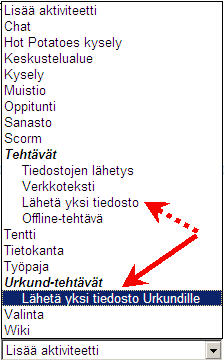
Lisää Urkund-tehtävä aktiviteettivalikostaHelpoin tapa käyttää Urkundia on Moodlen kautta. Voit opettajan roolissa asettaa Moodlessa oppimistehtävän tyypiksi Urkund-tehtävän, joka eroaa “tavallisesta” oppimistehtävästä vain siinä, että Moodle lähettää tehtävän Urkundiin tarkistettavaksi ja palautettavaksi 24 tunnin sisällä. Voit avata tulosanalyysin tehtävänpalautuksen arviointisivulta ilman, että sinun tarvitsee erikseen käyttää Urkund-tiliä. Arviointi ja kommentointi tapahtuvat myös kuten Moodlessa normaalistikin.

Jos haluat lisätä Urkund-tehtävänpalautuksen Moodle-kurssillesi, tästä linkistä pääset Moodlen ohjeisiin (http://moodle.tokem.fi/mod/book/view.php?id=51005&chapterid=17034). Jos haluat lisätietoja, ota yhteys eOppimiskeskukseen.

On suositeltavaa, että opiskelijoille kerrotaan Urkundin käytöstä ja havaittujen rikkeiden seurauksista. Plagioinnin esto on kuitenkin tehokkaampaa kuin rangaistukset.

Categories
Moodle pedagoginen tekninen

Urkund Moodle assignment available

Lue tämä viesti suomeksi

Kemi-Tornio University of Applied Sciences has adopted the Urkund anti-plagiarism service to be used by its teachers in the struggle against copy and paste fraud committed by students. Urkund is an online service that checks documents sent to it via email in an automated process for text strings copied from Internet resources. It also compares text with its own database of previously checked documents.

A teacher wishing to use Urkund needs an Urkund account which is tied to a special email address. Documents can be sent as single email attachments to this Urkund email address for processing. If you are a staff member and do not yet possess an Urkund account, you can request one from Kaisa Vesämäki.

Adding an Urkund assignment from the Activities menuBy far the easiest way to use Urkund is via the Moodle integration that is available now. The Urkund assignment will see students hand in documents just as in a normal Moodle assignment, but with the difference that the documents will be sent from Moodle to Urkund for processing and that Urkund will send back the result of the analysis to the assignment in Moodle within 24 hours. The teacher can open the analysis report from the assignment’s grade page without needing to access Urkund separately. Grading and commenting is done as in any other Moodle assignment.

If you wish to add an Urkund assignment to your course, there is a page in the Moodle manual to help you (http://moodle.tokem.fi/mod/book/view.php?id=51005&chapterid=17021). If you need more help than the manual can offer, you can always contact us at the eLearning Centre.

It is advisable to inform the students about Urkund and the repercussions they would face should they be caught committing fraud. After all, prevention of plagiarism is far more efficient than prosecution of the culprits.

Categories
Moodle pedagoginen

Do you speak Moodle? (2) Link to a file or web site

How well versed are you in the use of our main virtual learning environment? There are certain things in Moodle that every teacher should be able to do by him- or herself. Adding a file to a course and displaying it as a link on the course page is one of those things.

If you start with the file you want to upload, saved in a format that everyone can open without problems (so avoid MS Office 2007 formats, or Open Office formats for the time being), you can make this file available to your students on a Moodle course page in 11 clicks and one text string (The amount of additional clicks and scrolling depends on the organisation of your course and course files). Count with us:

  1. Turn editing on in your course and scroll to the topic section where you want the file to appear.
  2. Click on Add a resource.
  3. Click on Link to a file or web site.
  4. Fill in the link Name (i.e. the text string that will appear on the course page and link to the file) and scroll down a bit.
  5. Click on the Choose or upload file button. (This opens the course Files. If you wish to upload the file to a separate folder that ads a click on the folder. Creating a new folder adds 3 clicks and a text string, i.e. the folder name.)
  6. Click on the Upload a file button.
  7. Click on the Browse button. (This opens a file upload box that looks at a folder in your PC. If it is not the folder where your file is saved, you need to open that folder, which adds about two clicks.)
  8. Click on the file.
  9. Click the Open button.
  10. Click on the Upload this file button. (This uploads the file to the folder in Moodle.)
  11. Click the Choose link behind the file name in the folder in Moodle. (If you use a small browser window, you may have to scroll to the right to see this link.) This adds the file to the location box. Scroll down.
  12. Click the Save and return to course button. (This adds the file as a link to your Moodle course page.)

Presto, twelve steps! This process is illustrated on the corresponding page of our Moodle manual.

The previous installment in this series deals with topic sections and the enrolment key (in the course Settings).