Moodle 2 offers a host of new functionality when compared with version 1.9. One of the options that users have been demanding for a long time is the possibility to make course resources and activities interdependent. That is, course activities become accessible to students only under certain conditions, for example, that they have completed another activity and/or obtained a certain grade for it.
In Moodle 1.9 only the Lesson module had this functionality (i.e. access to a lesson could be made dependent on success in another lesson. Moodle 2 has extended this functionality to all activities and resources in a course. If you want students to read a document before they attempt an assignment, you can make the assignment access dependent on the students having viewed the document. If you have a series of related quizzes in a course, you can stop students from accessing quiz 2, before they have completed quiz 1. And so on.
As you can see access to an activity can be made dependent on dates and/or a certain grade in another activity and/or completion of another activity or resource.
In the above completion is already mentioned as one of the conditions upon which you can make access to course activities or resources depend. Activity completion is related to the Restrict access function, but can be used independently. The advantage of using activity completion is that students can track their course completion, in a block called Course completion status, i.e. they can see if they have done all the tasks required of them in the course.
The activity completion settings determine when this particular activity will be considered completed. Do the users merely need to see the task, or do they need to obtain a grade (before a certain date)? And are they allowed to mark the task as complete themselves, or can only Moodle do so?
Does this all look and sound too difficult? No worries, you can then ignore the Restrict access and Activity completion settings whenever you add an activity or resource and it will work normally as in Moodle 1.9.
The new version of Moodle is different in certain important ways from the familiar 1.9 structure. One of the main differences is in the way Moodle 2 deals with uploaded files.
The old 1.9 file system worked with course Files, i.e. users would upload files to a course Files area, where they could organise and mange those files, and they could then link to those files from various pages in the course. Moodle 2 largely does away with course Files. Now files are uploaded to the very place where they are shown, i.e. a file shown on the course page is uploaded to the file resource that displays it and nowhere else. This can lead to confusion for those who are used to the old file system, as they will find their files more difficult to overview and manage. However, for most it will be no more complex than the old system.
The old course Files have been retained in Moodle 2 under the name Legacy course files. However, they do not work exactly the same way as before. While it is possible to upload and organise files there and link to them, you cannot update or delete files in the course by updating or removing them from the Legacy course files!
So, why the new file system? Well, first of all, it is much more secure and easier on the server, which pleases the server administrators. From the user’s point of view the new file system opens greatly increased options to use all kinds of online repositories and embed content from those directly in Moodle. In other words, with the new file system you can, for example, link directly to pictures in Flickr or WikiMedia commons or to videos in YouTube or documents in Google docs and so on.
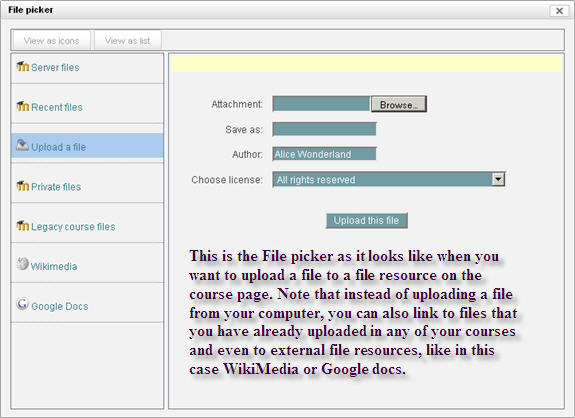
All linking to files is done via one pop-up interface, the File picker, which adapts to the kind of content you want to add (e.g. if you click the Insert image icon in the button bar of the editor and go to upload a file, the file picker will show for example WikiMedia as a repository, but not Youtube, because the latter does not contain any pictures).
Note that if you activate the Drag & Drop block in your course, you can bypass the File picker and simply drag files from your computer and drop them in Moodle!
As mentioned in the picture, the File picker gives you access to files in all your courses, so it is possible via the Server files option to browse to a file that you uploaded in a resource in another course and add it to your new course.
Summing up, the new file system in Moodle 2 will be experienced as a challenge by those who are used to the old file system, but it once the users have familiarised themselves with the file picker, the new system offers vastly increased functionality.
As a footnote, we should add that the drag & drop functionality that the eLearning Centre will add to Moodle 2 will enable users to bypass the file picker entirely when they upload files to Moodle. This may for many be a more user-friendly way of putting files in their courses.
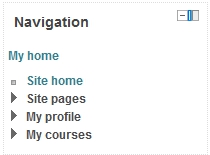
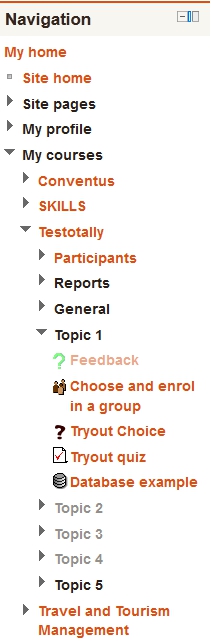
The Navigation block as it looks on the MyMoodle page
For several years now, the Moodle installations of Lappia – The Municipal Education and Training Consortium of Kemi and Tornionlaakso – have been in Moodle version 1.9.x. Moodle 1.9.x has proven to be a very stable and satisfactory version, but Moodle development has not stopped there. During the summer of 2012 the main Moodle environments of Lappia (i.e. Lappia Moodle and Lapin verkkokoulu Moodle) will be upgraded to Moodle version 2.2.x. This upgrade will bring a lot of improved functionality to Moodle, but it will also bring about a certain amount of pain, especially since our users are so familiar with Moodle 1.9.x.
The Naviation block when the user has entered an activity in a course
Moodle 2, as signified by the jump in generation number, looks and feels initially quite different from Moodle 1.9. All users will have to take some time to get used to the new version. Hence, the eLearning Centre has upgraded the third Lappia Moodle installation (Lappia Open Moodle) in advance of the rest. This will offer to all interested parties the opportunity to check out Moodle 2.2. The eLearning Centre will also release a number of eVinkki blogs on the subject and naturally, we will make a brand new user manual for this version of Moodle.
Navigation and Settings
One of the first changes the Moodle 1.9 user will notice in Moodle 2.2 is the new navigation. In order to move from one tool to another in Moodle 1.9 a user had to click back to the course pages or even the MyMoodle page and then click forward again. Access to one’s user profile was either via the Profile link in the Administration block of a course, or by clicking one’s name elsewhere. These and other navigation functions have been replaced by one block in Moodle 2. The Navigation block is present on all pages, always allowing the user to jump to any other point in Moodle that they have access to, i.e. it is not only possible to jump between courses, but to jump straight between different activities in different courses! Once users have become acquainted with this, it will help to shorten the click stream, and thus the number of pages that need to be displayed before a user arrives at his or her destination.
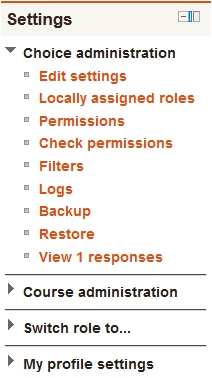
The Settings block for a teacher who is on the page of a Choice module in a course.
The Navigation block in Moodle 2 is always accompanied by another new block, the Settings block. The settings block also combines a number of functions that were in separate places in Moodle 1.9. The task of the Settings block is to give the user access to whatever editing functions they have access to on the page where they find themselves. The above implies that the Settings block will display different options depending on where in Moodle the user finds him- or herself and on what role they have, i.e. teachers will see more edit options than students. Thus the settings block replaces the Administration block of Moodle 1.9, but unlike the Administration block, it is present on every page. If a teacher moves into an assignment, the Settings block will display edit options for that assignment. The point of this new block is again rationalisation of functionality and shortening of the click stream, but like the Navigation block, it will take some getting used to.
Lappia users who wish to check out Moodle 2.2 before the summer, can create an ID for themselves in Lappia Open Moodle and request access to one of the Test courses from the eLearning Centre.
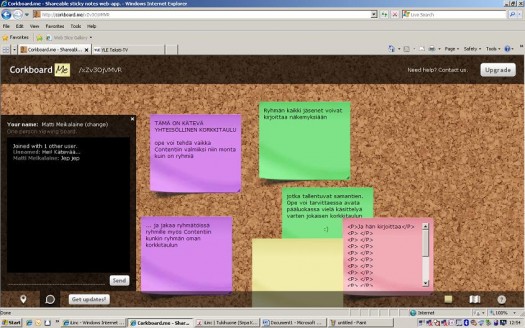
Osoitteesta http://corkboard.me löydät helppokäyttöisen korkkitaulun, jossa voit tehdä omia ”Post-it” -lappuja. Korkkitaulu sopii hyvin yhteisölliseen työskentelyyn, sillä samaa korkkitaulua voi täydentää yhtä aikaa useat henkilöt. Ryhmän kaikki jäsenet voivat kirjoittaa näkemyksiään, jotka tallentuvat automaattisesti www-sivulle. Sinun ei siis tarvitse tehdä välitallennuksia vaan jokainen korkkitaulu tallentuu omalle www-sivulle.
iLinc:ssä opettaja voi lisätä korkkitaulun Contentiin WebSync –toiminnolla ja tämän jälkeen jakaa sen opiskelijoille. Opettaja voi tehdä esimerkiksi Contentiin valmiiksi korkkitauluja niin monta kuin ryhmiä on ja jakaa ryhmätöissä myös Contentiin kunkin ryhmän oman korkkitaulun. Opettaja voi tarvittaessa avata pääluokassa vielä käsittelyä varten jokaisen ryhmän korkkitaulun.
Korkkitaulua on erittäin helppoa käyttää: klikkaamalla taulua jokainen voi kirjoittaa muistilapun. Voit vaihtaa eriväriseen muistilappuun oikean alareunan muistilappukuvaketta klikkaamalla ja valitsemalla uuden värin. Voit myös kirjoittaa toisen laittamaan lappuuun. Vasemmasta alareunasta löytyy lisäksi korkkitaulun oma chat, jossa voi keskustella reaaliaikaisesti. Linkin korkkitauluun voi myös lisätä Moodleen, josta se on kätevästi opiskelijoiden saatavilla.
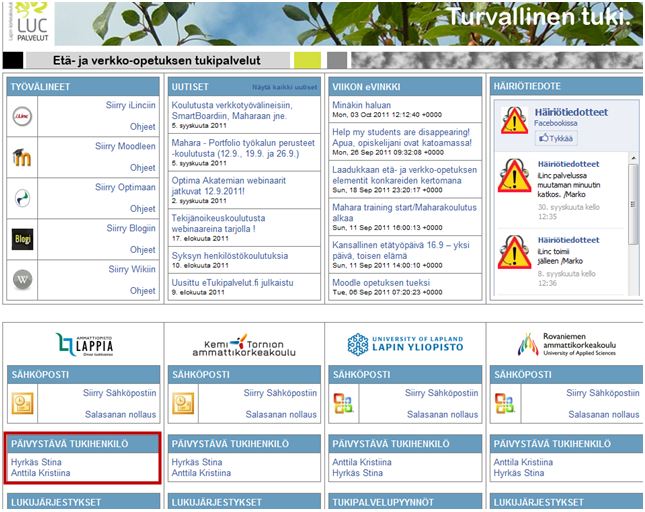
Apu löytyy helposti osoitteesta etukipalvelut .fi ja siellä kohta Päivystävä tukihenkilö
Tukihenkilön nimeä klikkaamalla saat näkyviin tarkemmat yhteystiedot. Sitten ei muuta, kuin soittelemaan. Välillä puhelinlinjat voivat olla ruuhkaiset, mutta yritä kärsivällisesti uudelleen.
It happens sometimes that students drop out of courses just like that, i.e. without the teacher or the student doing anything (like unenrolling themselves). No worries, if this happens, it is not due to black magic, but to a misunderstanding on the side of the teacher.
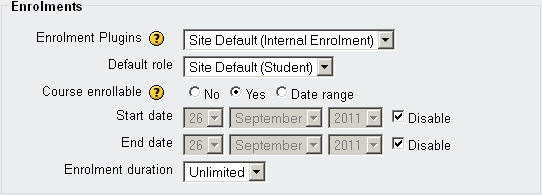
See, in the course Settings (See the link in the Administration block of a Moodle course) is a block called “Enrolment” which determines how long students can be in a course. Normally, there are NO Start or End dates specified and no Duration is set.
However, some teacher mistakenly believe that this is a setting for the time during which the students can enrol for the course (i.e. come into the course with the course enrolment key) and they then set a time limit of, for example, 7 days. This means that students will be automatically removed from the course seven days after they entered for the first time!
The long and short of it is, do not change the Enrolment setting in the course Settings. the picture below shows the default settings, if you keep these users will only disappear if they remove themselves, or are removed by someone else (a teacher or administrator).
Suomeksi:
Joskus tapahtuu, että opiskelijat keskeyttävät kursseja ilman, että opettaja tai opiskelija tekee mitään (kuten poistaa itse). Ei hätää jos näin käy, sillä se ei johdu mustasta magiasta, vaan opettajan väärinkäsityksestä.
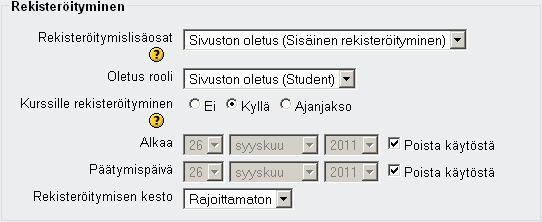
Kurssin Asetukset-sivulla (linkki löytyy Moodlekurssin Ylläpito-lohkosta) on lohko nimeltään “Rekisteröityminen“, joka määrittää kuinka kauan opiskelijat voivat olla kurssilla. Normaalisti kurssin asetuksissa EI ole määritelty Alkaa– eikä Päättymispäivämäärää eikä Rekisteröitymisen kestoa.
Kuitenkin, jotkut opettajat virheellisesti luulevat, että tämä on aika, jolloin opiskelijat voivat rekisteröidä kurssille (eli tulla kurssille kurssin avaimen kanssa), jonka jälkeen he asettavat rekisteröitymisen keston, esimerkiksi 7 päivää. Oikeasti tämä tarkoittaa, että opiskelijat poistetaan automaattisesti kurssilta seitsemän päivän kuluttua siitä laskien, kun he tulivat ensimmäisen kerran kurssille.
Niin, älä muuta Rekisteröituminen-asetusta kurssin Asetukset-sivulla. Alla olevassa kuvassa on oletusasetuksia. Jos pidät tämät asetukset, käyttäjät vain katoavat, jos he poistavat itse itsensä, tai jos heidät poistaa joku muu (opettaja tai ylläpitäjä).
As announced earlier (https://blogi.eoppimispalvelut.fi/evinkki/2011/04/04/esittelyssa-mahara/) the e-portfolio Mahara has been rolled out as an extension of Lappia Moodle. We expect that Mahara will fill an urgently felt need for a portfolio/social media tool which Moodle itself does not possess.
Mahara is, like Moodle, a multifunctional environment, i.e. we can see it being used for many different activities:
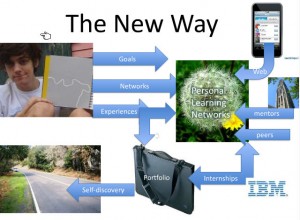
The basic use of Mahara would be as a portfolio, in which the student collects and organises his evidence of learning, i.e. homework projects, project papers, reports, presentations, theses. These files and linked content are available from anywhere on the Internet and remain under the control of the user and can be exported at any time for safekeeping. In the new learning paradigm carried by eLearning such a portfolio function plays a very important role:
The new learning paradigm depends very much on a central portfolio (c) Anya Kamenetz, 2011, DIY-U: The Transformation of Higher Education.
Mahara can also be used as a safe environment for students and staff of the connected organisations to communicate and network socially.
The group functions in Mahara create great opportunities for group and project work complete with planning tools and a group forum.
Likewise, Mahara can support students and their tutors and supervisors during a traineeship period.
Also for thesis work Mahara could be an excellent basis, especialy once Mahara and Moodle have been integrated to the point that one can serve as a source for the other and vice versa (scheduled for summer 2012).
Alumni of Kemi-Tornio AMK and even Lappia AO can retain their access to Lappia Mahara even after graduation and thus maintain their online CV and their network of classmates and teachers for up to two years; giving them some support in the often difficult search for employment.
This is not an exclusive enumeration of the possibilities of Mahara. We expect that as the use of the environment grows, new functionality will be discovered organically.
Remember this, Mahara is not a replacement for Moodle and it is not obligatory for teachers to include Mahara in their courses as of now. However, it would be wise for teachers to be prepared for this new step in our eLearning effort by attending one of the scheduled Mahara training sessions. The eLearning Centre has scheduled three Mahara training sessions in September:
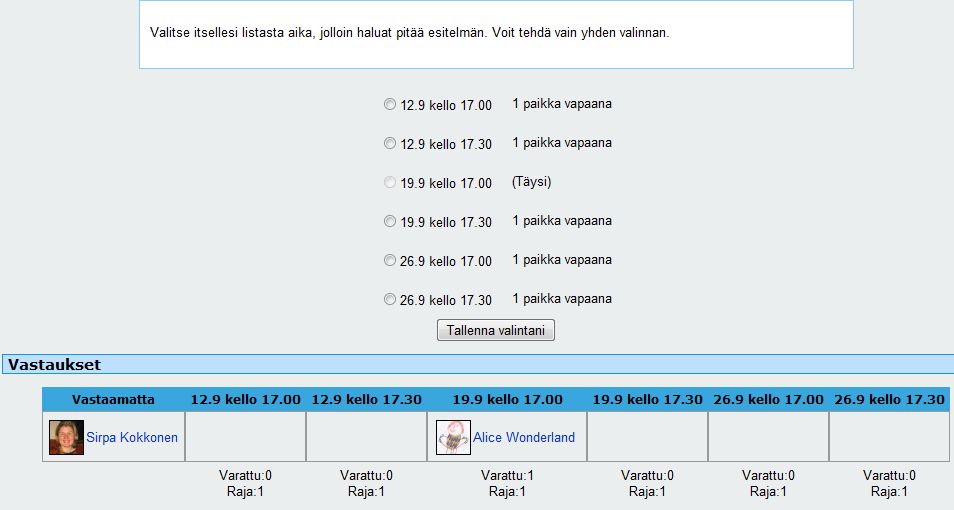
12/9 in Tornio, Mecruria room 214, from 12.00 to 15.00 hrs.
19/9 in Kemi, Sauvo Learning Centre (Social Unit library), from 12.00 to 15.00 hrs.
26/9 in iLinc, virtual classroom Moodle ja Mahara koulutus (Paul Nijbakker) under the category folder Projektitoiminta. from 12.00 to 15.00 hrs.
Further training sessions have been planned in November and a special Urkund/Mahara introduction is scheduled for teachers of the Technical Unit on October 6th from 14.15 to 15.45 hrs (room to be announced later). I hope to welcome many of you during these trainings, but note that if you are unable to attend due to other appointments, you may obtain an insight in the functionality of Mahara from our Mahara manual, which is part of the Moodle 1.9 Beginners’ manual: In English / Suomeksi.
Syksy on lähtenyt rytinällä käyntiin ja uudet opiskelijaryhmät aloittaneet opintonsa. Nyt jos koskaan on hyvä aika ottaa Moodle opetuksen tueksi, jotta voit helpottaa työtaakkaasi 🙂
Kun opetusmateriaali ja tehtävät ovat Moodlessa, sinun ei tarvitse seistä kopiokoneen ääressä kopioimassa opiskelijoille materiaaleja. Opiskelijoiden reput pysyvät samalla kevyenä, kun tarvittava aineisto on näppärästi Moodlesta saatavilla. Opiskelijat voivat itse valita, mitä he haluavat tulostaa. Opiskelijoiden tehtävät pysyvät myös nätisti arkistoituna, kun he palauttavat ne Moodlen syövereihin. Me eOppimiskeskuksessa autamme mieluusti Moodlen käyttöönotossa ja huolehdimme opiskelijoiden Moodle-perehdytykset.