Categories
eOppimispalvelut Moodle tekninen

Moodle 3 Features, part 5 User menu

In Moodle 2 the user menu could be accessd via the Administration block under the link “My profile settings”. In Moodle 3 the user menu has moved to the navigation bar, from where it can be opened and used as shown in the image below with instructions for changing the password (NB: Only users with manual accounts can change their password, if you use your school network account, the password can only be changed in the school network!).
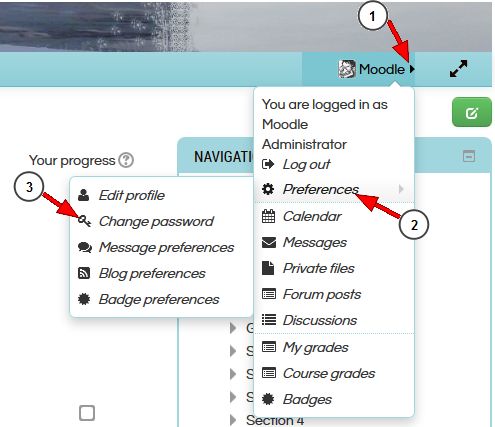
Change Password in a Course with the Campus Theme

HOWEVER, this functionality is only available in themes that have been upgraded for Moodle 3. Unfortunately, some of our present themes (like the LapinAMK theme) are still Moodle 2 themes. If you need to access the user menu in one of these themes, the work around is to click your name (This opens your profile), click Edit profile and then in the breadcrumb trail click Preferences (or, in Finnish, Asetukset):

Preferences/AsetuksetIt may take a while before we can update our LapinAMK theme to a Moodle 3 version. Until that time teachers might choose to replace this theme with a Moodle 3 theme like Klass, a theme with blue colours. Changing a course theme is done in the course settings:
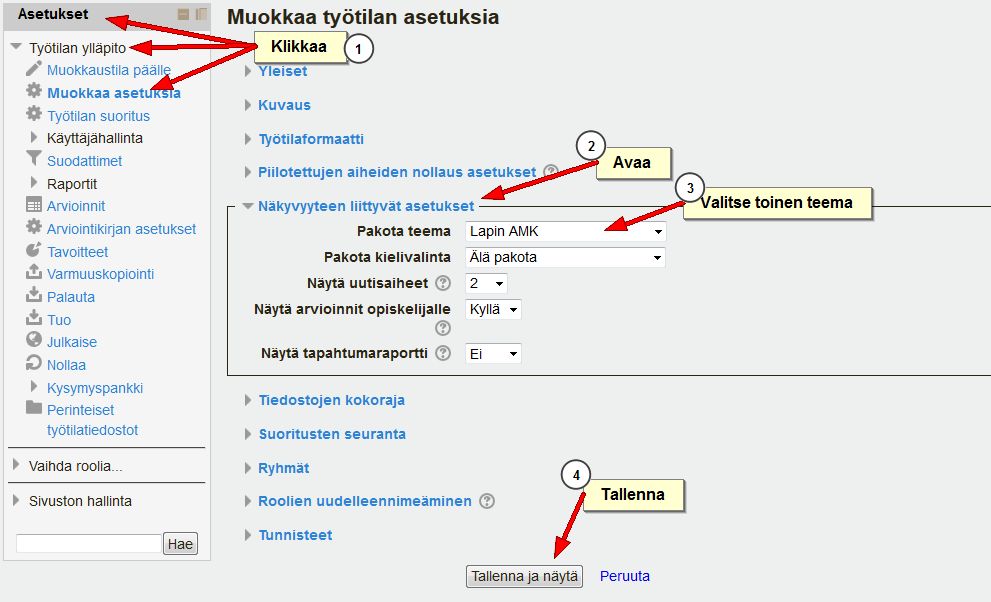
Change Theme

Categories
eOppimispalvelut Moodle

Moodle 3 Features, part 4 Quiz question types

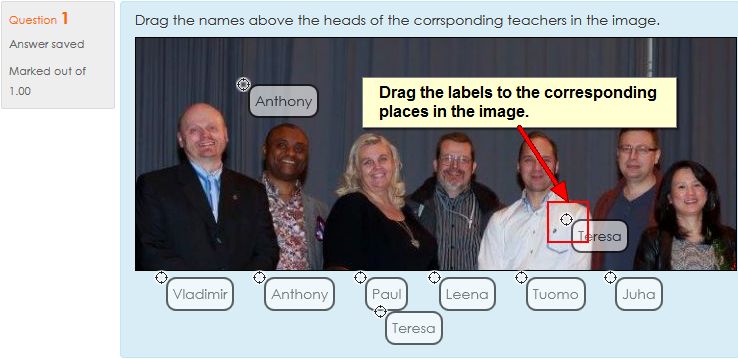
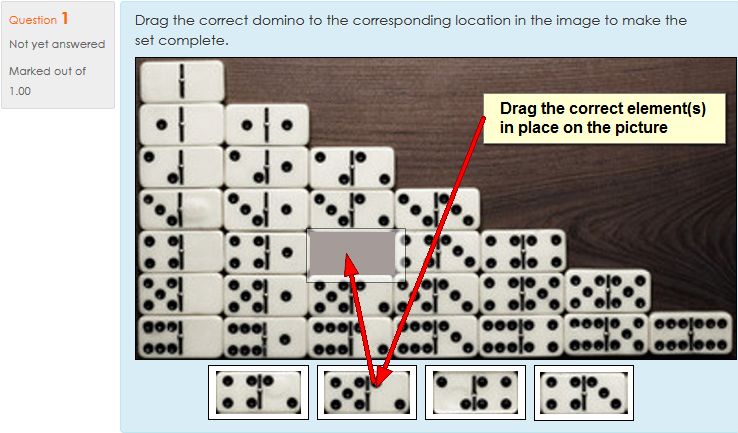
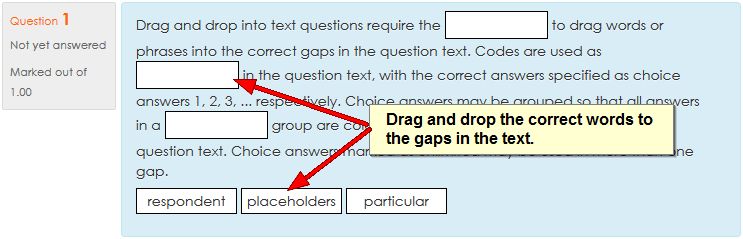
Moodle 3 incorporates three new question types in the standard selection for Moodle quizzes. These quiz question types were developed by the British Open University and heve been available before as third party plugins. All three types involve the student dragging and dropping elements onto a larger element in order to complete it. This sounds abstract, so examples can clarify the idea.

Drag text onto text (drag and drop into text)

The first type allow the creation of cloze texts where students do not fill in words, nor select them from a drop down list, but drag and drop them into the gaps in the text.

dragdroptextDrag text onto image (drag and drop markers)

The second type allows the student to drag and drop text labels onto a background image. The place where the label should go must be defined.

dragdroptextimageDrag image onto image (drag and drop onto image)

The third type allow the creation of tasks in which an image needs to be modified or completed by dragging one or more image elements onto the background image.

dragdropimageonimageThese new question types, especially the ones involving pictures, are a bit more complex to create than most of the other standard quiz question types. Therefore, they should not be used simply for the sake of having a cool image task in the quiz. However, for visualising specific understanding (e.g. how to complete an electrical circuit, where do intestines fit, etc.) they can be quite useful.

Categories
eOppimispalvelut Moodle

Moodle 3 Feautures, part 3 Flexible sections format

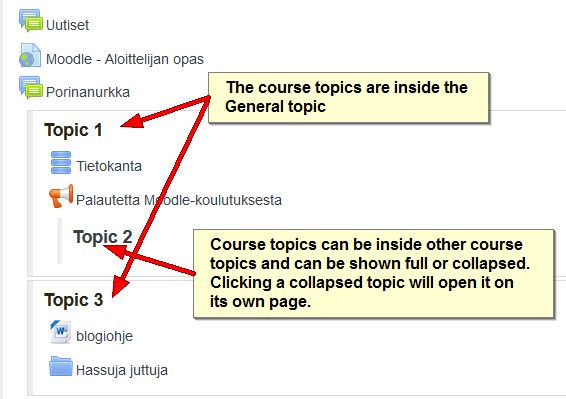
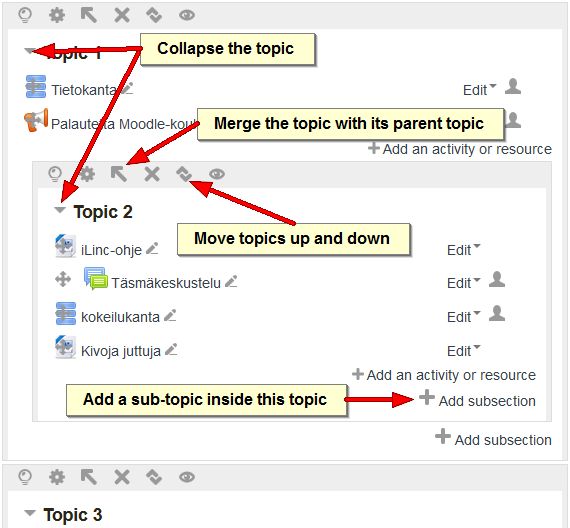
One of the new plugins in Moodle 3 is a course format called “Flexible sections”. It allows sections/topics to be placed within other sections in either open or collapsed form. The collapsed section links will open the section on its own page when clicked. Note that this new format may not work with some of the older Moodle themes! Changing the course format back to the default Topics format, will return the sections to their normal positions.

flexible sections
A course page with flexible sections enabled.


flexible sections
When editing is turned on more options become available to manage the sections.
Categories
eOppimispalvelut Moodle

Moodle 3 Features, part 2 Assignment

The assignment module in Moodle 3 looks almost the same as in Moodle 2.7. In the assignment settings you may notice that under submission types, if on-line text is chosen as submission type, a maximum word limit may be set, so as to force students to adhere to brevity, for example, in summaries or reports.

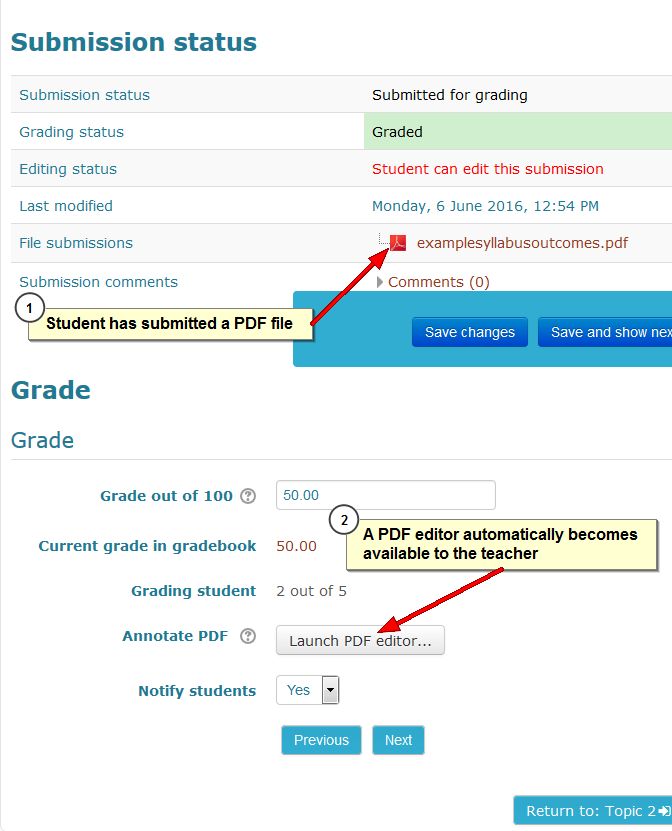
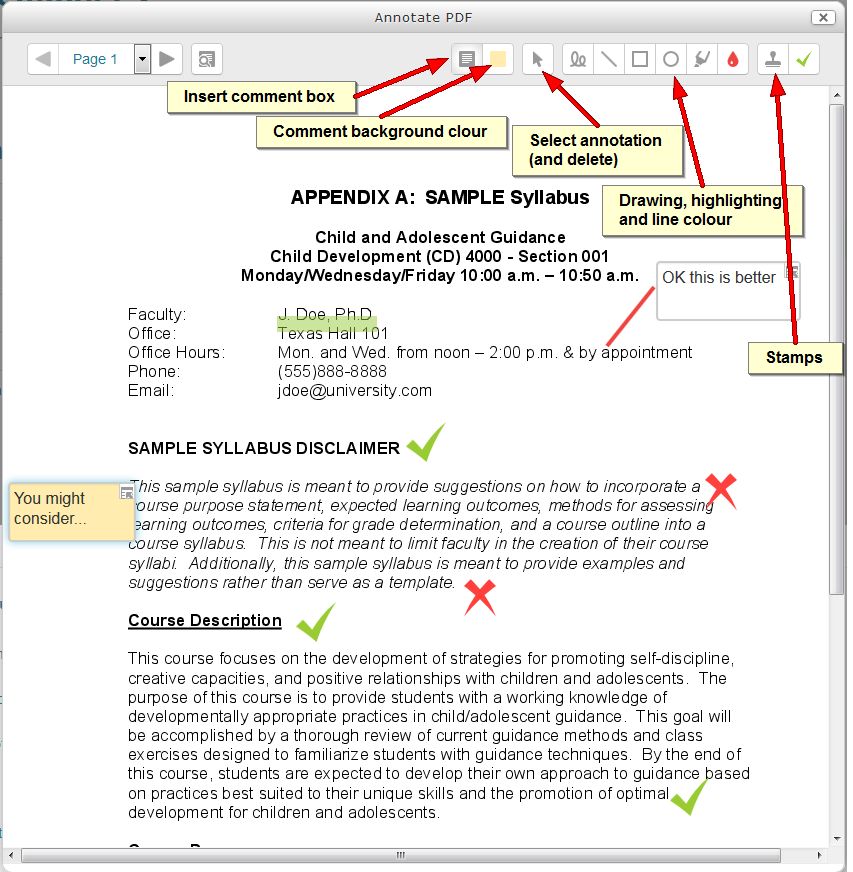
The most notable new feature in the assignment, however, only becomes visible when a student submits a PDF file. PDF files are unwieldy and sometimes impossible to annotate for teachers. To deal with this, Moodle 3 contains a simple PDF editor, as shown in the pictures below:

Annotate PDF
The PDF editor button becomes available only when a PDF file is submitted.


Annotate PDF
The annotation tools are a bit crude and take some getting used to, but they are essentially functional.
Categories
eOppimispalvelut Moodle

Moodle 3 Features, part 1 Forum

The upgrade of Lapinkampus Moodle and Open Moodle to version 3 and up will not cause drastic shifts in the functionality of the environment, but will bring about a great number of incremental improvements. Some of these improvements and additional functionality will be highlighted in this and subsequent entries.

The Forum module in Moodle is the most used and most flexible tool that can perform almost all functions of the assignment module (including the Urkund plagiarism check), but combines it with the interactivity of a discussion tool. In the upgrade from Moodle version 2.7 to 3.0 the Forum will aquire a few improvements which are shown on the images below:

When writing a forum messages users in a group forum can decide to post their message in all the groups that they have access to.
When writing forum messages users in a group forum can decide to post their message in all the groups that they have access to.


navigation between threads
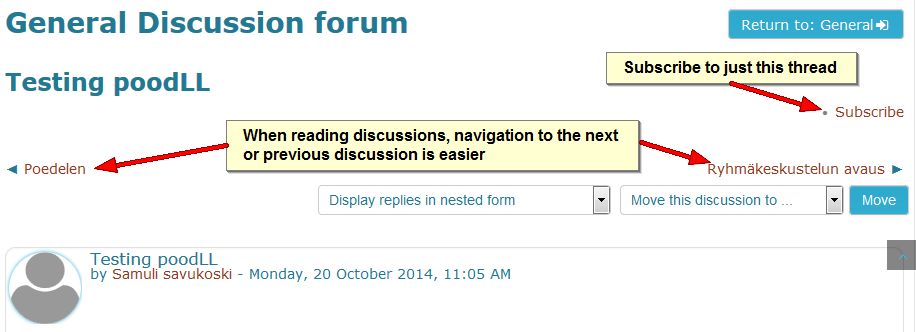
In a forum it has become easier to navigate between discussion threads and it is now possible to subscribe to only one discussion.


Subscription to single threads
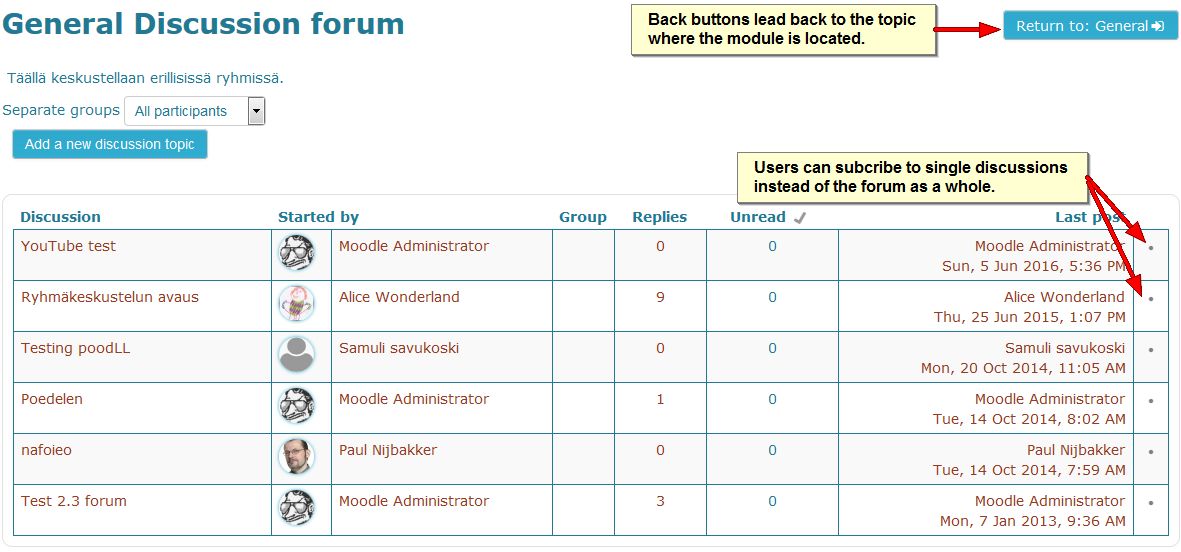
Subscription to single threads can also be done on the forum page. Also note that the back button now returns to the same topic you departed from.