Categories
eOppimispalvelut Moodle tekninen

Uusi Moodle ja uusi näkymä (teemat) / The new look of the new Moodle (themes)

It will not have escaped anyone’s notice that Lapinkampus Moodle was upgraded last year to a new version of Moodle 3 and that this has had consequences for the look of the courses. AO Lappia and Lapland UAS have had to abandon the old look of their courses for something more modern. The look of a course is largely determined by the so-called course theme, which can be set in the Course settings by any teacher in the course.
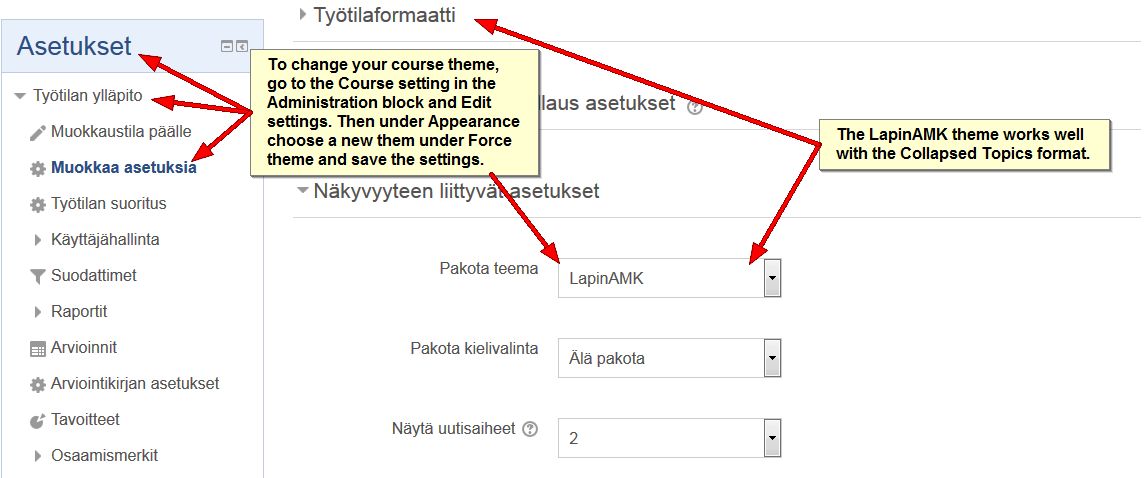
Setting a course theme
Click on this and other pictures to see a much larger version!

The default theme for a course is detemined by the theme set for the category in which the course is located. Thus, the default theme for all AO Lappia courses is Academi, which is set on the Lappia category. If a course in the Lappia category does not force another course theme, the course will display the Academi theme. Likewise, the theme set for the LapinAMK category is the new LapinAMK theme, a neutral blue theme that works well with the popular collapsed topics course format. The temporary blue Roshnilite theme will revert to LapinAMK Orange (a colour which better fits this theme).
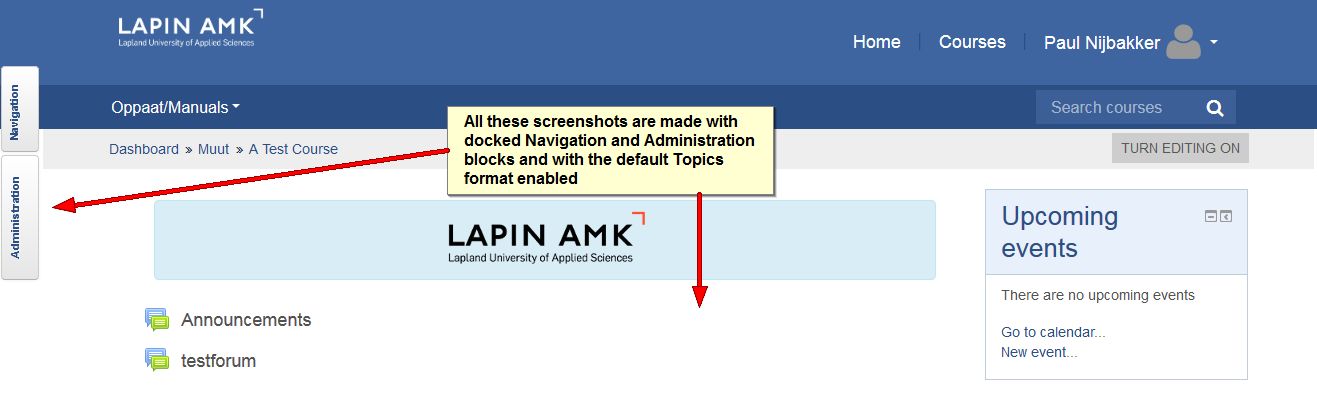
Lapinamk theme

It is understandable that Moodle users are surprised by these “sudden” changes, but should rest assured that the eLearning services have carried out these interventions in the interest of safeguarding the (new) functionality of Moodle. Nonetheless, as implied above, teachers are not bound by the default theme for their category. They are free to choose another theme that better fits the their topic and teaching plan, just as teachers can choose a course format that supports their teaching, such as the above-mentioned colapsed topics (tiivistetty aiheet), or the grid (ruudukko) format, for example. The eLearning Services will happily advise you in this matter. Below you will find screenshots of a few Moodle 3 themes that were recently added, so as to give you an idea of the choice you have.
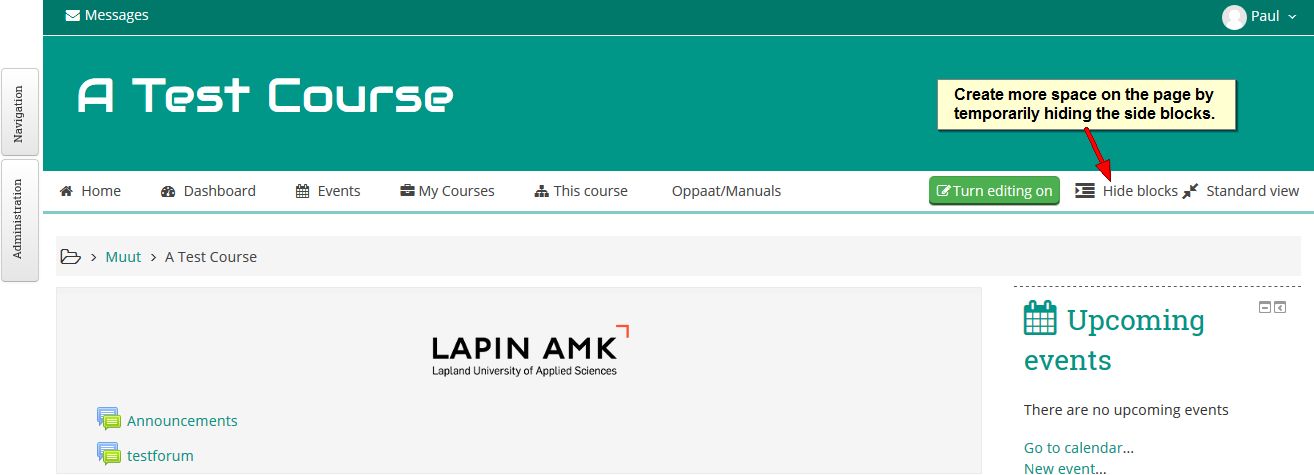
Adaptable theme

The Adaptable theme is a green/grey theme which has as its defining characteristic that it uses all screenspace that it can get and it has a button to hide side blocks so as to get the full width of the page at the teacher’s disposal. This is helpful on small screens and on pages with wide tables.
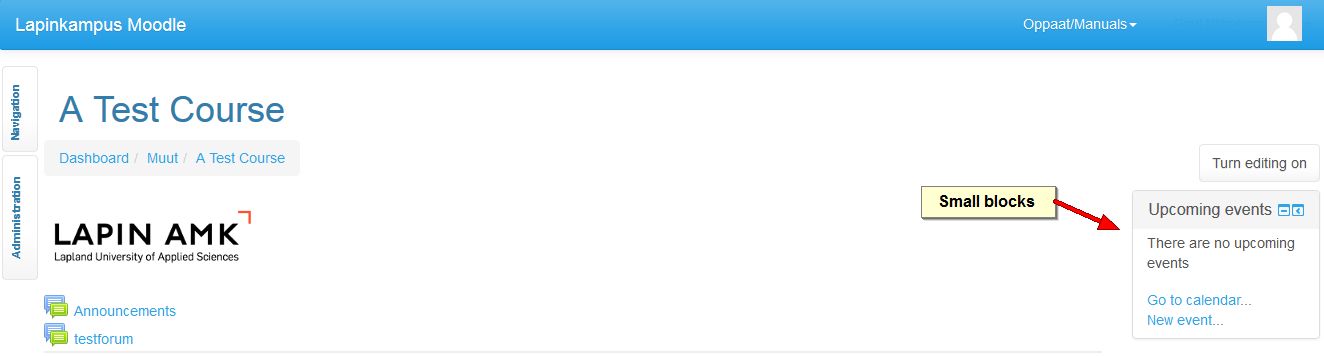
Cerulean theme

The Cerulean theme is a light blue/grey/white theme that saves screen space by using small blocks and small fonts.
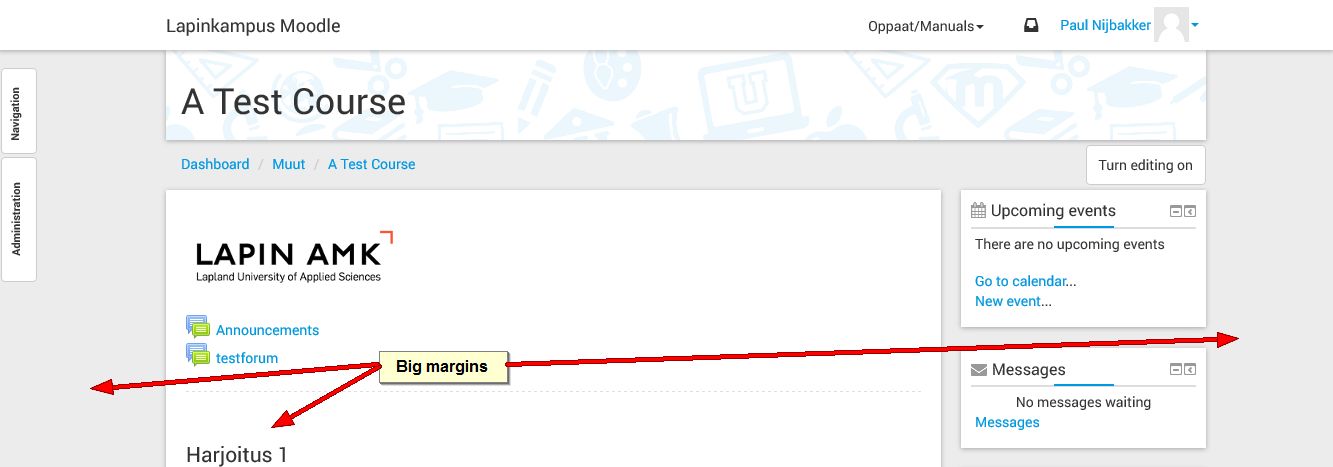
Elegance theme

The Elegance theme is a grey/white theme that looks appealing, but it is rather wasteful of screen real estate, as it creates big margins on the course page. This is not so useful in large courses.
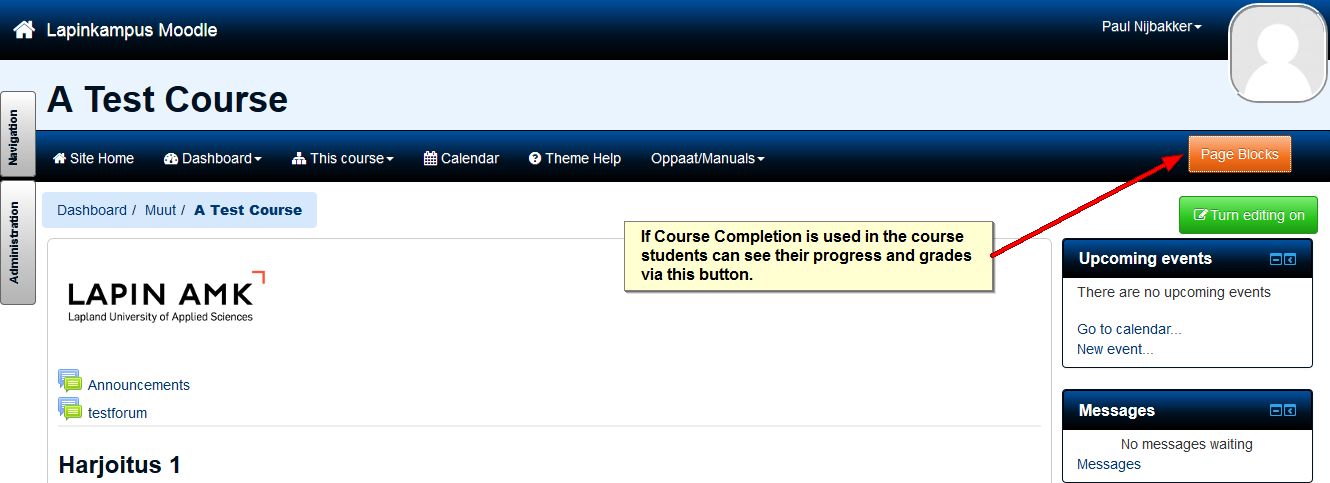
Flexibase theme

Flexibase is a dark blue/white theme that has a lot going on. It was designed for courses that use the more advanced functions of Course Completion.

Snap theme

Snap was added already last year, but needs a bit of exposure. It is definitely out there as the most drastic departure from the default Moodle course look. You will hardly recognise your course after you have set Snap as your course theme and the same may go for your students. Therefore, if you intend to apply this theme, make a plan and perhaps enlist the help of the eLearning Services.
Categories
eOppimispalvelut Moodle tekninen

Moodle 3 Features, part 5 User menu

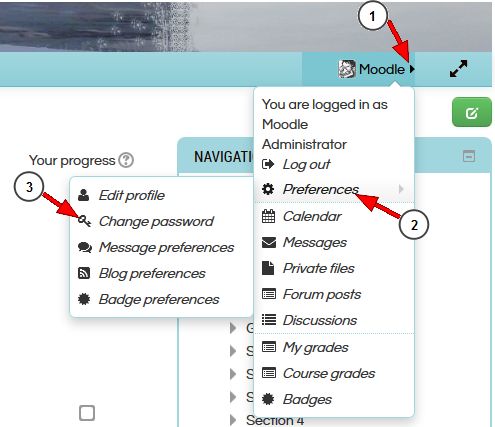
In Moodle 2 the user menu could be accessd via the Administration block under the link “My profile settings”. In Moodle 3 the user menu has moved to the navigation bar, from where it can be opened and used as shown in the image below with instructions for changing the password (NB: Only users with manual accounts can change their password, if you use your school network account, the password can only be changed in the school network!).

Change Password in a Course with the Campus Theme

HOWEVER, this functionality is only available in themes that have been upgraded for Moodle 3. Unfortunately, some of our present themes (like the LapinAMK theme) are still Moodle 2 themes. If you need to access the user menu in one of these themes, the work around is to click your name (This opens your profile), click Edit profile and then in the breadcrumb trail click Preferences (or, in Finnish, Asetukset):

Preferences/AsetuksetIt may take a while before we can update our LapinAMK theme to a Moodle 3 version. Until that time teachers might choose to replace this theme with a Moodle 3 theme like Klass, a theme with blue colours. Changing a course theme is done in the course settings:

Change Theme

Categories
eOppimispalvelut Moodle tekninen

Moodlekurssin ulkoasuvaihtoehdot

Teachers in Moodle have a lot of different options at their disposal to change the way their courses look and this e-vinkkin will list a number of them.

1. Blocks and Topics

Perhaps the most obvious course elements are the topics (aiheet) in which most of the learning resources and activities go. The teacher can change the number of course topics in the course settings under the Course Format (Kurssiformaatti) heading. When editing is turned on the order of the topic sections can be changed by dragging and dropping and it is also possible to highlight one topic as the current one.

The standard Moodle course comes with two blocks on the left (Navigation and Administration) and a number of other blocks on the right. The Navigation and Administration blocks are essential, so they should not be remove. However, you can dock them to the page margin, so that they take up no space. This is especially useful on small screens. Moving the cursor over the docked block will open it. The other blocks can be dragged and dropped left and right and up and down in the block columns. Note that Moodle offers more side blocks than you find in your course when it is created, so you can add blocks and delete others as your needs go.

2. Course Theme

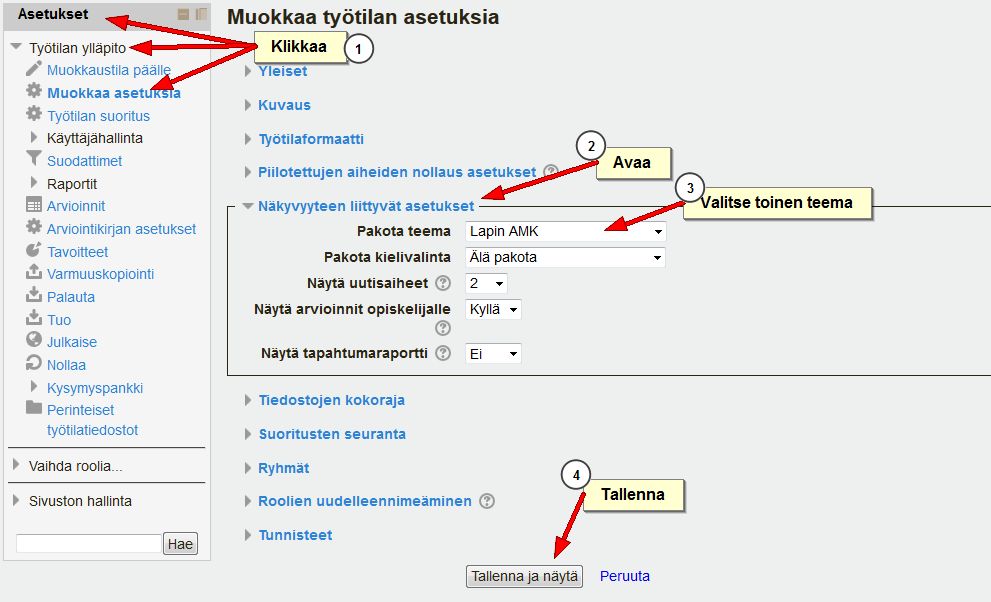
When a new course is created it automatically takes the theme (teema) of the category where it is located. Courses under the LapinAMK category take the LapinAMK theme, while courses under Lappia take the Lappia theme, etc. However, every teacher can choose a different theme for his or her course(s). This is done in the course settings under the Appearance (Näkyvyyteen liittyvät asetukset) heading. There is a whole list of course themes at your disposal. These have different colour palettes and different block layouts.

3. Course Format

When a course is created it comes with the standard Topics  (Aiheet) format, but Moodle offers a number of alternative formats. The Weekly (viikot) format turns every topic in a week, starting from the starting date for the course, which is set in the course settings. The Collapsed Topics (Tiivistetyt aiheet) format makes the topics format far more flexible, allowing not only for the topics to be collapsed at will (useful in long courses), but also allows the use of multiple section columns, arranging sections by day or week or by current topic, etc. For those who wish to clean thier course pages of course materials, the Grid (Ruudukko) format offers the option to replace the topcis with clickable pictures, that provide access to each section in turn.

Here are a few examples of the same course with different looks (Note that the differences in these pictures are not very drastic, but they could be, different depending on the choices the teacher makes). You can click the pictures for a bigger version.


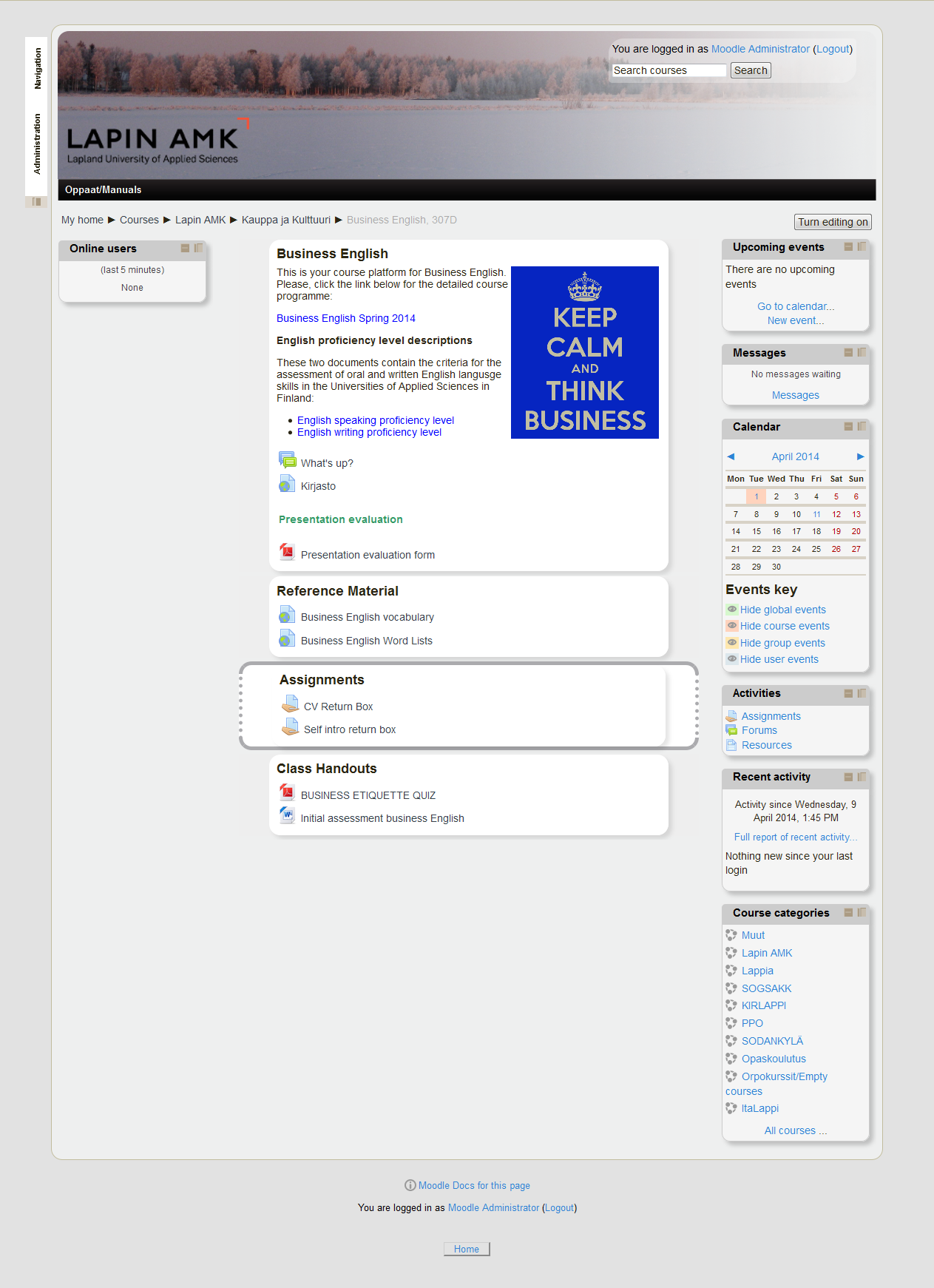
LapinAMK Custom Corners theme Topics format
A course with the default topics format, LapinAMK Custom Corners theme and docked Navigation and Administration blocks
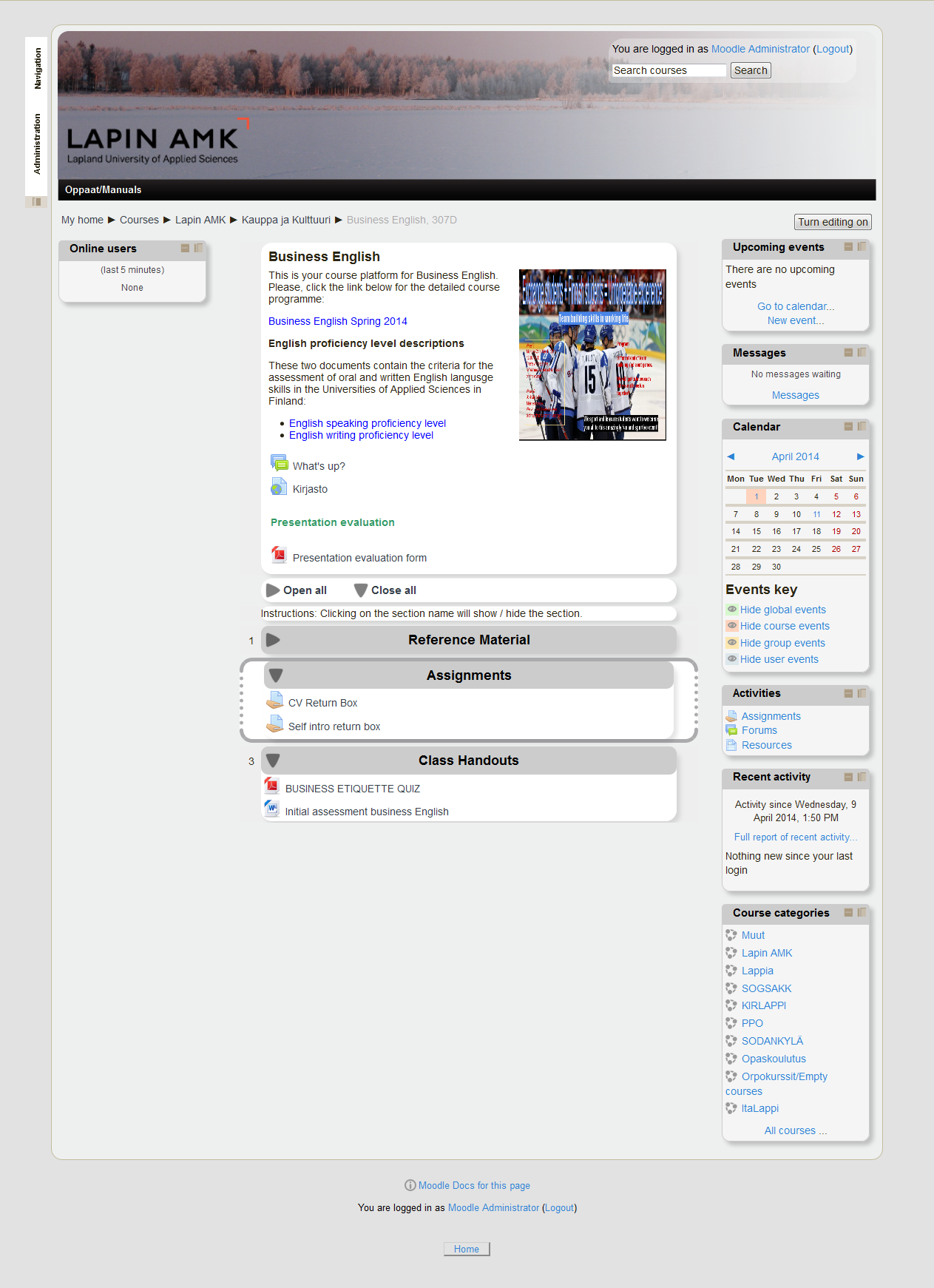
LapinAMK Custom Cornerstheme Collapsed Topics format
The same course as above but the course format is now Collapsed Topics
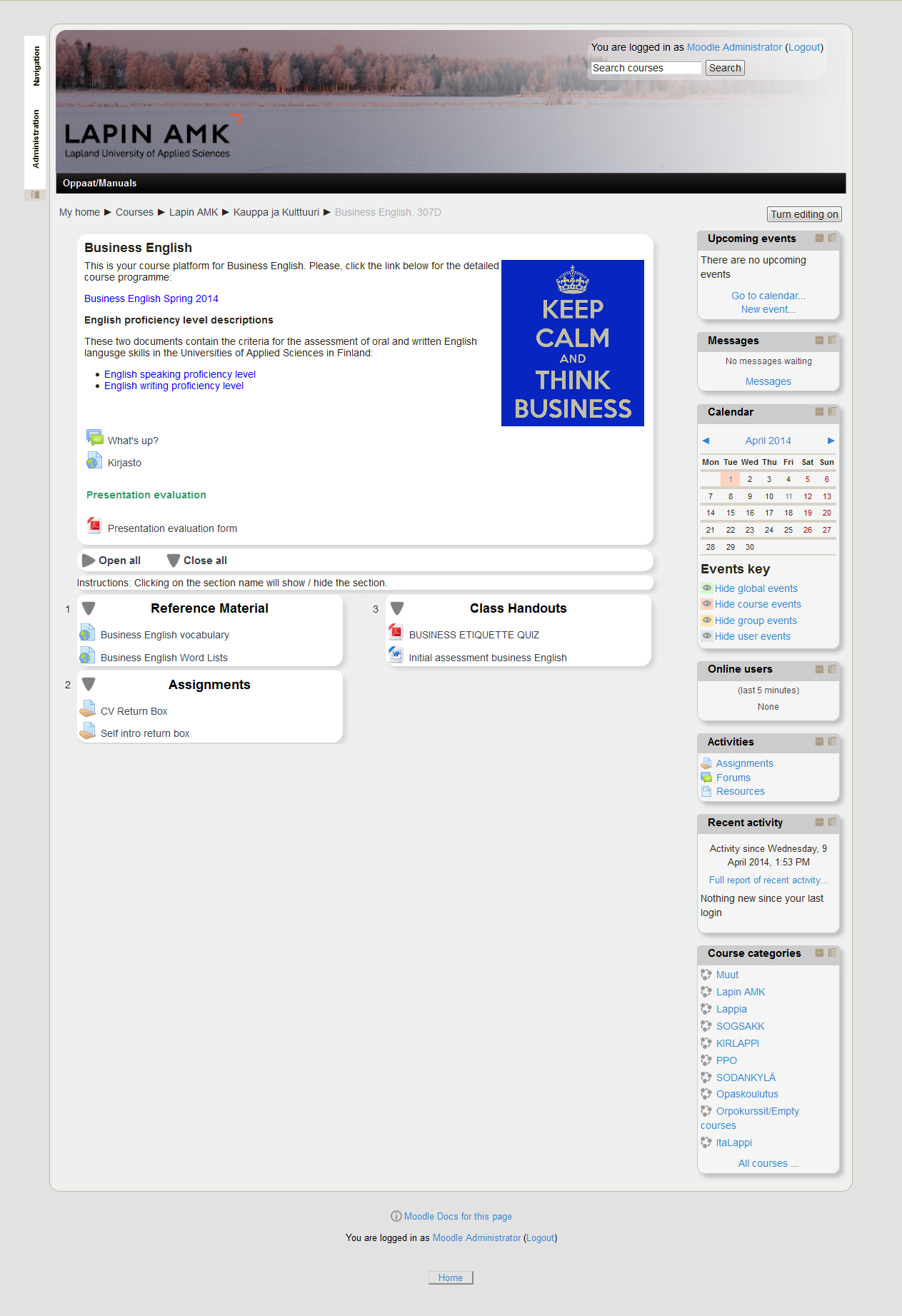
LapinAMK Custom Corners themeCollapsed Topics format - two columns white
The same course as above but with the side block from the left column moved to the right column and with the Collapsed Topics format set to display sections in two columns
LapinAMK theme Grid format
Again the same course, but now with the standard LapinAMK theme and the Grid format