Categories
eOppimispalvelut Moodle tekninen

Lukukausi alkaa, muutama vinkejä / A new semester, several tips

The course year 2017-2018 has gotten off to a start with teachers and students returning in numbers to the campuses of the universities and colleges served by the eLearning Services of Lapland University of Applied Sciences. We hope everyone had a great summer! Those returning to our on-line learning environments now, will inevitably notice a few changes. Notably, the Moodle front page looks different and, even more notably, iLinc has been replaced by Adobe Connect (AC). At the time of writing this article, AC-trainings are in full swing at all our campuses as well as on-line. User guidelines for AC can be found via the eOppimispalvelut page, under Frequently asked (Usein kysyttyä).

iLinc was adopted by Lapland UAS (then Kemi-Tornio Polytechnic) back in 2003 and it has served us well over the years as one of the pillars under our extensive on-line education effort. However, as development and support for the software were withdrawn, we were forced to look for a suitable replacement and management has decided to adopt Adobe Connect. AC will be used mainly via a Moodle integration, meaning that teachers and students will access AC classrooms via the corresponding Moodle courses, without the need for a separate login. Session recordings will be saved automatically in the AC-activity in the Moodle course. Hence, teachers teaching in joint semester environments, should agree on a joint approach to avoid scattering recordings over different classrooms. The eLearning services advise that in the case of team teaching, there should be only one AC-classroom in the course, which is used by all teachers, so that all recordings end up in the same activity. If team teaching cannot be arrived at, each teacher should have their own AC-classroom, clearly identified as such and preferably all these classrooms are listed together for easy overview.

Teachers are reminded that AC-classrooms must be named first after the student group, followed by the course name and then the name of the teacher (if applicable; team classrooms do not need this and neither do classrooms in indivdual Moodle courses where no other teachers are active). Example of the name of an AC classroom in a Moodle course with only one teacher:

K72D17S Introduction to Critical Thinking

For recordings another naming rule is in effect. Recordings must be named after the date (yymmdd without dots) and the teacher with as additional data perhaps the student group and course name. In the case of the above example course, an AC-recording made on 25 August 2017, as part of that Moodle course, would ne named:

170825 Paul Nijbakker K72D17S Introduction to Critical Thinking

It is important to follow these naming guidelines, because it enables us to organise the AC-classrooms and the recorded lectures.

As to Lapinkampus Moodle, the old site theme has been replaced with a more up-to-date one. HAKA login is now enabled via a link on the front page, but remember that this only works for users from universities outside of Lapland. Users from Lapland University and Lapland University of Applied Sciences use Moodle (and thus also Adobe Connect) with their normal LUC network accounts. The main functionality in the Moodle courses has not changed significantly, but some old themes have been removed and new themes and course formats have been added. You could check out what works best for you, now that courses are starting. Note, that the recommended browser for Moodle and AC is (the latest version of) Mozilla Firefox.

Getting ready for the new semester

You may want to do some Moodle house-cleaning at the start of the semester. On your dashboard page (Katsaus kursseistani) you may want to move you current courses up in the Course overview (Työtilan yhteenveto) and the old courses down, as demonstarted in the image below:
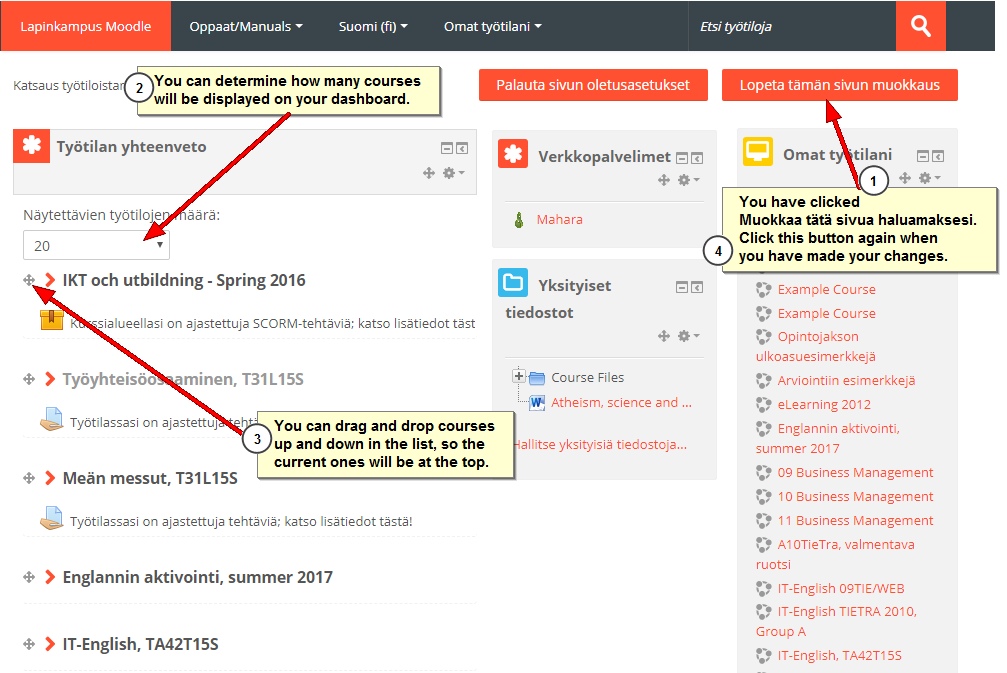
Editing dashboard page
Click on the pic for a bigger version.

Maybe you have old courses that you do not need anymore? If so, send the links to these courses to the eLearning Services, so they can be removed and eventually deleted permanently.

Inside you courses, you may want to shake up things as well, but remember it is safer to hide course materials than to delete them, because deleted activities and resources are gone permanently and cannot be brought back by us.

And, as always, remember that the eLearning Services are here to serve you, so do not hesitate to ask for help when you encounter a problem that you cannot solve yourself!
 

Categories
eOppimispalvelut Lappia Blog Moodle tekninen Verkko-oppimateriaalit

Coming soon: H5P Learning Content Tool

The eLearning Service of Lapland University of Applied Sciences has over the past few weeks been checking out a relatively new Moodle plugin: H5P Interactive Content.

H5P is a web service that was developed in Tromsø in 2013 for a Norwegian provider of learning content. The service has since been released as open source software and its functions can be used via a Moodle plugin. In the version being tested presently, a teacher can choose to create interactive content such as Interactive Videos, Question Sets, Drag and Drop Questions, Multi-Choice Questions, Presentations and much more. There are 28 different types at the moment of writing, including an option to use the Appear.in web conferencing service (introduced on the ePakki blog!) as a chat room in your course. All materials are in HTML5 and thus have great usability (also on mobile devices). You can read more about it here: https://h5p.org/documentation/for-authors. In addition to being an authoring tool for rich content, H5P also enables teachers to import and export H5P files for effective reuse and sharing of content.

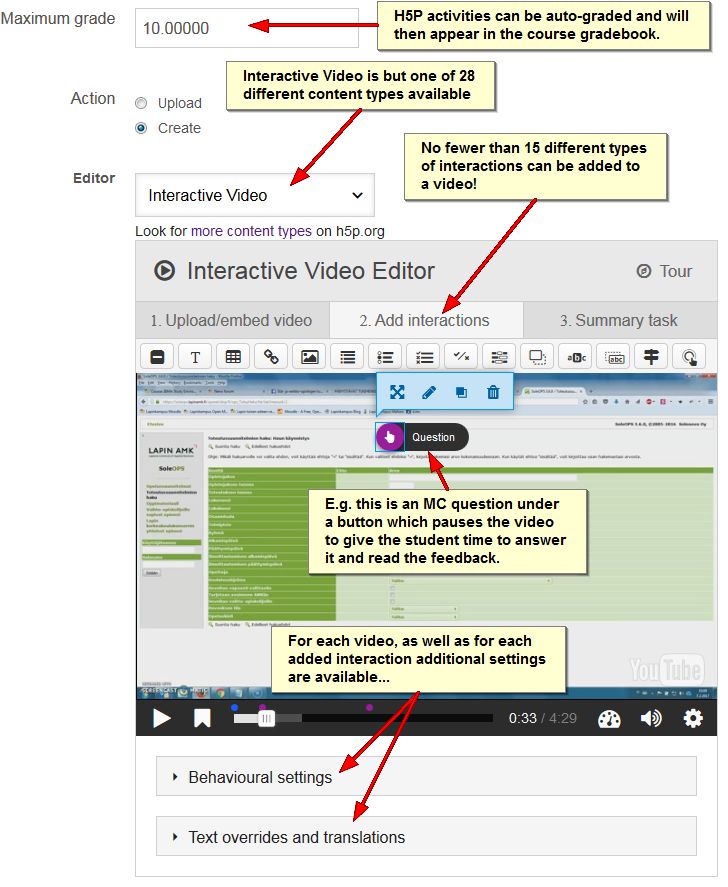
The eLearning Services consider that, since the amount of different content types on offer is quite big (and each content type has many options), the plugin may pose challenges to teachers. However, with support from us, quite varied and useful material can be created with H5P. We encourage teachers to partake of the possibilities offered and contact the eLearning Services when they have settled on interactive material that they want to create using H5P. Teachers could start by making existing material more interactive. For example, if you have a YouTube video that you use in your course (i.e. one that allows such use, maybe with a creative commons license), you can now consider turning that video into an activity containing labels and questions pertaining to the content of the video! (Click on the pic to see a bigger version.)

A detail of the creation of an inteactive video using the H5P Moodle plugin. The wealth of options demonstrates the need for support for beginning users.

The H5P plugin will be installed in Lapinkampus Moodle and Open Moodle before Easter. You will then find it in the list of activities presented in the “Add and activity or resource” pop up in your Moodle course(s).

Note that there is even an H5P plugin available for Lapinkampus Blog! You can open the video below in full screen if you want.

Categories
eOppimispalvelut Moodle tekninen

Uusi Moodle ja uusi näkymä (teemat) / The new look of the new Moodle (themes)

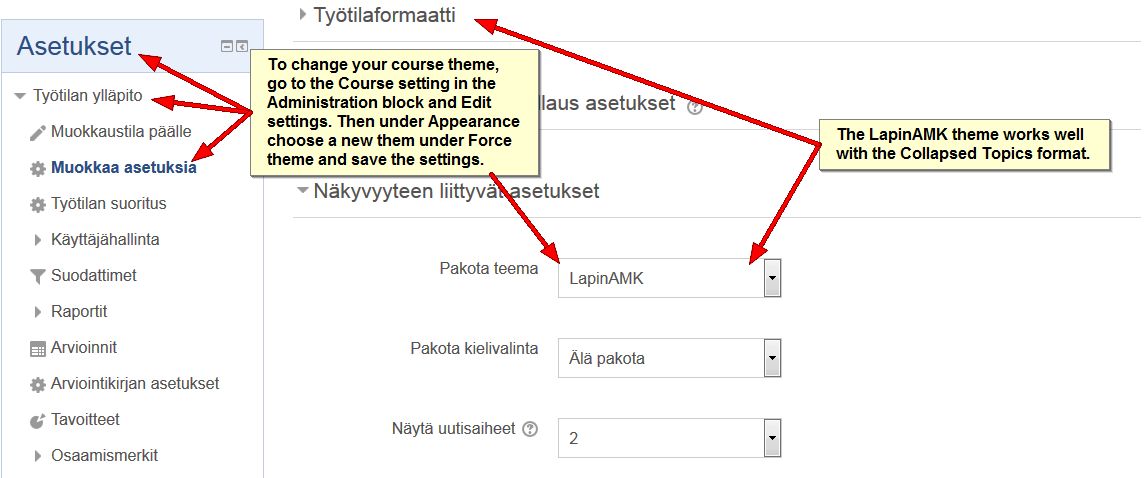
It will not have escaped anyone’s notice that Lapinkampus Moodle was upgraded last year to a new version of Moodle 3 and that this has had consequences for the look of the courses. AO Lappia and Lapland UAS have had to abandon the old look of their courses for something more modern. The look of a course is largely determined by the so-called course theme, which can be set in the Course settings by any teacher in the course.

Setting a course theme
Click on this and other pictures to see a much larger version!

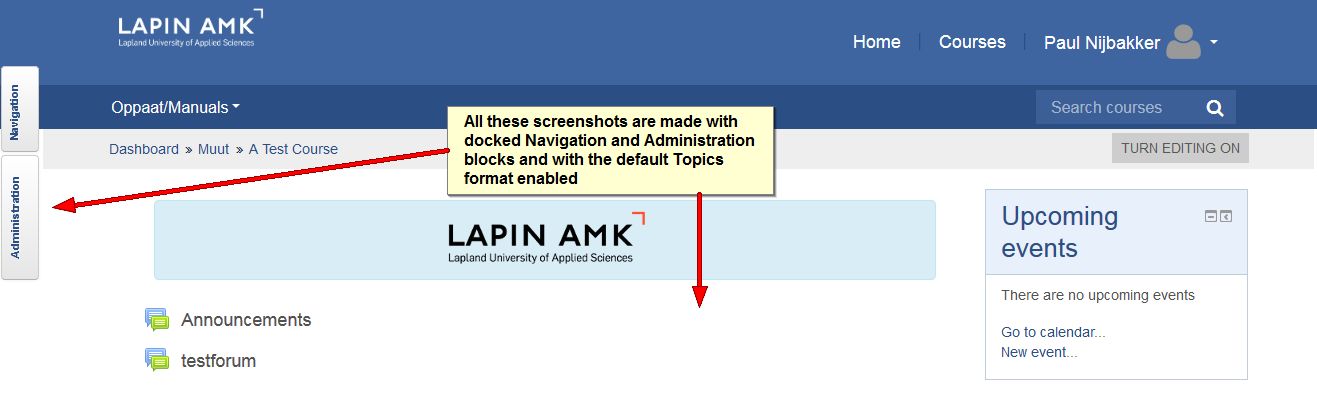
The default theme for a course is detemined by the theme set for the category in which the course is located. Thus, the default theme for all AO Lappia courses is Academi, which is set on the Lappia category. If a course in the Lappia category does not force another course theme, the course will display the Academi theme. Likewise, the theme set for the LapinAMK category is the new LapinAMK theme, a neutral blue theme that works well with the popular collapsed topics course format. The temporary blue Roshnilite theme will revert to LapinAMK Orange (a colour which better fits this theme).

Lapinamk theme

It is understandable that Moodle users are surprised by these “sudden” changes, but should rest assured that the eLearning services have carried out these interventions in the interest of safeguarding the (new) functionality of Moodle. Nonetheless, as implied above, teachers are not bound by the default theme for their category. They are free to choose another theme that better fits the their topic and teaching plan, just as teachers can choose a course format that supports their teaching, such as the above-mentioned colapsed topics (tiivistetty aiheet), or the grid (ruudukko) format, for example. The eLearning Services will happily advise you in this matter. Below you will find screenshots of a few Moodle 3 themes that were recently added, so as to give you an idea of the choice you have.

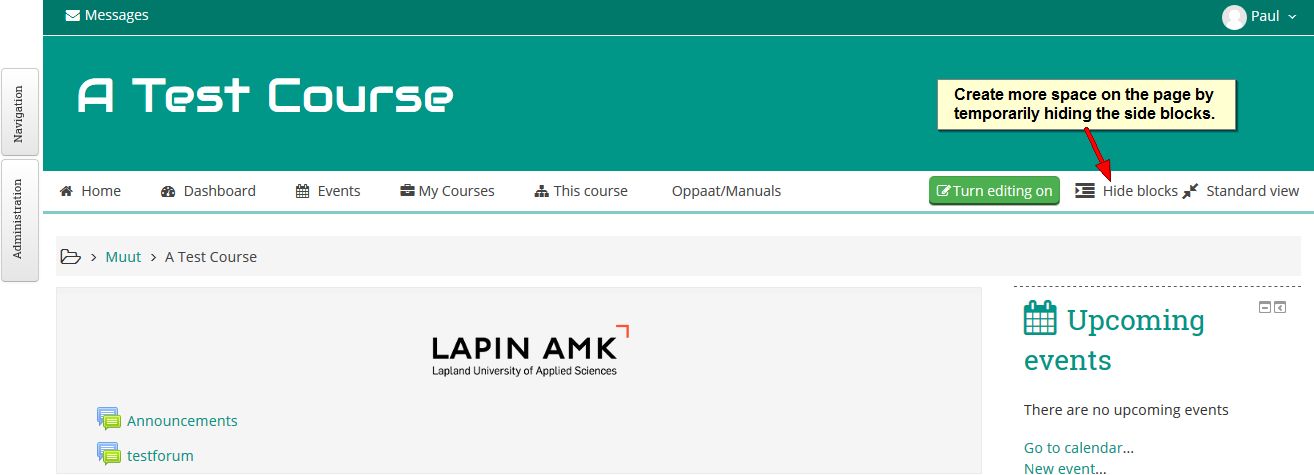
Adaptable theme

The Adaptable theme is a green/grey theme which has as its defining characteristic that it uses all screenspace that it can get and it has a button to hide side blocks so as to get the full width of the page at the teacher’s disposal. This is helpful on small screens and on pages with wide tables.

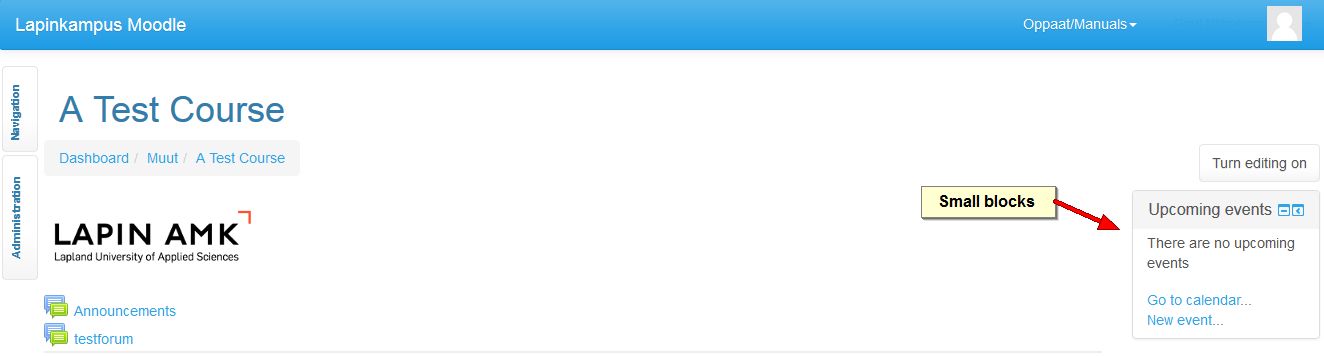
Cerulean theme

The Cerulean theme is a light blue/grey/white theme that saves screen space by using small blocks and small fonts.

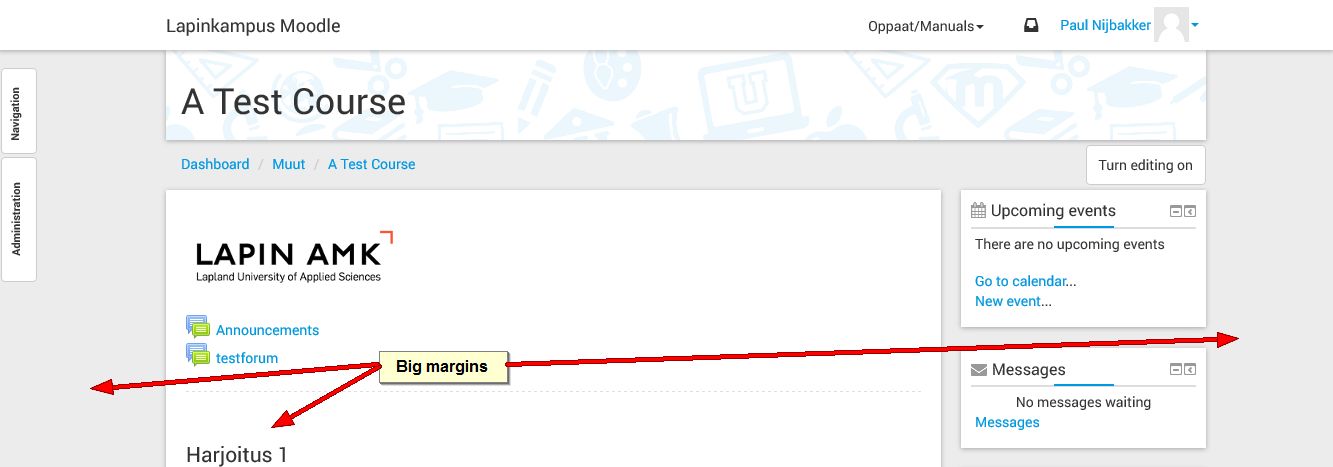
Elegance theme

The Elegance theme is a grey/white theme that looks appealing, but it is rather wasteful of screen real estate, as it creates big margins on the course page. This is not so useful in large courses.

Flexibase theme

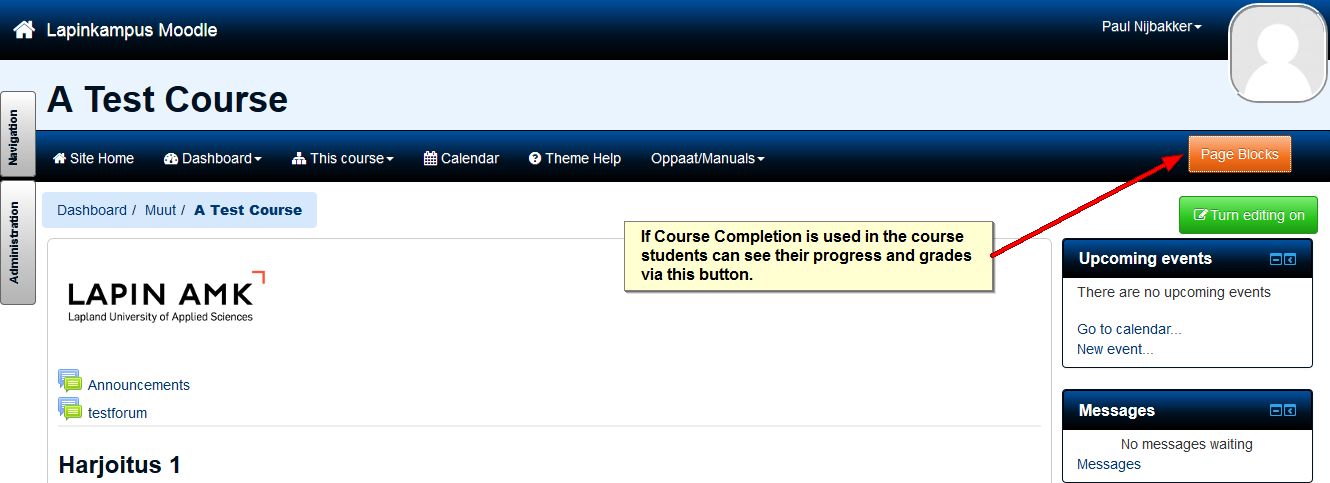
Flexibase is a dark blue/white theme that has a lot going on. It was designed for courses that use the more advanced functions of Course Completion.

Snap theme

Snap was added already last year, but needs a bit of exposure. It is definitely out there as the most drastic departure from the default Moodle course look. You will hardly recognise your course after you have set Snap as your course theme and the same may go for your students. Therefore, if you intend to apply this theme, make a plan and perhaps enlist the help of the eLearning Services.

Categories
eOppimispalvelut Moodle

Moodle 3.1 Uusi Tehtävä-arviointinäkymä / New Grading Page in Moodle 3.1

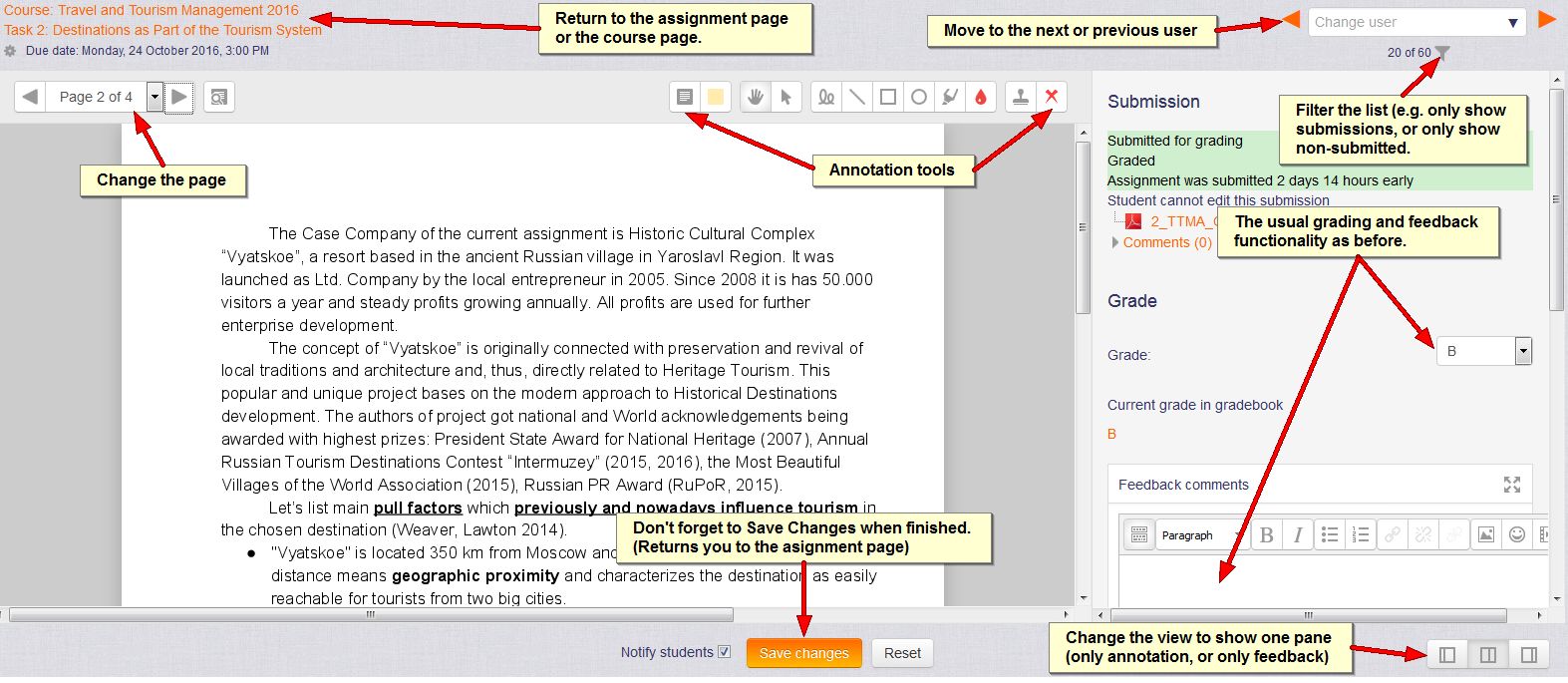
Of the new functionality in Moodle 3.1, the most notable is perhaps the new view of the assignment grading page. The ambition with this new layout is that a teacher can do all grading activities in one view, including annotating submitted texts, as shown on the picture below (click to enlarge):

Grading page Moodle 31
Click the pic for a larger version.

Note that you can filter in order to see only submission, or only ungraded submissions and then move from student to student. The default view shows the annotation pane on the left and the traditional grading options on the right. Unfortunately, the annotation does not work properly for files other than PDF at the moment of writing this blog, but that will be fixed as soon as possible. In the meantime, teachers who wish to use the annotation pane can require of their students that they submit their work as PDF files. The teacher can also elect to hide the annotation pane and work only with the traditional grading options using the buttons at the bottom right of the page.

Categories
eOppimispalvelut Moodle

Uusi Poodll Lapinkampus Moodlessa / Upgraded Poodll plugins in Lapinkampus Moodle 3.1

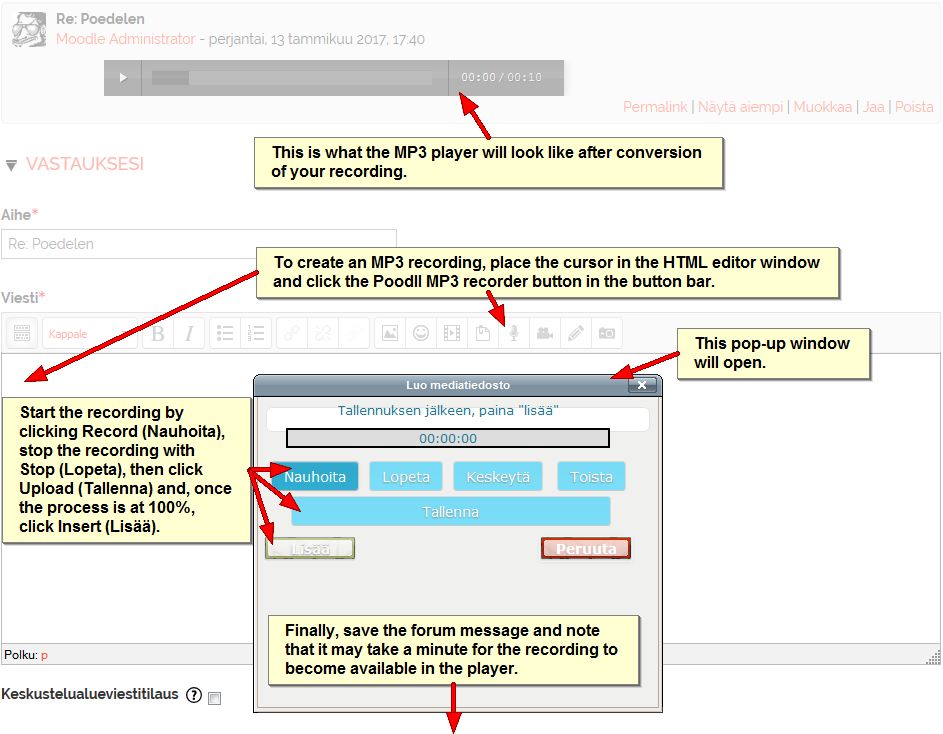
What with the upgrade of Lapikampus Moodle to version 3.1, the Poodle recording plugins have been upgraded too. Poodll 3 offers recording via HTML5, which is more suitable for mobile devices. As a result the look of the recorders in Moodle has changed. The picture below shows the MP3 recorder (the Finnish version) as it now looks in the HTML editors in Moodle. This example is from a discussion forum (click on the pic for a bigger version):

HTML5 has been described as the future of the Web (That is probably why it does not work in Internet Explorer!). The Poodll HTML5 MP3 recorder uses recording via the cloud. As a result the recording must be uploaded and converted, which may cause a slight delay before it becomes available. Recording via the cloud has the added advantage that the Poodll video recorder (which uses a very similar pop-up window to the one above) that until now could only record short clips (due to the file size limit in the Moodle server) will now allow recordings of over 5 minutes in length. The exact limit may depend on the device and connection used.

Note that older browsers like Internet Explorer cannot handle HTML5 properly. The recommended browser for Poodll is the latest version of Mozilla Firefox!

Categories
Moodle tekninen

Moodlesähköpostiasiat / Moodle email issues

Moodle-oppimisalusta lähettää ilmoituksia ja erilaisia viestejä käyttäjien sähköpostiin, esim. tehtäväilmoituksia ja kopioita keskusteluviesteistä (sillä edellytyksellä että olet tilannut keskusteluviestit). Ongelmana on se, että kaikki sähköpostijärjestelmät eivät käsittele Moodle-viestejä samalla tavalla. Jotta Moodlen lähettämät viestit kulkisivat paremmin, eOppimispalveluissa on päätetty asettaa kaikkien LUC- ja Lappia– käyttäjien sähköpostiosoitteeksi oppilaitoksen sähköposti (käyttäjät voivat asettaa vaihtoehtoisen, henkilökohtaisemman sähköpostiosoitteen Viestit-asetuksissa. Ohjevideo: https://youtu.be/g8atSwecIEQ). Lisäksi 29. marraskuuta kaikki Moodlen lähettämät sähköpostit tulevat osoitteesta noreply@moodle.eoppimispalvelut.fi. Tämän pitäisi parantaa Moodle-viestien vastaanottamista ulkoisiin sähköpostijärjestelmiin, mutta se tekee mahdottomaksi Moodle-viesteihin vastaamisen oman sähköpostin kautta. Jos sinulla on halua/tarvetta vastata Moodle-viestiin, sinun täytyy tehdä se Moodlen kautta. Noreply-muutos on auttomaattisesti, et tarvitse tehdä mitään

——————————————————

The Moodle learning environment sends out notifications and diverse messages to the email of the users, examples are assignment notifications and copies of forum messages (provided you are subscribed to the discussion forum or thread in question). The problem is that not all email inboxes in use will treat the messages from Moodle equally. To improve the proper delivery of messages sent out by Moodle, the eLearning Services have decided to set the email of all LUC and Lappia-authenticated users to their school email (although users can opt to set an alternative email address in their Messaging settings. Instruction video: https://youtu.be/g8atSwecIEQ). Furthermore, as of  29 November, all outgoing email from Moodle will have noreply@moodle.eoppimispalvelut.fi as sender. This should improve acceptance of Moodle messages by external email inboxes, but it will make it impossible to reply to Moodle messages via your email, i.e. if you want/need to reply to a message from Moodle, you will have to go to Moodle to do so. The noreply change will be automatic, so you do not have to do anything.

Categories
eOppimispalvelut Moodle

Moodle 3 features, part 7 Group Self-selection

Lapinkampus Moodle already featured the Group Choice module, which allowed teachers to present students with a set of pre-determined groups (gathered in a grouping), among which the students could choose. This was quite useful as it liberated the teachers from the time consuming task of group member division. The set up could be effectively used to make access to group tasks dependent on a group choice. However, it was not possible to allow students to create their own groups and limit membership to peers that they have selected themselves.

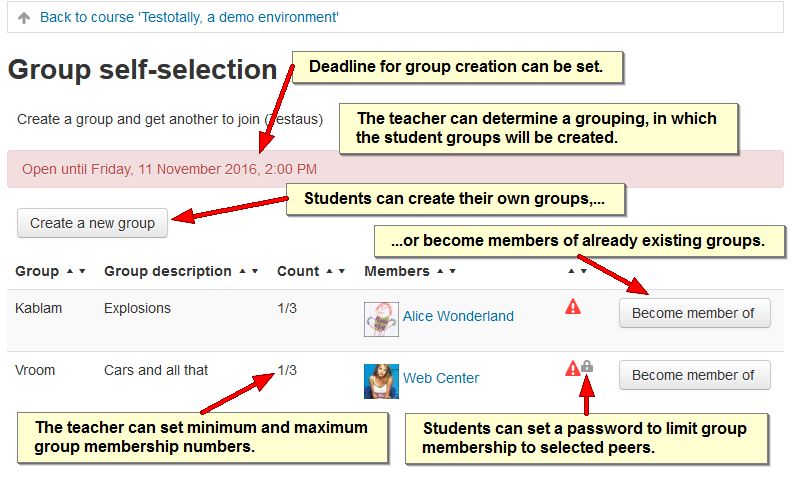
This is where the new Group Self-selection plugin comes in. All the teacher needs to to for this activity module is to create and select a grouping for the groups created by the students. The teacher can furthemore determine how many students must be in a group (minimum) and how many can be in a group (maximum) and set opening and closing dates for group creation. Finally there are settings specifying what students are allowed to do in the module.

The additional functionality of the Group Self-selection module makes it a candidate to replace the Group Choice module in the long run.

group self-selection student view

Categories
eOppimispalvelut Moodle

Moodle 3 Features, part 6 Onetopic format

Lapinkampus blog was upgraded to Moodle version 3.0+ during the summer. As demonstrated in previous blog articles, this has opened up opportunities to adopt new plugins that employ the options offered by the new version. Moodle 3 aims to exploit the bootstrap technology to the fullest. This will entail newer, highly modifiable course themes and course plugins based on them.

At the request of a teacher, the eLearning services recently introduced a new course theme in Lapinkampus Moodle. It is called the Onetopic format and it will create a course in which each course section, including the general section (or topic “0”), is represented by a tab that will open the section on its own page. Like the other course formats, it can be selected in the course settings.

It was already possible to use the Collapsed topics format or the Grid format to create a course in which sections have their own page, but these still depart from a somewhat traditional page view, on which the general section is displayed in full and the other course sections are listed below. The Onetopic format offers another, cleaner course view in which the general section is not visible when another section is opened. The section tabs will wrap when the screen is small, but long section names should nonetheless be avoided when using this format.

The only issue to keep in mind, is that this Moodle 3 course format only works properly with Moodle 3 themes, like the new LapinAMK theme (so not with the old LapinAMK themes).

Onetopic format in More theme
The look of the Onetopic format in the More theme
Categories
eOppimispalvelut Moodle

Using GAFE in Moodle

Lapland University of Applied Sciences has rolled out Google Apps for Education (GAFE) to all students and staff. GAFE offers great opportunities for joint creation of material and for video discussion via Google Hangouts. While it may seem GAFE is a stand alone service, it can serve as an on-line repository in our Moodle virtual learning environment. Here are a few ways in which to draw Google drive files into a Moodle course (It depends on your role in the Moodle course which ones of these options you can apply).

Linked from an HTML editor

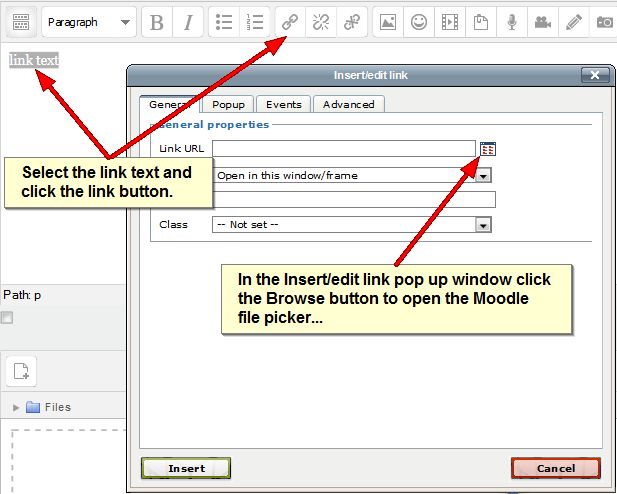
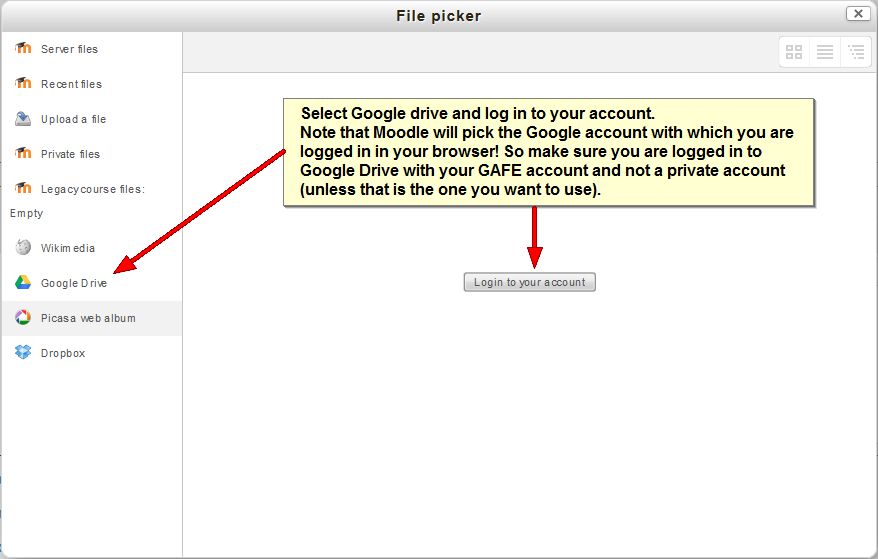
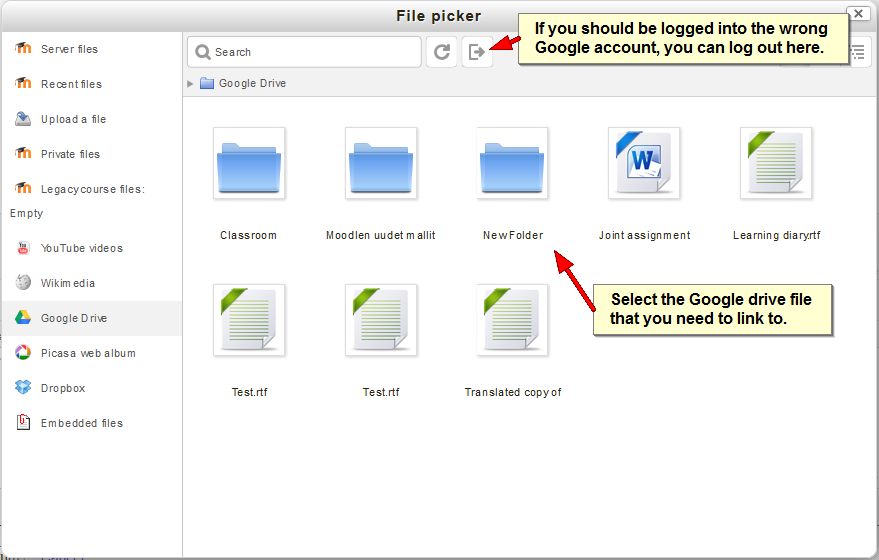
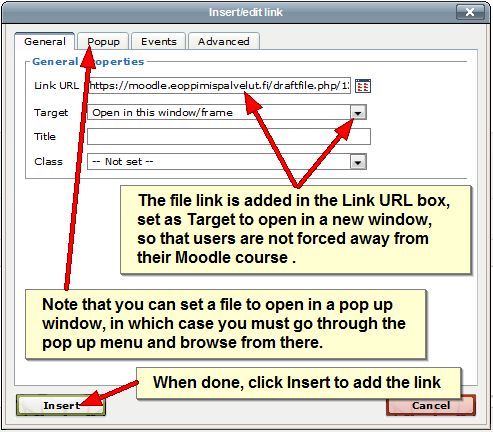
You can link to any file in your GAFE drive from any HTML editor in your Moodle course, e.g. a forum message, the description of an activity, a wiki page, or a Page resource. The process starts with writing some text that your file is linked to and then execute the following steps (you can click the pictures to see them at true size):

Step 1

linkgafe1Step 2

linkgafe2Step 3

linkgafe3Step 4

linkgafe4When the link is added to the text, you can complete your text, but don’t forget to submit your text /save changes / post your message. The text will display with an active link. Clicking the link will download the file from your GAFE drive to the user’s computer that will try to open it with a suitable Office application.

As a File resource

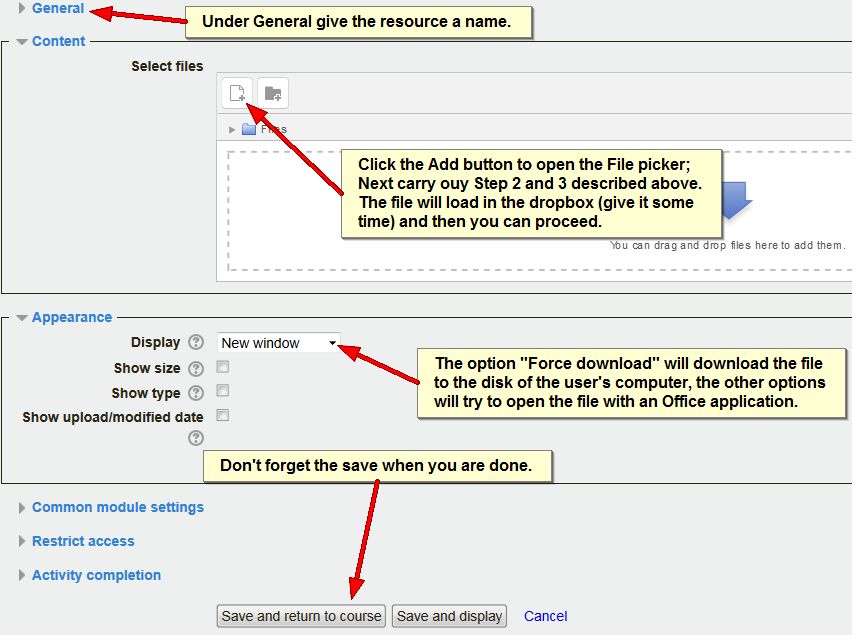
Instead of adding a file from your GAFE drive as a link to a piece to text, you can also add a GAFE drive file to the course page. To do that you turn editing on on the course page and click the Add an activity or resource link at the bottom of a course section. In the resulting pop up window, scroll down and under RESOURCES, select File. The following settings page will open:

File resource GAFE

Note that the Select files dropbox in the image above also appears in other places, like the attachment box to forum message or the submission box in an assignment. You can, of course, insert GAFE Drive files in those as well!

As a URL resource

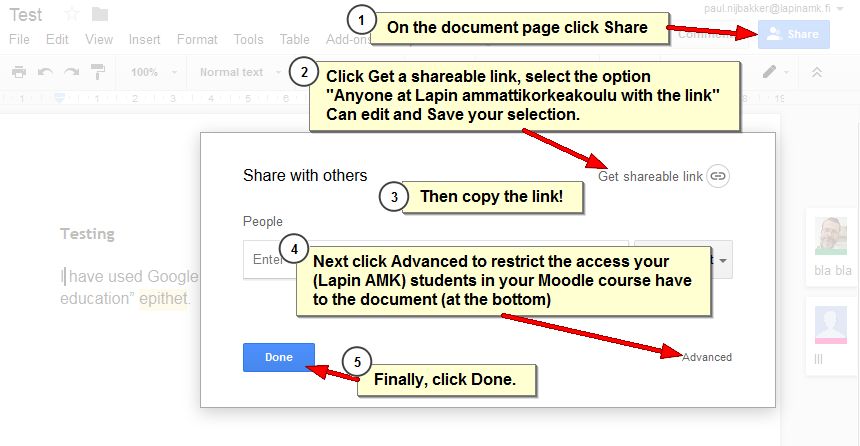
The above two options download a copy of  the file from GAFE Drive to the user’s computer. Any edits the user makes in the file will not appear in the original file in GAFE Drive, since that file is only editable in GAFE Drive. To have users edit a file in your GAFE Drive, you can share the file via a link as shown below (Click the pic for a better view):

Share GAFE Drive file

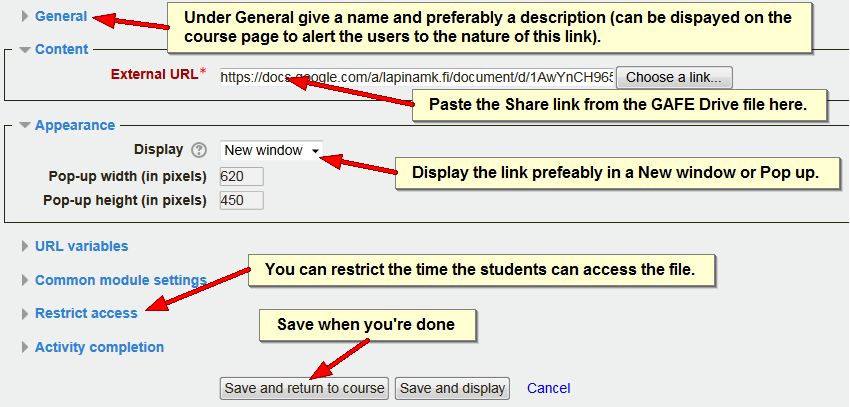
Next you can add that copied Share link either to an HTML editor as described above (except that in Step 1, you do not click Browse, but paste the share link in the link URL box and then jump to Step 4), OR you can add it as a resource on the course page. To do that you turn editing on on the course page and click the Add an activity or resource link at the bottom of a course section. In the resulting pop up window, scroll down and under RESOURCES, select URL. The following settings page will open:

gafe URL

Embedded in an HTML editor

Finally, it is possible to post an editable Google drive document inside an HTML editor in Moodle. This allows users to navigate and edit the document from the Moodle page. This is a bit more complex and involves some codes that not everyone has rights to use in Moodle on account of possible security issues. Therefore, if you want to achieve this, contact us at the eLearning Centre for assistance.

YouTube

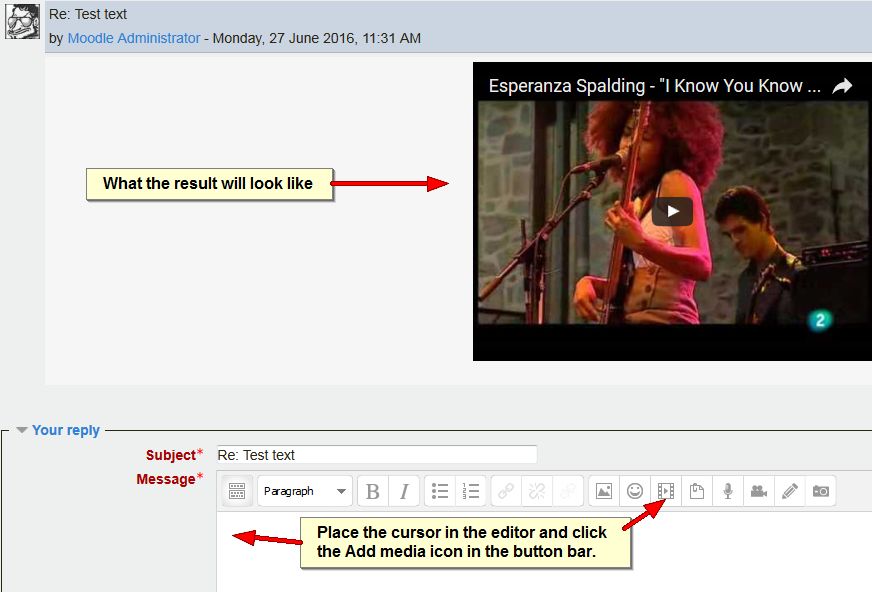
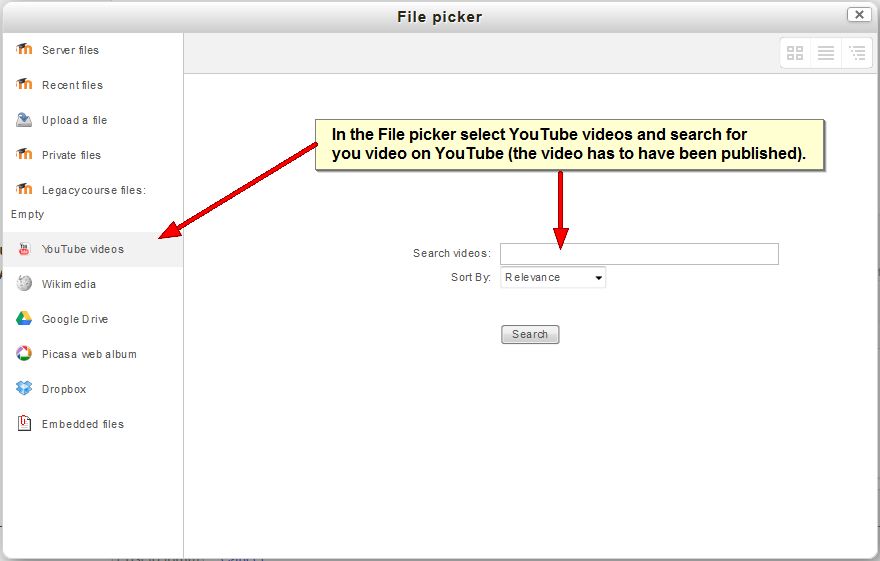
As YouTube is presently a Google service, it is often seen as part of GAFE. Needless to say, Moodle offers an option to link to YouTube videos too via the File picker as you could already see in Step 3 above. You can embed the videos in any HTML editor:

youtubevideoIn the Insert Moodle media pop up window that opens click Find or upload a sound, video or applet… This opens the file picker:

link to youtubeOnce you have selected the video, click the Insert button on the Insert Moodle media pop up. This will add a link in the editor that, when you save changes /post the message will embed the video.

As you can see, there are multiple options to connect your GAFE files to your Moodle courses (and we have not even mentioned Mahara ;-)).

Categories
eOppimispalvelut Moodle

Coming soon: Analytics Graphs!

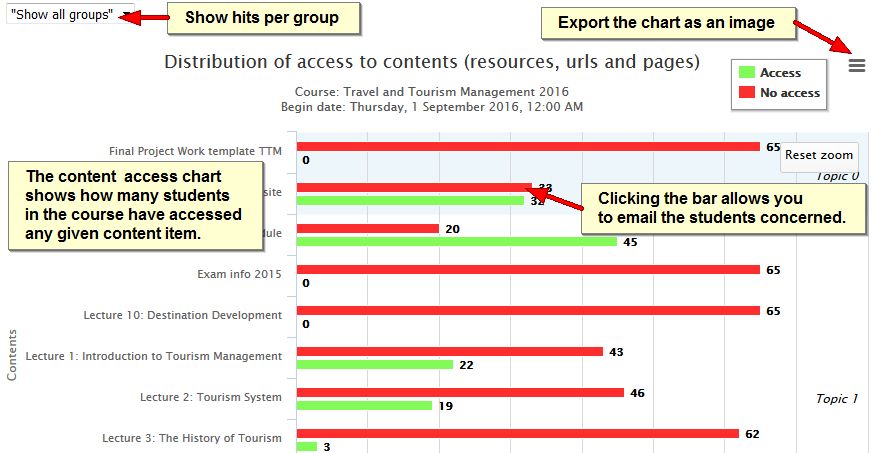
Our virtual learning environment Moodle gathers quite a bit of data from its users. This data can be navigated by teachers on, for instance, the log page of an activity, or the outline page of a student, to obtain an impression of the access levels to the activity or the activity level of the student. However, it was not always easy to get a good overview and spot students with low commitment to the on-line course work.

Hence, Marcelo Schmitt, a Moodle developer from Brazil, designed a plugin that compiles data from a course and presents it in interactive charts that are easy to overview. It can be added as a side block in a Moodle course. This block is called Analytic Graphs and it is only visible to teachers. It offers a better way to keep track of the on-line activity of their students and the results scored in graded activities

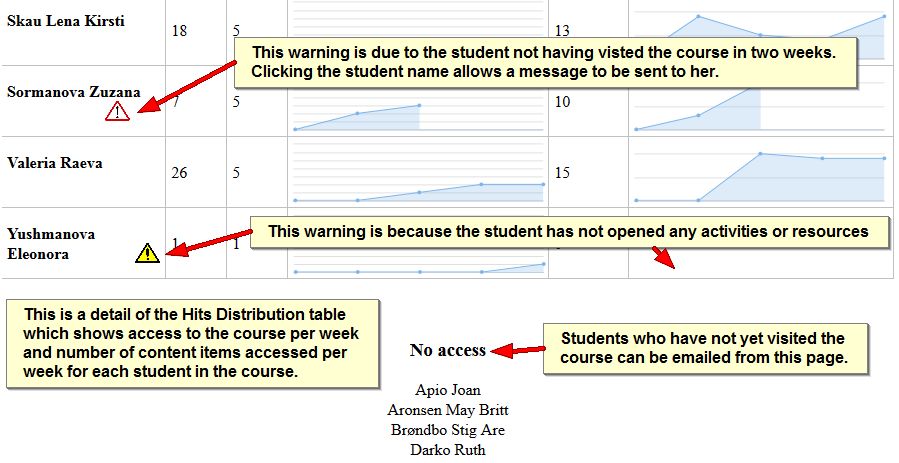
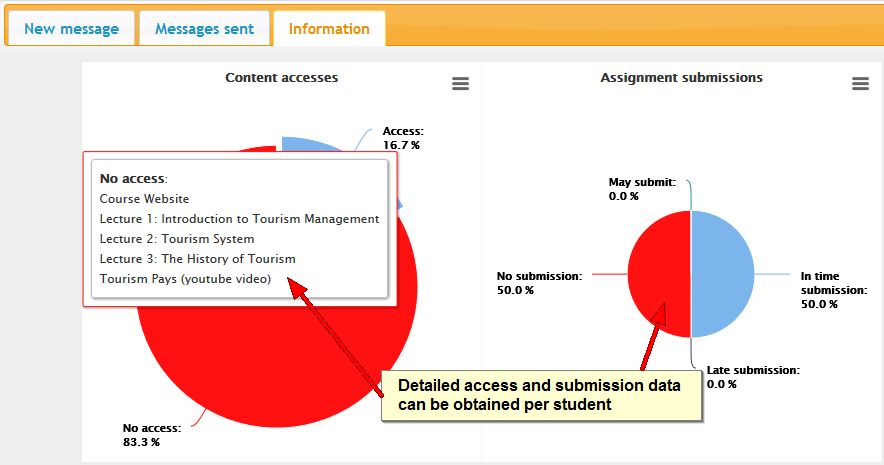
We are in contact with the developer about some teething problems that the plugin still has. Once these are overcome, and we have created a Finnish translation for the block, we will introduce this new block in Lapinkampus Moodle as an extension to the functionality that is already available. Check out the screenshots below to get an impression of the functionality offered by the Analytics Graphs plugin (you can click on the pictures to get a larger version).

The Content access chart

content access page

The Hits distribution table

hits distribution

The Student information charts

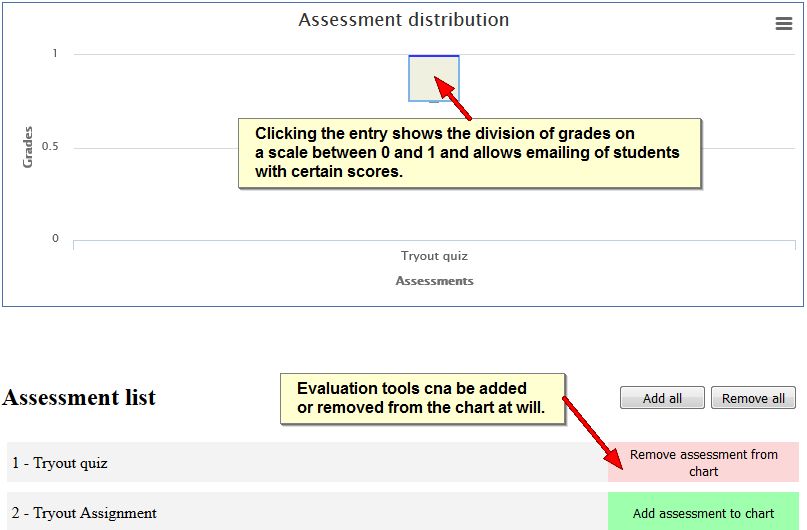
student informationThe Assessment distribution chart

assessment distribution

These are not all the charts the plugin has to offer, so do check it out once it becomes available.