
A student who has not completed his/her studies within the statutory time (regular time + 1 year) loses his/her right to study, unless for a special reason the university of applied sciences grants him/her extended right to study for purpose of completing his/her studies. The application for extension of the right to study must be submitted before the expiration of the right to study.
In the application, the student must present the special reasons for delayed studies. Progress in studies may be considered as a special reason. The principle rule is that no more than 60 cr may be lacking in order to complete the degree. Other special reasons may be various social reasons that have affected the student’s progress in studies.
The student needs to provide a plan for completing the remaining studies and a pay the the fee of 50 € for the procedure of the application (A1440/2014 §3). The extension of the right to study can be granted if the study plan is realistic. A maximum extension that can be granted at once is one year (two semesters). The extension of the study right is not granted if the student has already completed the studies required for the degree.
You can make the application in Peppi. You will find the application below Applications menu.
Selecting the application opens the instructions and a link to Happi Application Service.
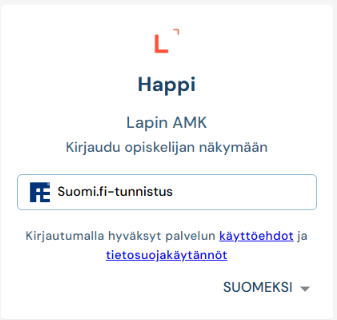
Logging in to the application service
Users log in to the service using Suomi.fi identification. The Suomi.fi service provides the application service with the user’s identification details. When redirected to Suomi.fi identification, users can choose their preferred authentication method, such as a mobile certificate, online banking credentials, or a certificate card. This means that applications can only be submitted using the applicant’s own details. The application service also retrieves the user’s information from the student administration system and use it as part of the application process.
Click the image to enlarge
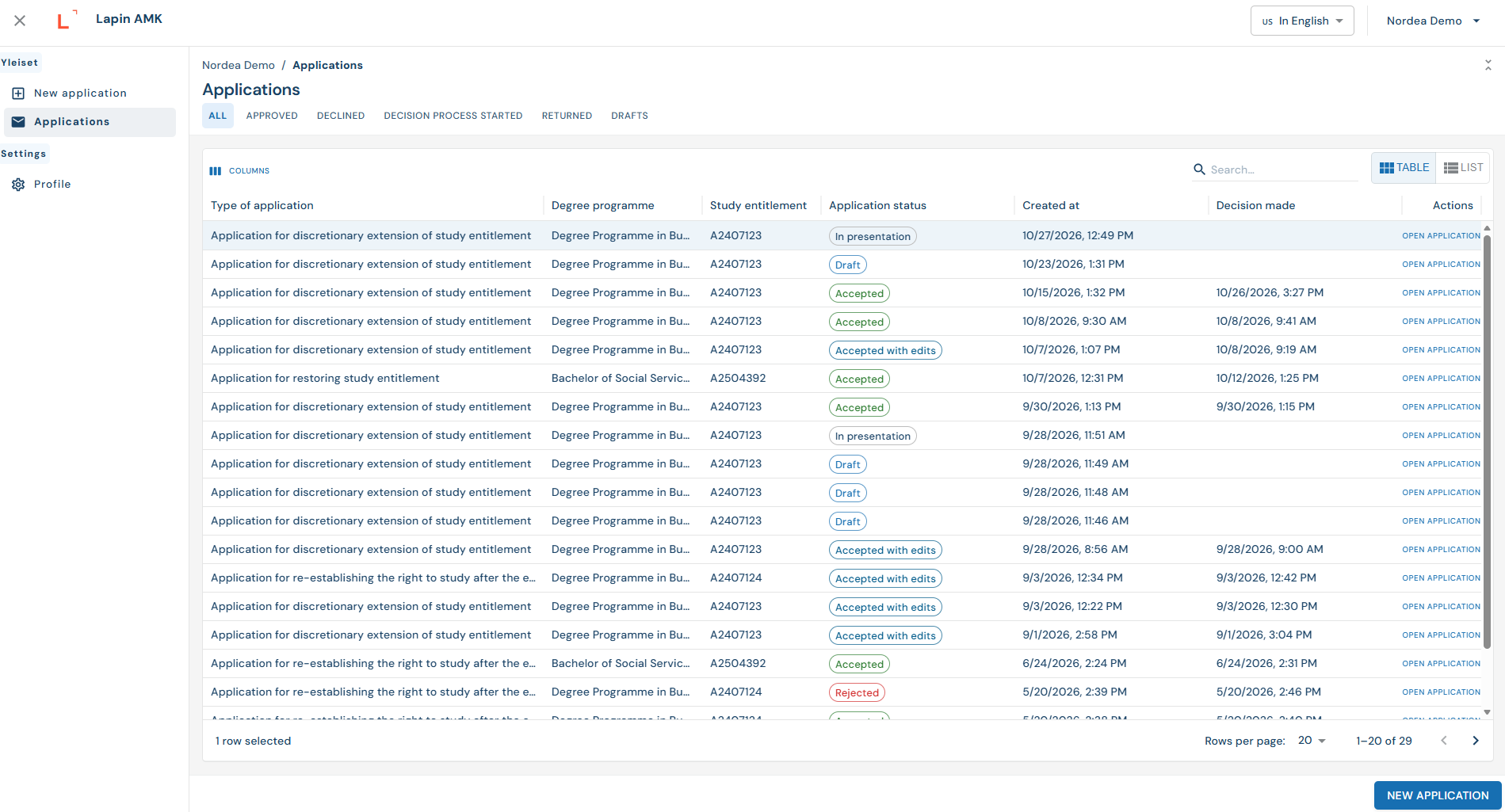
Once you have logged in to the service, you will see the main overview page. In the top-right corner, you can change the interface language and log out of the system by clicking on your name.
The list displays the statuses of your applications. Applications can be in one of the following statuses: Draft, Submitted, Approved, Rejected, or Returned.
You can open an application by selecting Open application at the end of the corresponding row. To create a new application, click the button in the bottom-right corner.
Click the image to enlarge
Filling in an application
Click the New application button in the bottom-right corner to create a new application. In the next step, you can select the type of application you wish to submit.
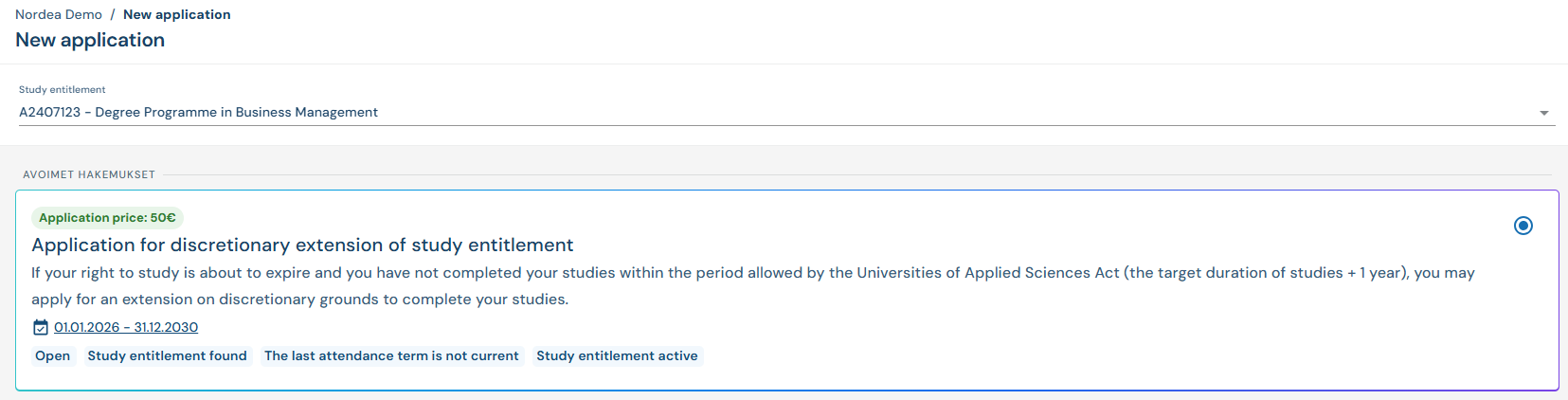
If you have more than one study right at the institution in question, you must select the study right you wish to use from the drop-down list.

Click the image to enlarge
Depending on the details of your right to study, you may have several application types to choose from. However, it is also possible that no applications are currently available to you.
The list displays information about each application type, such as when you can apply, the application fee, and whether any prerequisites apply.
Select your desired application type from the list.
Click the image to enlarge
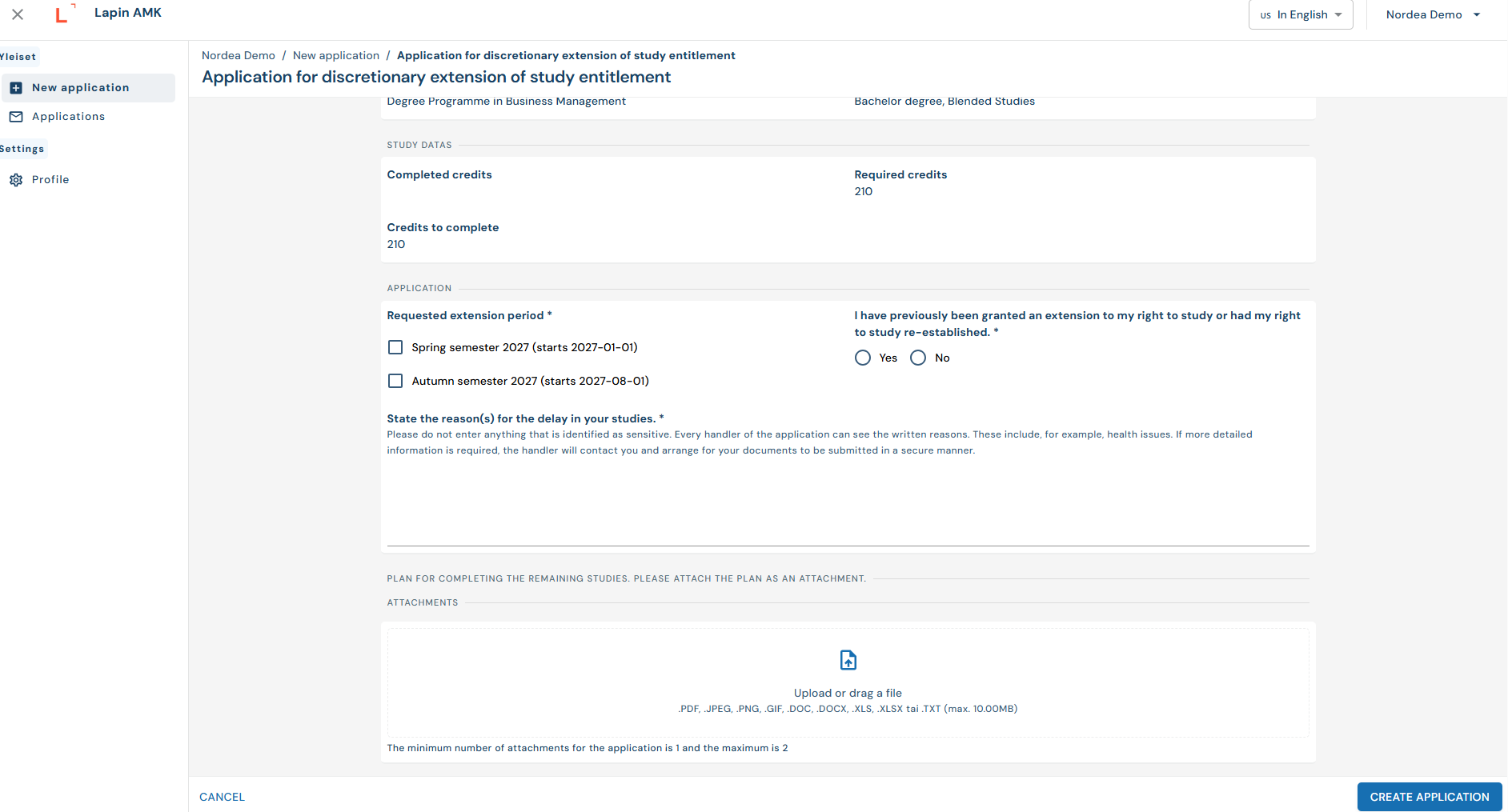
After making your selection, the system will open the application form and pre-fill some of the information. Complete any missing fields in the form. Mandatory fields are marked.
Fill in the form carefully and provide as much detail as possible. For example, if you are asked to provide reasons or justifications, make sure to describe them as clearly and thoroughly as possible.
Once you have completed all the required fields, you can create your application by clicking the Create application button in the bottom-right corner.
Click the image to enlarge
After this, you will have the opportunity to preview your application before submitting it. To submit the application, click the Submit application button in the bottom-right corner.
If the application type is subject to a fee, the payment must be completed when submitting the application. The application will not proceed to the next stage until the payment has been made.
Paytrail is used as the payment service provider. You will then be able to select your preferred payment method.
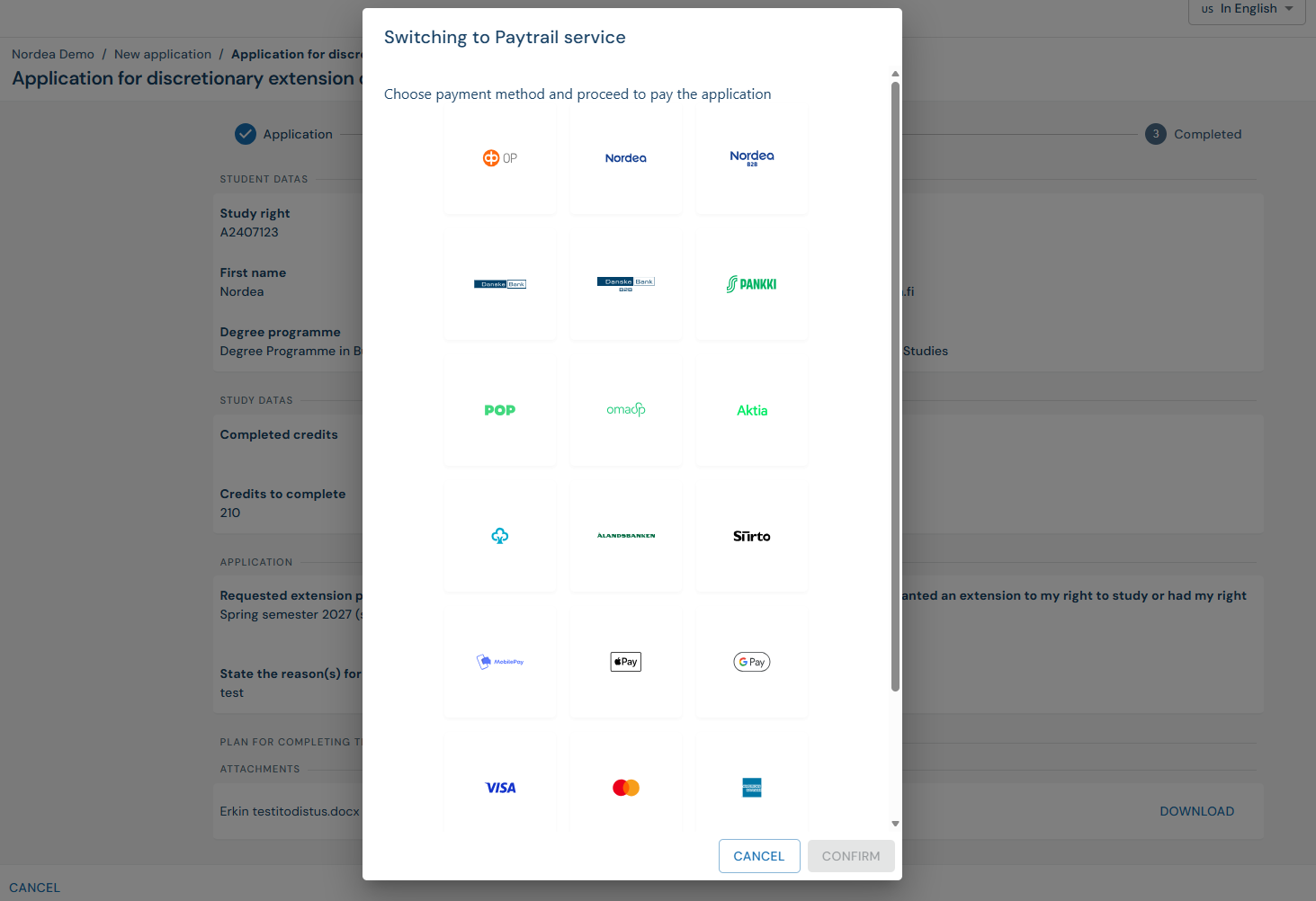
Click the image to enlarge
Once the payment has been successfully completed, the application will be forwarded to the educational institution for processing.
Viewing a submitted application
When you open a submitted application, you can view the information you entered, as well as the status of the application and the payment.
You can also download your completed application in PDF format.
If a decision has already been made on your application, you can also view the decision details and download the decision in PDF format.
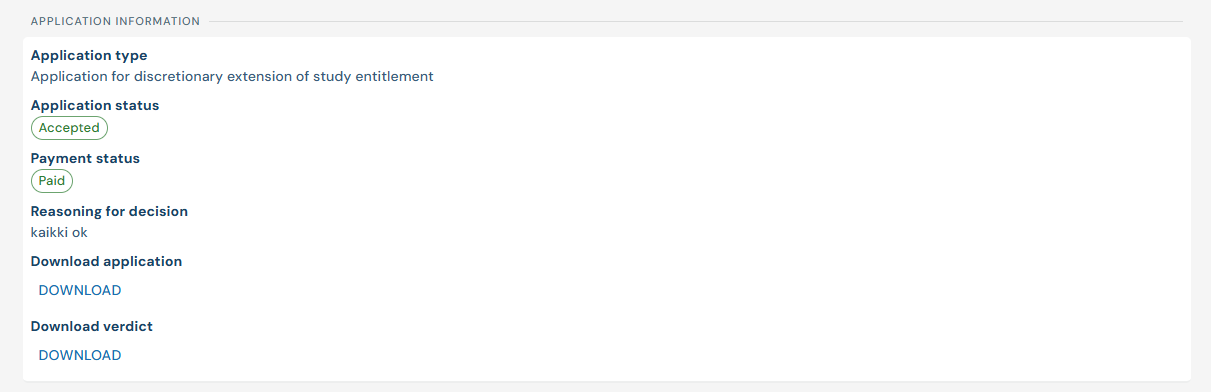
Click the image to enlarge
Back to For Students